Approval
Payments, commissions, payslips and yearly bonuses must be approved before they take effect. The Approval page brings them together in one place, with one tab for each kind of record. Most records go through two approvals, Layer 1 then Layer 2.
To open it: in the left menu, click Approval. You can also click a Commission Pending Approval notification, or another "waiting for your approval" notification. It opens the right tab.
You only see the tabs your role is allowed to view. If you can only see one tab, the tab bar is hidden.
Permissions
Set in Role & Permission. Each tab needs its own view permission. Approve and Reject need the permission set for that approval layer (by default Approve layer 1 or Approve layer 2 of the same module). View and the links open another page, so they need that page's permission; without it, you see — or plain text instead.
| Item | Permission |
|---|---|
| Payment tab | Payment Approvals > View |
| Payment tab: View / case code | Payments > View / Cases > View |
| Case Commission tab | Commission Approvals > View |
| Case Commission tab: View and case number | Cases > View |
| Special Commission tab | Special Product Commission Approvals > View |
| Special Commission tab: View | Special Commissions > View |
| Cop Commission tab | COP Commission Approvals > View |
| Cop Commission tab: View and COP ID | COP > View |
| IMS Commission tab | IMS Commission Approvals > View |
| IMS Commission tab: View and Batch ID | IMS KPI > View |
| Payroll tab, including everyone's payslips | Payroll Approvals > View |
| Payroll tab: Approve / Reject | Payrolls > Approve, plus the layer permission |
| Payroll tab: View | Payroll Approvals > View (no extra permission) |
| Yearly Bonus tab | Yearly Bonus Approvals > View |
| Yearly Bonus tab: View | Yearly Bonuses > View |
Approval List
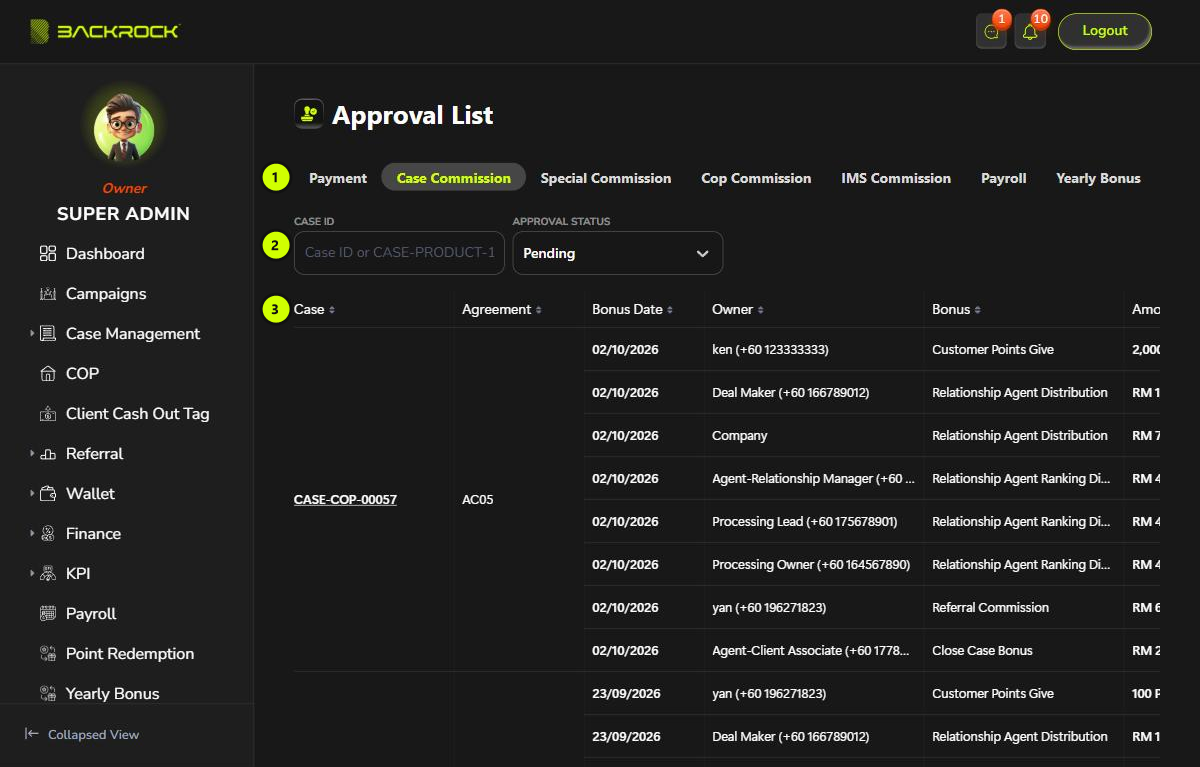
1. Tabs
| Tab | What you approve |
|---|---|
| Payment | Payments received for a case. See Payment |
| Case Commission | The commissions worked out when a case is fully paid |
| Special Commission | Special commissions. See Special Commission |
| Cop Commission | The commissions from COP stock |
| IMS Commission | The IMS Processing commissions from a disbursed KPI batch. See IMS Processing KPI |
| Payroll | Monthly payslips. See Payroll |
| Yearly Bonus | The yearly bonus. See Yearly Bonus |
2. Filters
Every tab has an Approval Status filter: Pending, Approved or Rejected. Pending is selected when the page opens. The other filters depend on the tab. See The tabs.
3. Table
The records in the tab. On the Case Commission tab, each case can have several commission rows, one for each person and bonus. The Case and Agreement are shown once for all the rows of the case. Click the case number to open the case details.
Approval columns and actions
The table is wider than the page. Scroll it to the right to see the approval columns and the buttons.
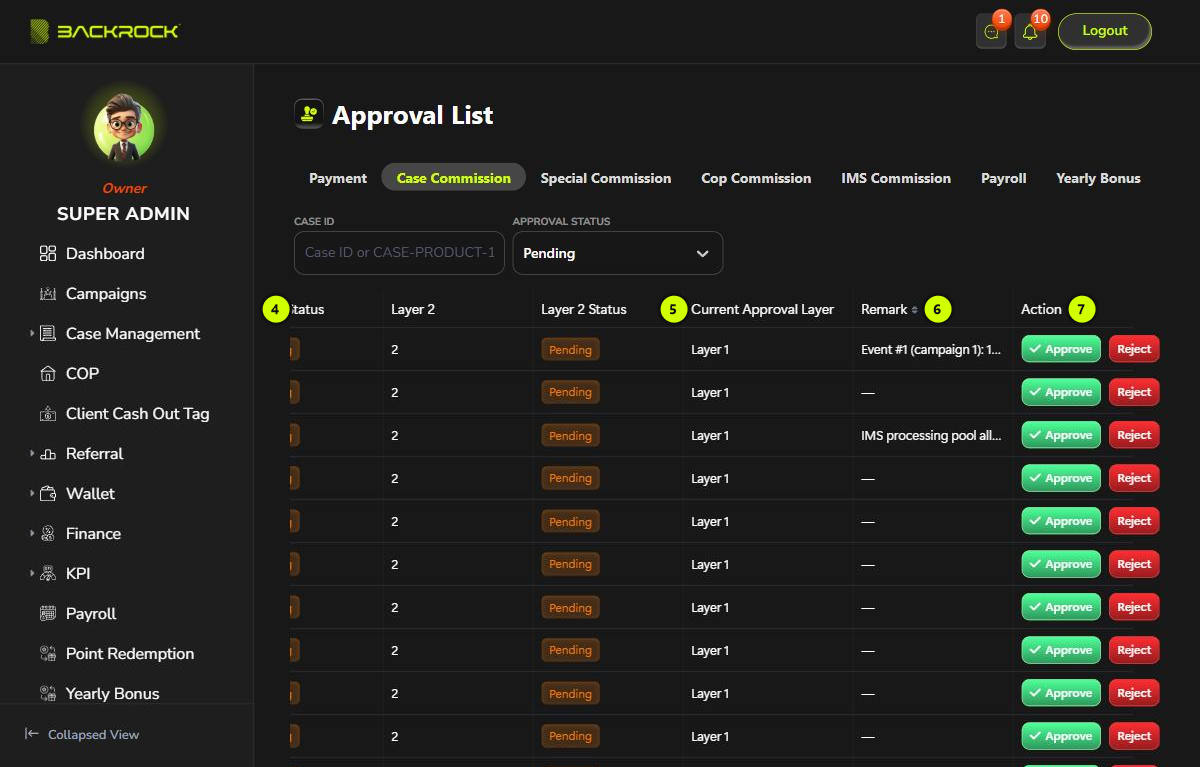
4. Layer 1 and Layer 2
Layer 1 and Layer 2 show the layer number. Layer 1 Status and Layer 2 Status show where each layer is:
| Status | What it means |
|---|---|
| Pending | Not decided yet |
| Approved | Approved at this layer |
| Rejected | Rejected at this layer. A reason is always given |
If a record has no second layer, Layer 2 Status shows —.
5. Current Approval Layer
The layer the record is waiting for, for example Layer 1.
6. Remark
A note on how the amount was worked out, for example the event or campaign that gave the points. When the record was rejected, the reason is shown first and this note underneath (on the Case Commission, Cop Commission and IMS Commission tabs).
7. Action
You see Approve and Reject when all of these are true:
- the record is still pending;
- its current layer is still pending;
- your role can approve that layer.
Otherwise you see View, which opens the record. On the Payroll and Yearly Bonus tabs, View is shown next to Approve and Reject, so you can check the payslip or the calculation before you decide. You only see View if your role can open that page. See Permissions.
Approve or reject
Each record is approved on its own. There is no bulk approve.
To approve:
- Click Approve on the row.
- Click Submit to confirm.
You see Success and the list refreshes. If there is a next layer, the record moves to it and the people who can approve that layer get a notification. After the last layer, the record takes effect. See The tabs.
To reject:
- Click Reject on the row.
- Type the Reason. It is required. Otherwise you see Reason is required.
- Click Submit to confirm.
A rejected record stops there. It doesn't go on to the next layer.
The tabs
Payment
- Filters: Case ID (type the number or the full case number, for example
CASE-PRODUCT-123; click × to clear) and Approval Status. - Columns: Payment Date, Customer Name, Case, Method, Amount, Reference No. and Attachment. Click an attachment to view it.
- View: opens the payment details.
- When fully approved: the case's paid and remaining amounts are updated. When the case becomes fully paid, its commissions are worked out and appear on the Case Commission tab.
Case Commission
- Filters: Case ID and Approval Status.
- Columns: Case, Agreement, Bonus Date, Owner (the person who gets the bonus, or Company), Bonus (the kind of bonus) and Amount. A customer's points bonus is shown in Points instead of RM.
- View: opens the case details.
- When fully approved: the amount is paid into the owner's wallet. The commission goes to the Commission Wallet, a customer's referral bonus to the Cash Wallet, and a customer's points to the Points Wallet. The owner gets a Commission Distributed notification. Rows for Company pay nobody. The amount stays with the company.
- When rejected: nobody is paid and the amount stays with the company.
Results per page counts cases, not rows. A page of 10 can show more than 10 rows. The count under the table (for example 1 to 4 items of 4) also counts cases.
Special Commission
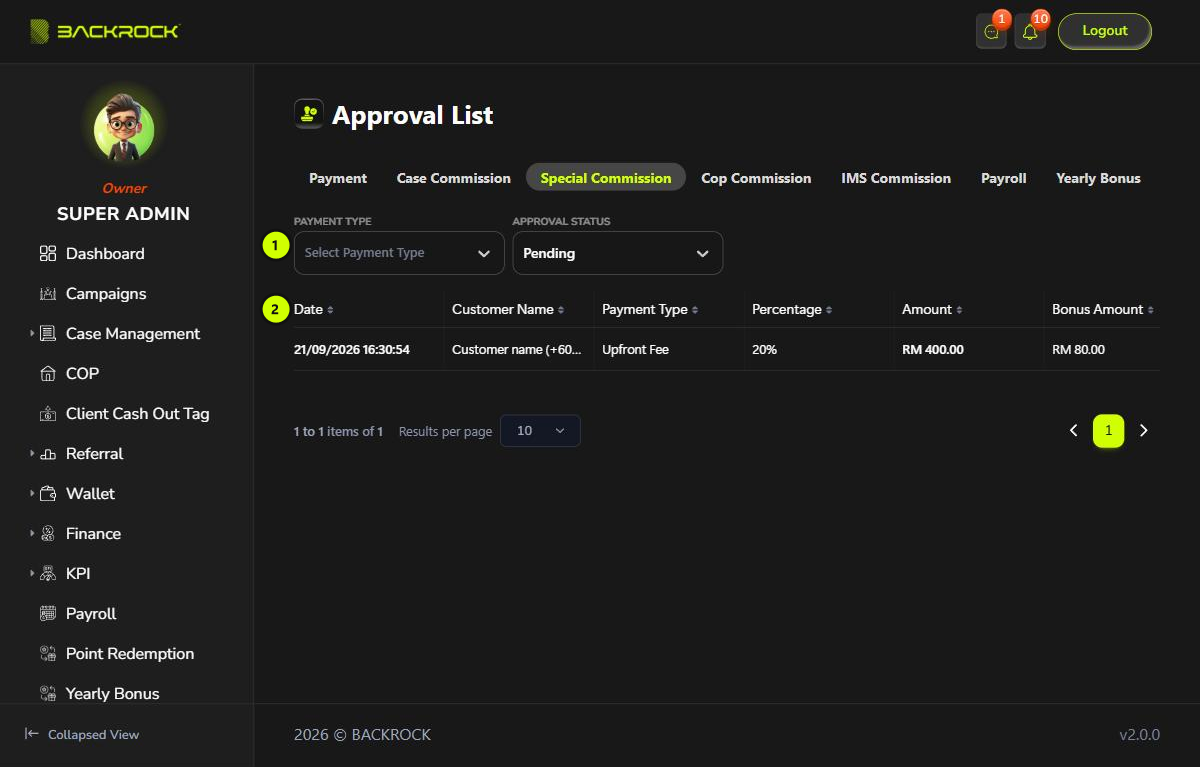
- Filters: Payment Type (for example Upfront Fee) and Approval Status.
- Table: Date, Customer Name, Payment Type, Percentage, Amount, Bonus Amount, Attachment (click to open) and Created By, then the approval columns.
View opens the special commission details. When it is fully approved, the Bonus Amount is paid into the wallet of the person who created the record.
Cop Commission
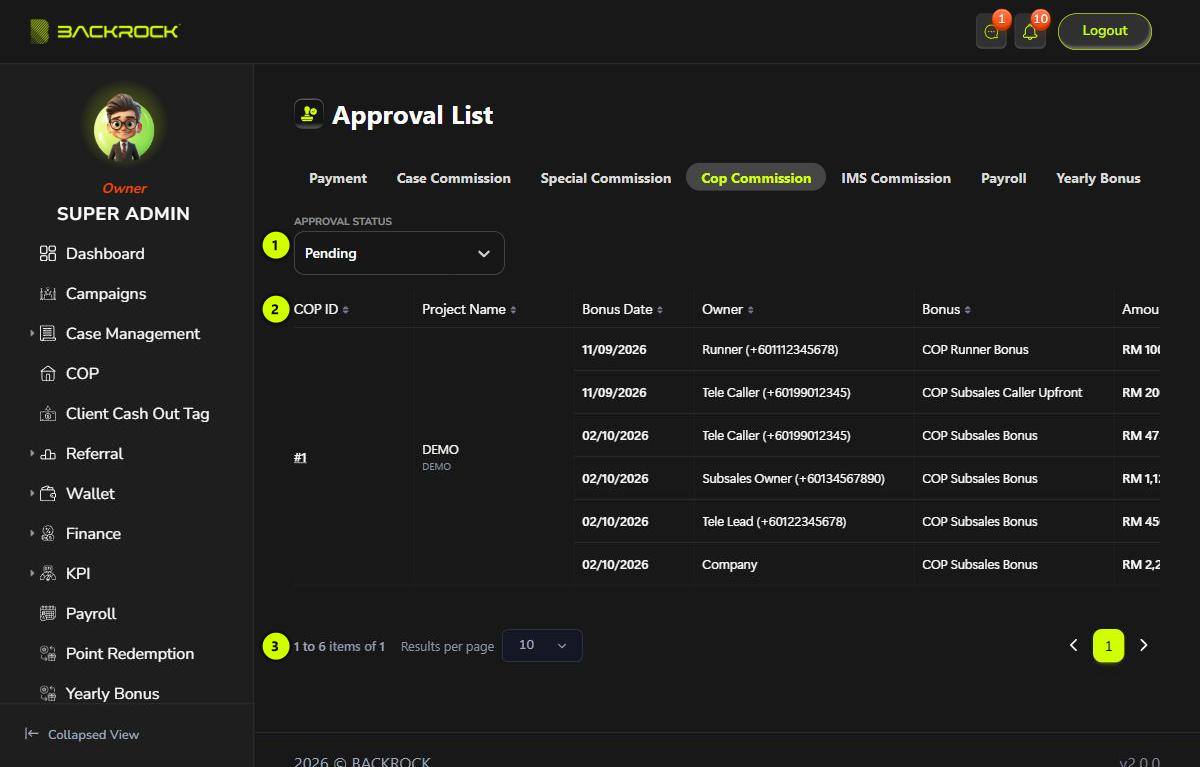
-
Filter: Approval Status.
-
Table: the rows are grouped by COP. COP ID and Project Name are shown once for each COP. Click the COP ID to open the COP. Then Bonus Date, Owner, Bonus, Amount and the approval columns.
Bonus When it is created COP Runner Bonus When the runner's photos are approved COP Subsales Caller Upfront When the COP deal is closed as completed COP Subsales Bonus When the case linked to the COP is fully paid. It is shared between the subsales caller, subsales owner, tele-lead and the company -
Pages: Results per page counts COPs, not rows.
View opens the COP. When a row is fully approved, the amount is paid into the owner's Commission Wallet, and the owner gets a notification. Rejected rows pay nobody.
See The COP process.
IMS Commission
- Filters: Department, Month, Year, Batch ID and Approval Status.
- Columns: Batch ID, Department, Year and Month are shown once for each KPI batch. Click the Batch ID to open the batch details. Then Bonus Date, Owner, Bonus (for example IMS KPI Bonus, IMS Lead Bonus, IMS Owner Bonus or IMS Company Retained), Bonus Value (the amount the bonus was worked out from), Percent, Amount, Mark (the person's KPI score), Remark and the approval columns.
- View: opens the batch details.
- When the rows appear: when an IMS Processing KPI batch is disbursed. See IMS Processing KPI.
- When fully approved: the amount is paid into the owner's Commission Wallet, and the owner gets a notification.
- When rejected: nobody is paid and the amount stays with the company.
Results per page counts KPI batches, not rows.
Payroll
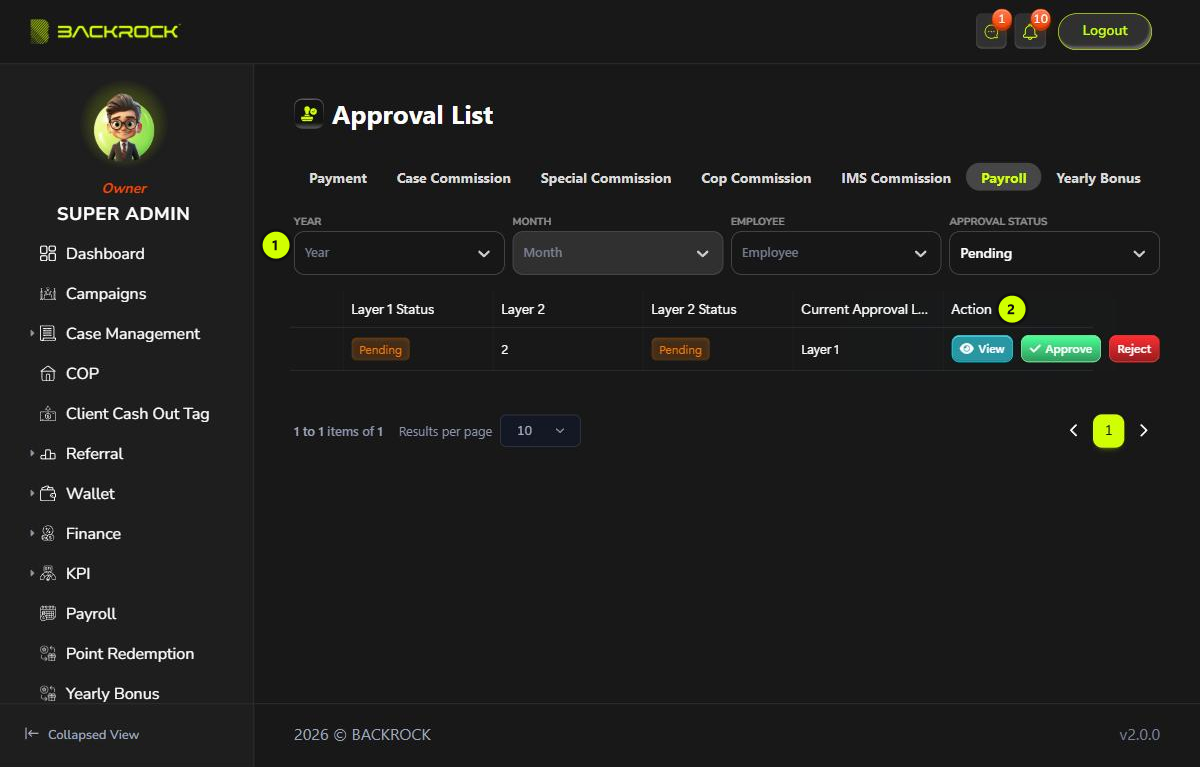
- Filters: Year, Month, Employee and Approval Status.
- Action: View opens the payslip details. Approve and Reject show when you can approve payslips and the current layer, and never on your own payslip.
The table also shows the Payroll Month, Employee, Commission, Gross Pay and Net Pay. Layer 1 is the HR approval and Layer 2 the admin approval. Nobody can approve their own payslip. When a payslip is fully approved, its commission is taken out of the employee's wallet. See Payroll approval.
Yearly Bonus
- Filter: Approval Status.
- Columns: Date, Year, Revenue, COGS, OPEX, Net Profit, Target Completion and Profit Sharing Pool, then the approval columns.
- View: opens the full calculation.
- When fully approved: each person's bonus is paid into their Annual Bonus Wallet. See Yearly Bonus approval.
The tables can't be sorted. The newest case, COP, batch, payment or month is always shown first.