Campaigns
On the Campaign page you can join a team campaign, follow how every team is doing and see the top members.
To open it: click Campaigns in the left menu. You can also click View details in the Campaign Progress section of the Dashboard.
- You need a campaign code. Ask the person running the campaign for it.
- Your account must belong to a department. Some campaigns are only open to certain departments.
If you haven't joined a campaign yet, the page shows Join the Campaign to See Team Progress. Click Enter Campaign Code to join. See Join a campaign below.
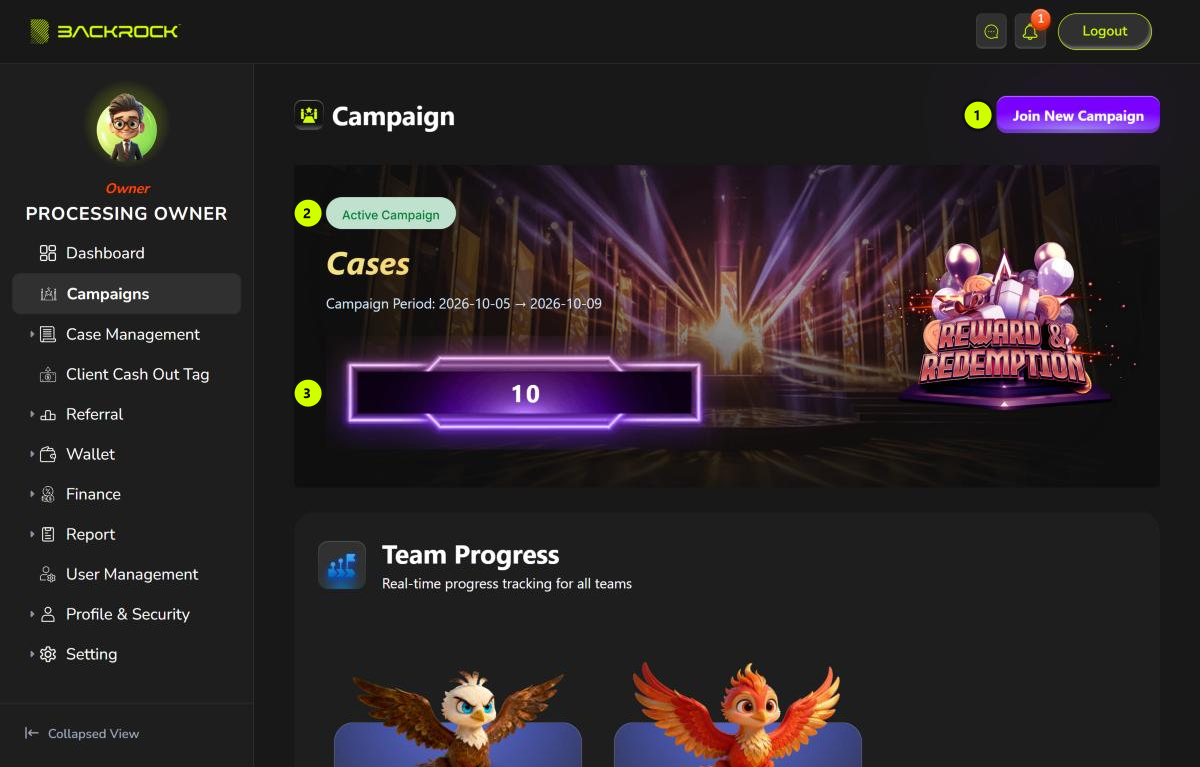
1. Join New Campaign
Opens the window to join another campaign. See Join a campaign below.
If you have joined more than one campaign, a dropdown appears next to Join New Campaign. Choose a campaign there to see its progress. Your newest campaign is shown first.
2. Campaign details
- The campaign name, for example
Cases. - Campaign Period: the start date and end date of the campaign.
The Active Campaign label is always shown. Check the Campaign Period to see whether the campaign is still running.
3. Target
The number in the frame is the campaign target. Every team aims for this number.
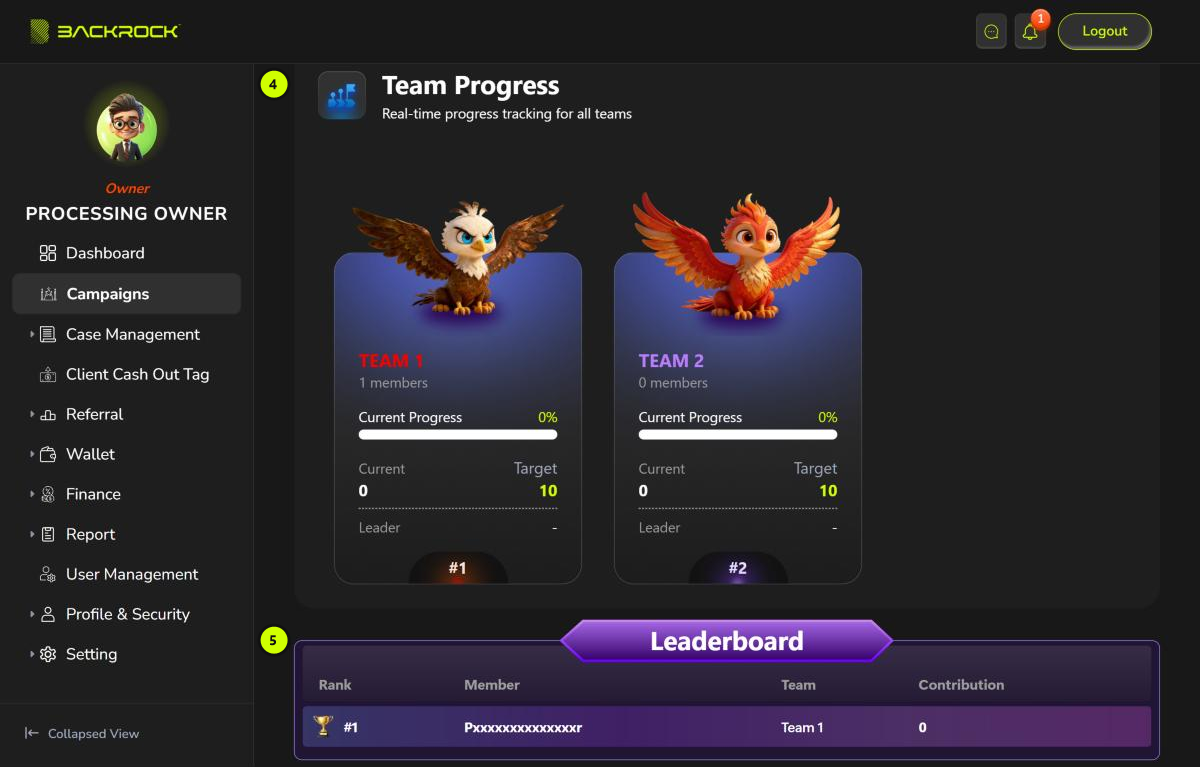
4. Team Progress
There is one card for each team in the campaign.
| Part | What it shows |
|---|---|
| Team name | The team's name, in the team's colour |
| members | How many people are in the team |
| Current Progress | How far the team is towards the target, in % |
| Current | The team's score: the contributions of all its members added together |
| Target | The campaign target |
| Leader | The team leader. Only the first and last letters of the name are shown, for example Jxxxn. If the team has no leader, it shows - |
| #1, #2, … | The number of the card |
The teams are shown in the order they were set up, so #1, #2, … only number the cards. They are not the team ranking. To see which team is ahead, compare Current. The Campaign Progress section on the Dashboard shows your own team's rank.
How contributions are counted
- For a campaign that counts cases, a member gets 1 for every case they handle that reaches the case status chosen for the campaign. If no status is chosen, it is Completed Cases.
- A case only counts if it reaches that status after you joined the campaign and before the campaign ends. Each case counts once.
- An admin can also adjust a member's contribution.
- A team's Current is the total of its members' contributions.
5. Leaderboard
Shows the top 10 members of the campaign, from all teams. The highest contribution is first. If two members have the same contribution, the one who joined first is higher.
| Column | What it shows |
|---|---|
| Rank | The member's position. The top 3 have a gold, silver and bronze medal |
| Member | The member's name. Only the first and last letters are shown |
| Team | The member's team |
| Contribution | The member's contribution |
Join a campaign
Click Join New Campaign, or Enter Campaign Code if you haven't joined any campaign yet.
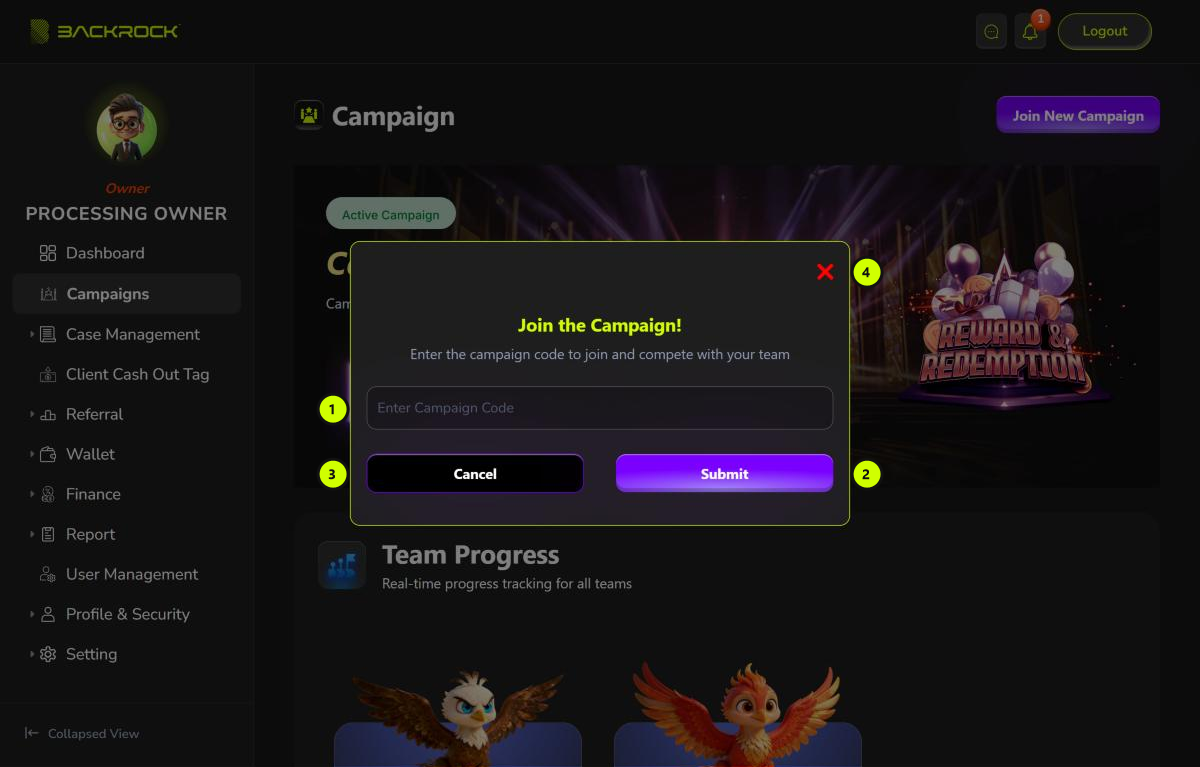
- Campaign code: type the code. Letters are changed to capitals as you type.
- Submit: joins the campaign. You can also press Enter.
- Cancel: closes the window without joining.
- Close (✕): closes the window without joining.
After you click Submit, a short animation picks your team. Then Welcome to Team …! shows your team, its Team Members and its Current Rank. Click Let's Go! to see the campaign you joined.
How your team is chosen: you can't choose your team.
- If the campaign is only open to certain departments, everyone from your department is put in the same team.
- Otherwise, you are put in the team with the fewest members.
If you enter the code of a campaign you have already joined, you stay in the same team.
If you can't join
The message under the code box tells you why.
| Message | What it means |
|---|---|
| Please enter campaign code | The code box is empty. |
| Invalid join code | No campaign uses this code. Check the code and try again. |
| Join code has expired | The code can no longer be used. |
| Campaign is not active for joining | The campaign hasn't started yet, or it has already ended. |
| Your account is not assigned to a department; you cannot join campaigns | Your account has no department. Contact your admin. |
| This join code is only for the following departments: … | The campaign is not open to your department. |
| Every team in this campaign is already taken by another department | There is no free team left for your department. Contact the person running the campaign. |