Bad Debt Report
The Bad Debt Report shows, for each agent, how many cases they handle and how many of those are bad debt. You can export the report and blacklist an agent.
To open it: in the left menu, click Case Management > Bad Debt Report.
You only see this page if your role can view agents' bad debt. It shows every agent who handles at least one case.
Permissions
Set in Role & Permission:
| Item | Permission |
|---|---|
| Bad Debt Report menu, list and Export | Cases > View agent bad debt |
| Blacklist Agent, Remove from Blacklist | Users > Edit |
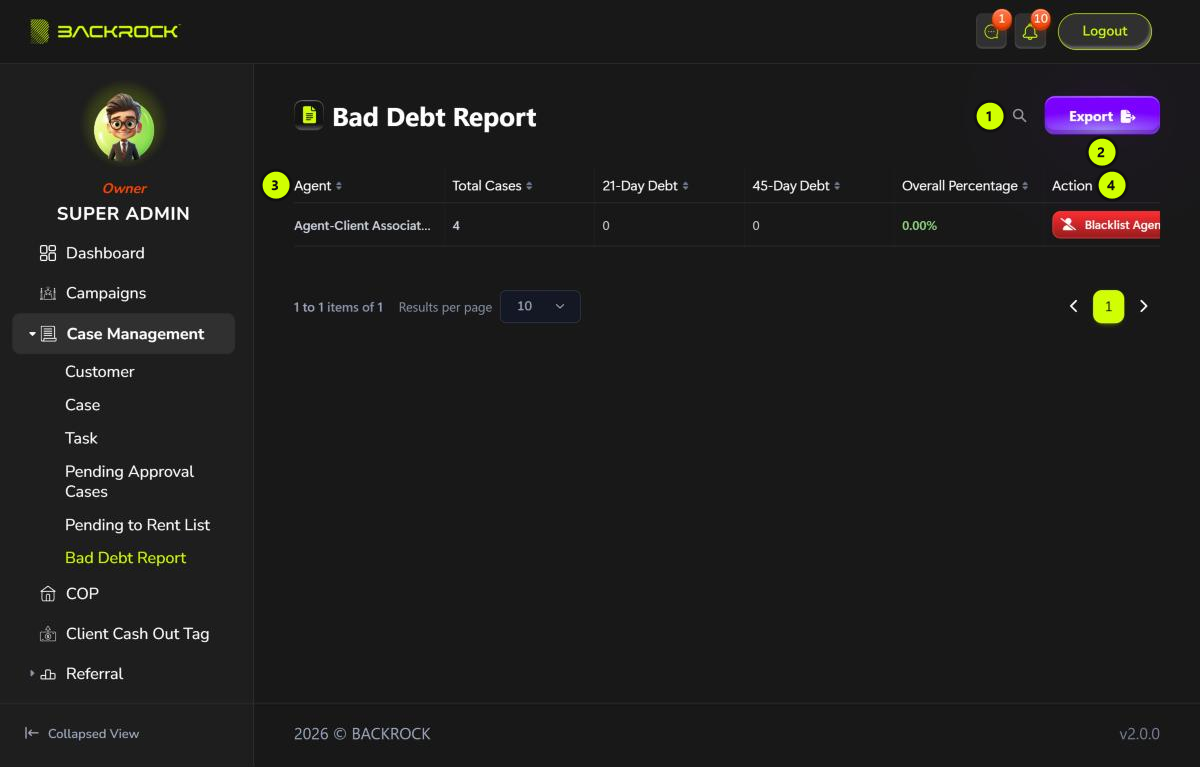
1. Search
Click the search icon (🔍), then type an agent's name. The list updates as you type.
2. Export
Click Export to download the report as a CSV file (it includes every page). The file has the same columns as the table, plus each agent's Status (Active or Blacklisted). You see Exported successfully. If there is nothing to export, you see No data to export.
3. Agent table
| Column | What it shows |
|---|---|
| Agent | The agent's name and phone number |
| Total Cases | All the cases the agent handles |
| 21-Day Debt | The agent's cases at the 21-day bad debt stage |
| 45-Day Debt | The agent's cases at the 45-day bad debt stage |
| Overall Percentage | 21-day and 45-day cases together, as a percentage of Total Cases |
Agents with the most 45-day cases are shown first.
The numbers change colour as they grow:
- 21-Day Debt and 45-Day Debt: amber from 5 cases, red from 10 cases.
- Overall Percentage: green below 20%, amber from 20%, red from 30%.
To see the cases themselves, use the Bad Debt Status filter on the Case List.
For how a case becomes bad debt, see Financial Summary on the Dashboard.
4. Action
- Blacklist Agent: stops the agent from using the system. Click it, then click Yes to confirm.
- Remove from Blacklist: shown for a blacklisted agent. Lets the agent use the system again.
You see User updated successfully. You need a role that can edit users to do this. Otherwise, the Action column shows -.
Use Results per page to show 10, 25, 50 or 100 agents.