Case Details
Case Details shows everything about one case: the customer, the product, the handlers, the banks, the payments and what has happened so far.
To open it: on the Case List, click View on the case. You can also open a case from the Task, Pending Approval Cases and Pending to Rent List pages.
You can only open cases you can see. See Which cases you see.
Permissions
Set in Role & Permission:
| Item | Permission |
|---|---|
| Open the page | Cases > View |
| Open cases that aren't assigned to you | Cases > View all |
| Approve | Cases > Approve status |
| Status list | Cases > Edit |
| Edit Case | Cases > Edit |
| Bank Action buttons and Final Approved Amount | Cases > Edit |
| Open a payment from Payment Received | Payments > View |
| Activity Log tab entries | Reports > View case activity logs |
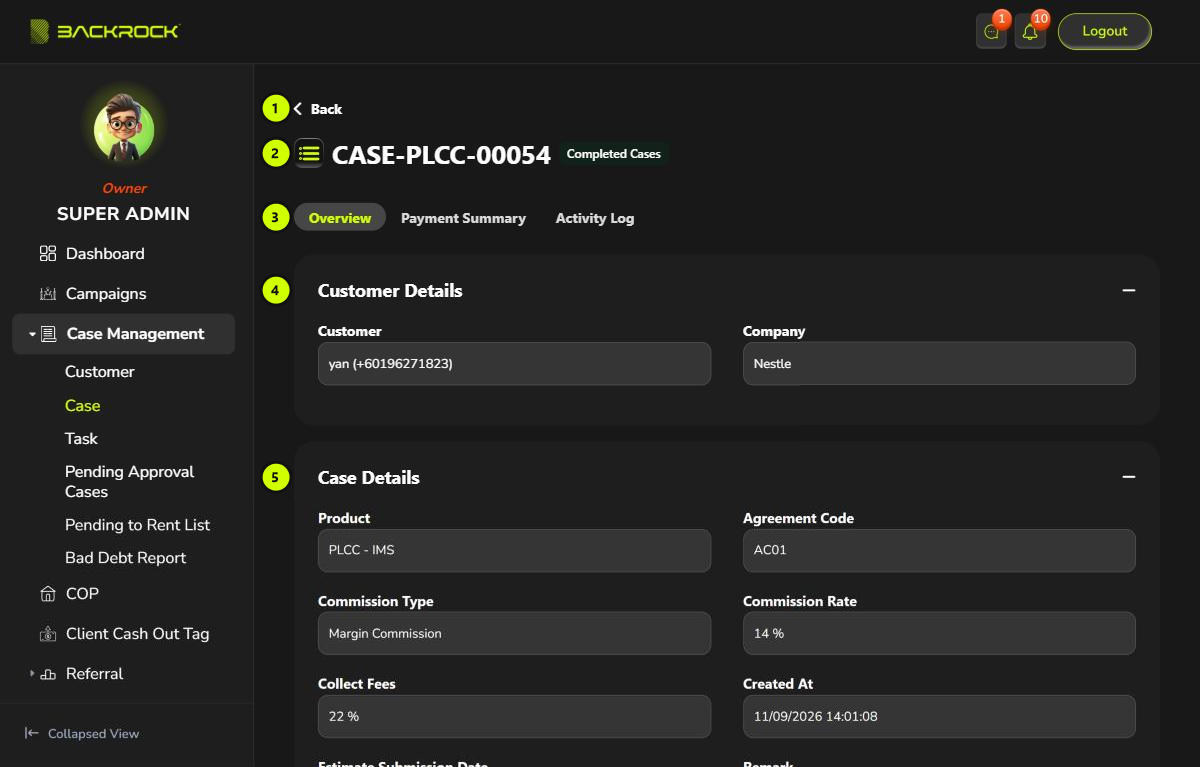
1. Back
Returns to the page you came from.
2. Case number and status
The case number, for example CASE-PLCC-00054, and the current status of the case.
Depending on the case's current status and your role, you may also see these at the top right:
Approve
Shown when the current status needs approval.
- Click Approve.
- Click Yes to confirm.
The case can then move on to its next status. If your role can't approve, you see Waiting for Approval instead.
Status
Shown when your role can edit cases and the case can be moved to a later status by hand.
- Choose the new status in the Status list.
- Click Yes to confirm.
The case moves straight to the status you chose. The statuses in between are skipped.
Edit Case
Shown when your role can edit cases and the current status allows changes. Opens the case form. See Create or Edit a Case.
3. Tabs
- Overview: the case information. Shown below.
- Payment Summary: only for products that charge a fee. See Payment Summary.
- Activity Log: what has happened to the case. See Activity Log.
4. Customer Details
The customer's name, phone number and company.
The information is grouped in cards. Click + to open a card and − to close it. When you open a case, only Bank Details is open.
5. Case Details
| Field | What it shows |
|---|---|
| Product | The product and its type |
| Agreement Code | The agreement code of the case |
| Commission Type and Commission Rate | How commission is worked out for this case |
| Charging fee | Only for products that charge a fee. The label is the product's name for the fee, for example Collect Fees |
| Created At | When the case was created |
| Estimate Submission Date and Remark | As entered on the case |
| Handle By, Deal Maker, IMS Processing | The people working on the case |
For a COP case, a Cop Details card shows the property: project, size, type and address.
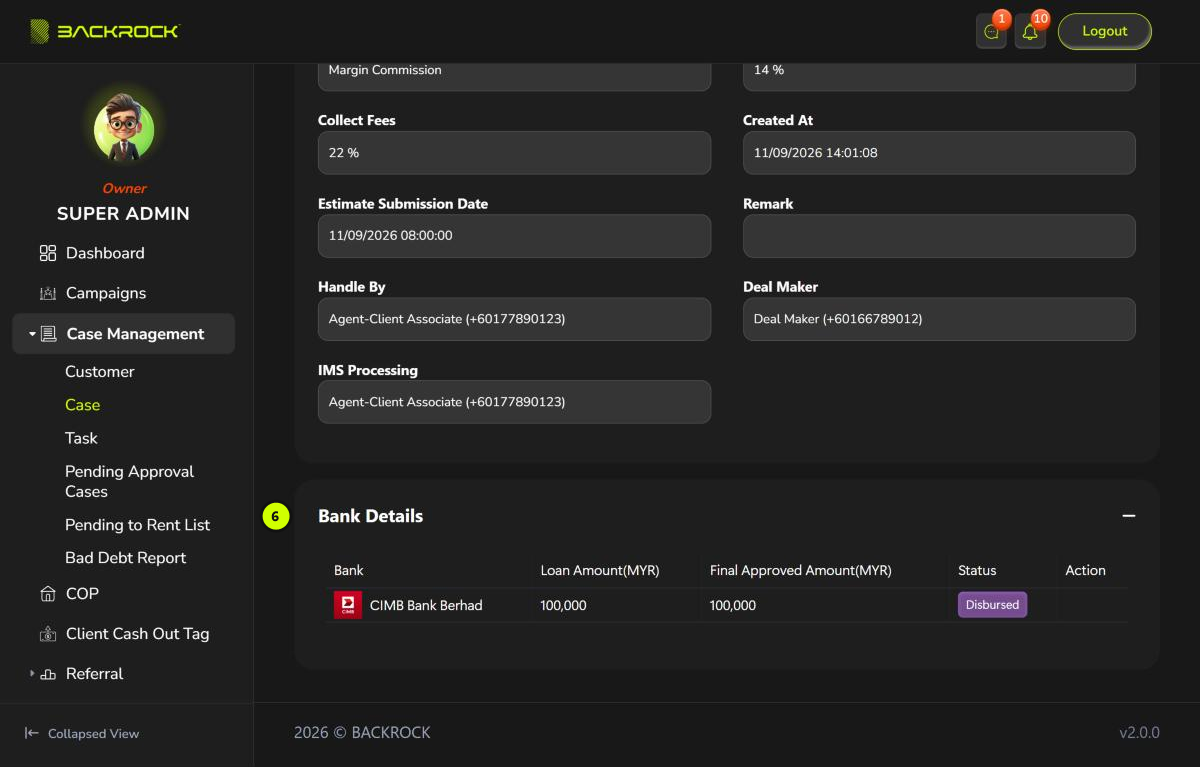
6. Bank Details
The banks the case was submitted to.
| Column | What it shows |
|---|---|
| Bank | The bank |
| Loan Amount(MYR) | The amount requested |
| Final Approved Amount(MYR) | The amount the bank approved |
| Status | Pending, Submitted, Approved, Rejected or Disbursed |
| Action | The next step for this bank. See below |
The Action buttons, and the box to type the Final Approved Amount, only appear when your role can edit cases and the case's current status allows bank updates.
| Bank status | What you can do |
|---|---|
| Pending | Click Mark as Submitted when the application has been sent to the bank |
| Submitted | Type the Final Approved Amount, then click Approve. Or click Reject |
| Approved | Click Mark as Disbursed when the bank has paid out |
| Rejected or Disbursed | Nothing more to do |
Each action asks you to confirm. Click Yes. If you click Approve without an amount, you see Please enter approved amount.
After a bank update, the system checks whether the case can move on to its next status. See How a case moves through its statuses.
Payment Summary
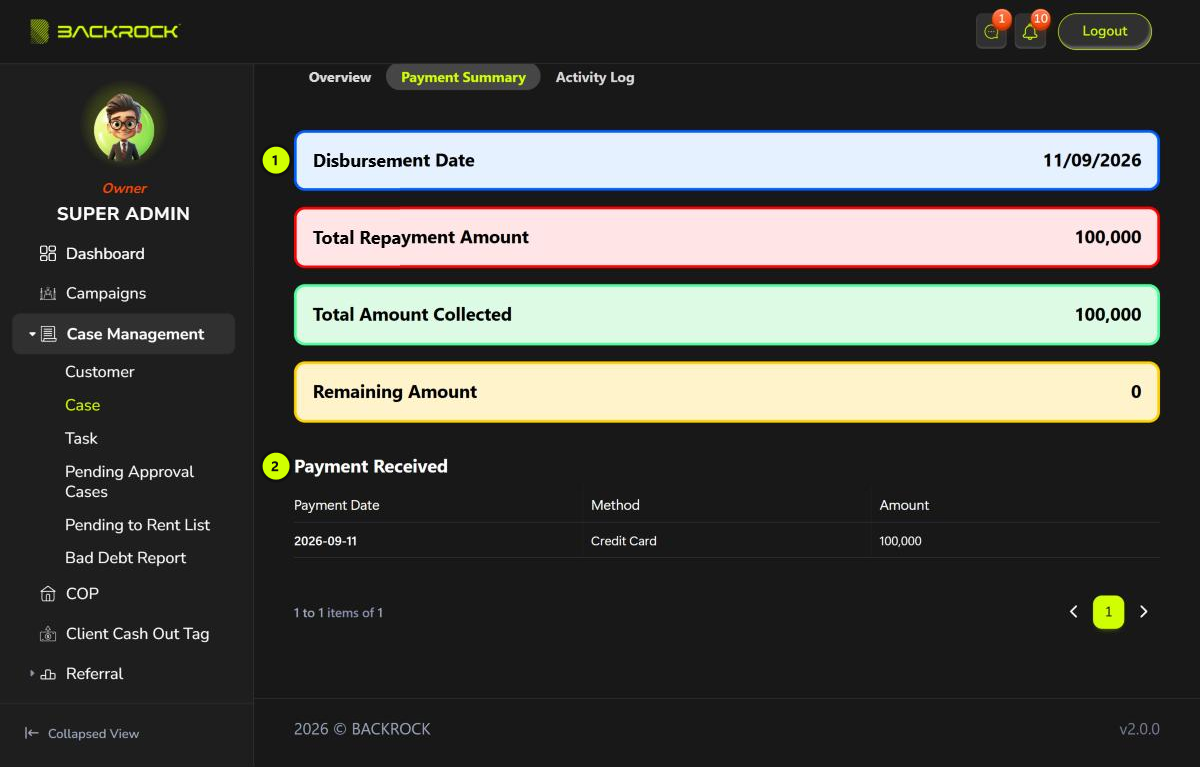
- Summary
- Disbursement Date: when every bank in the case had disbursed.
- Total Repayment Amount: the fee the customer has to pay.
- Total Amount Collected: how much has been paid so far.
- Remaining Amount: how much is still to be paid.
- Payment Received: each approved payment, with its date (DD/MM/YYYY), method and amount. Click Payment Date, Method or Amount to sort. If your role can view payments, click a payment to open its details; Back on the details page returns you here. Payments are recorded on the Payment page (Finance menu). They appear here once they are approved.
Activity Log
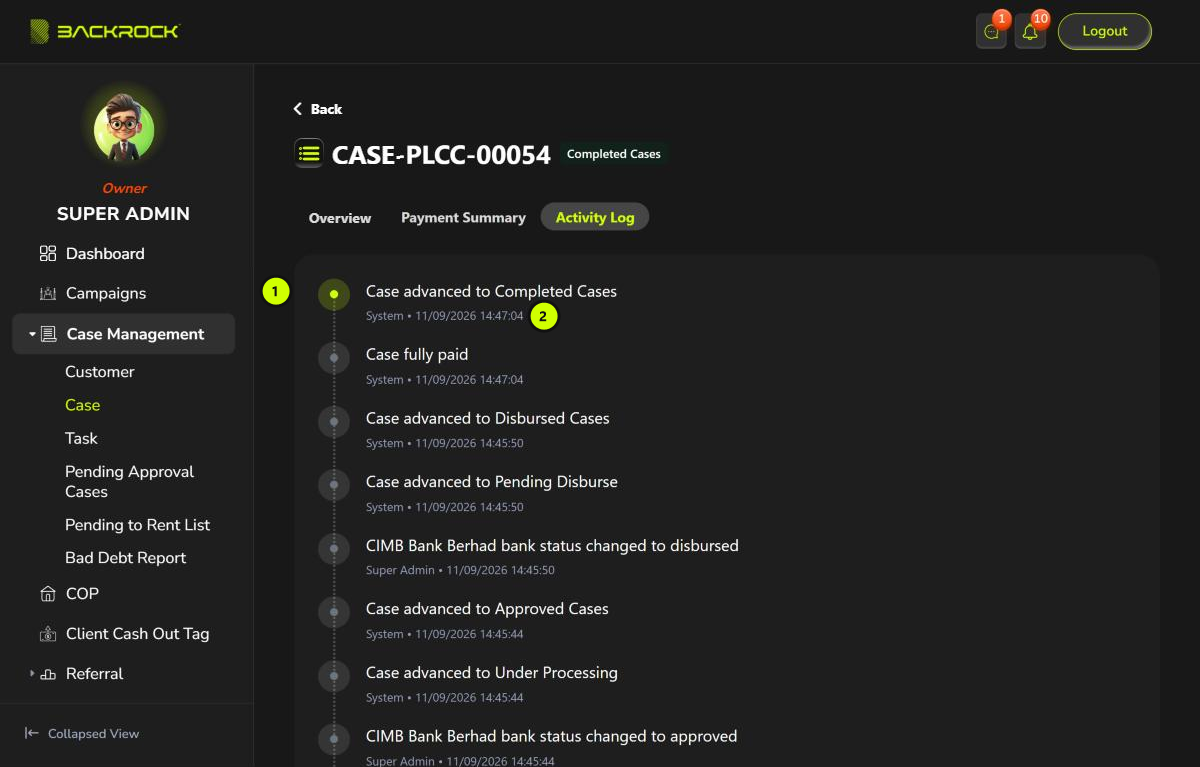
- What happened, for example a status change, a bank update, an approval or a payment. The newest is at the top.
- Who did it and when. System means the change was made automatically.
Scroll down to the end of the list to move between pages.
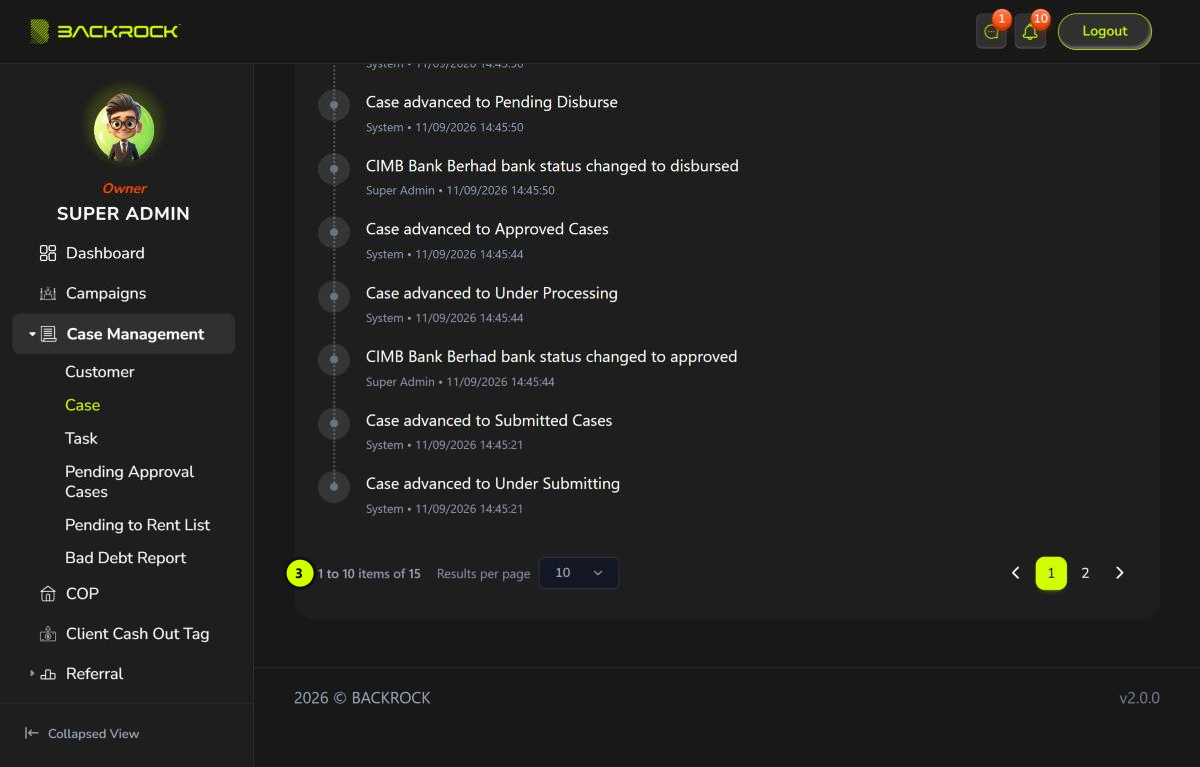
- Pages: 10 entries are shown at a time. Use Results per page and the page numbers to see older entries.
If your role can't view case activity logs, the tab shows No activity log found.
How a case moves through its statuses
- Every product has a workflow: a list of statuses in order. A new case starts at the first status.
- A status can need all its tasks to be done, and it can need an approval. You tick off tasks from the Case List or the Task page, and approve on this page or the Pending Approval Cases page.
- When those are done, the system moves the case on to the next status by itself, as soon as that status's conditions are met. For example, a status may wait until all the banks are approved or disbursed, or until the fee is fully paid.
- Some statuses are never reached automatically. You choose them in the Status list at the top.
- When the status changes, the handler and deal maker get a notification, and so does the customer. When a status needs approval, the handler and deal maker who can approve get a notification too.
When every bank has disbursed and the product charges a fee:
- The Total Repayment Amount is set. It is the fee percentage of the approved amounts, or the fixed fee.
- The case's financial status becomes Unpaid. After the first approved payment it becomes Partially Paid, and Fully Paid when nothing is left to pay.
- The bad debt days start counting. See Financial Summary on the Dashboard.
Comments and tasks are not shown on this page. Use Comment and Task on the Case List.