Case List
The Case page lists the cases you can see. From here you can create a case, filter the list, and open a case.
To open it: in the left menu, click Case Management > Case. The cards on the Dashboard also open this page with a filter already set.
If your role can view all cases, you see every case. Otherwise, you only see the cases you are assigned to, for example as the handler, sales admin, deal maker or IMS processing person.
Permissions
Set in Role & Permission:
| Item | Permission |
|---|---|
| Case menu and list | Cases > View |
| See every case, not only yours | Cases > View all |
| Create Case | Cases > Create |
| View | Cases > View |
| Comment | Comments > View |
| Task (mark a task as done) | Cases > View |
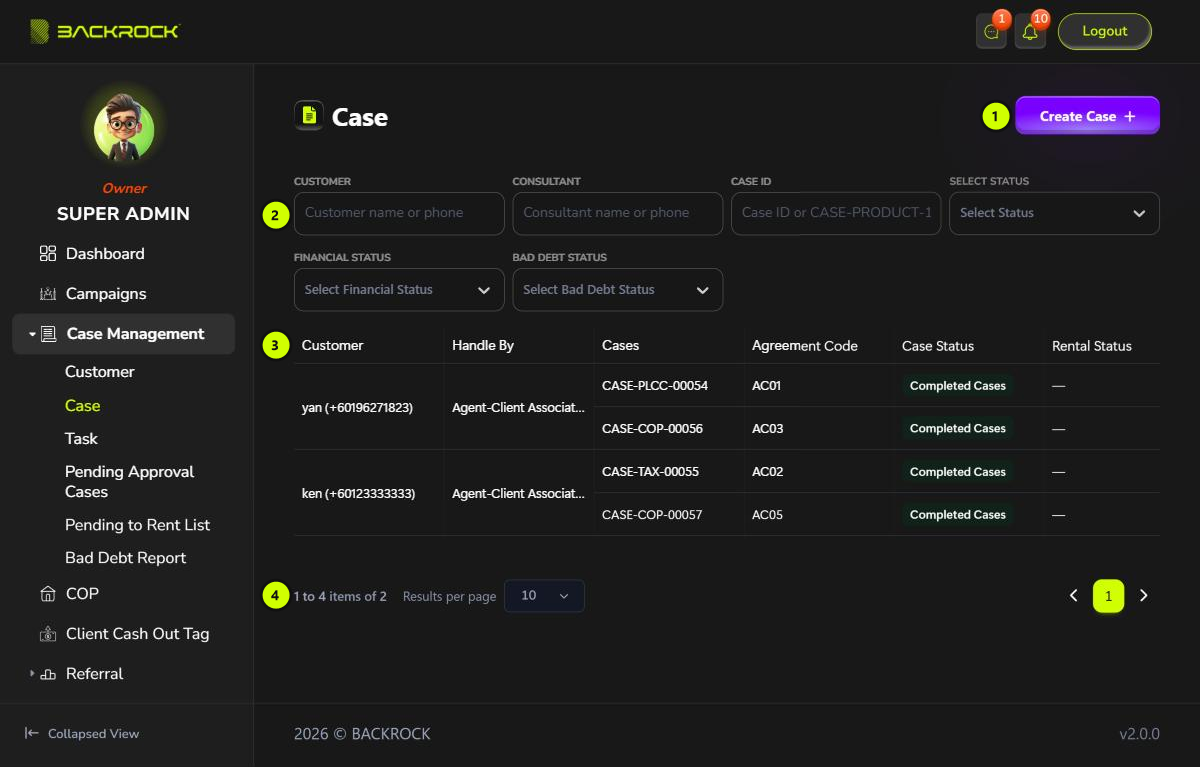
1. Create Case
Opens the form to create a new case. See Create or Edit a Case. You only see this button if your role can create cases.
2. Filters
| Filter | How to use it |
|---|---|
| Customer | Type the customer's name or phone number |
| Case ID | Type the case number, for example CASE-COP-00056, or just the number 56 |
| Select Status | Choose a case status |
| Financial Status | Choose Unpaid, Partially Paid and/or Fully Paid. You can choose more than one |
| Bad Debt Status | Choose Pending 21 Days and/or Pending 45 Days |
The list updates when you stop typing. Click × to clear a filter.
3. Case table
| Column | What it shows |
|---|---|
| Customer | The customer's name and phone number |
| Handle By | The person handling the case |
| Cases | The case number, for example CASE-COP-00056 |
| Agreement Code | The agreement code of the case |
| Case Status | The current status of the case |
| Rental Status | For COP cases: whether the property is pending to rent or rented. — if not set. See Pending to Rent List |
When the same customer has several cases with the same handler, the Customer and Handle By cells are shown once for all of them.
4. Results per page
Use Results per page to show 10, 25, 50 or 100 per page. The number counts customers, so a page shows all the cases of those customers. The count under the table (for example 1 to 2 items of 2) also counts customers. The newest customers are shown first.
Amounts and actions
The table is wider than the page. Scroll it to the right to see the amounts and Action.
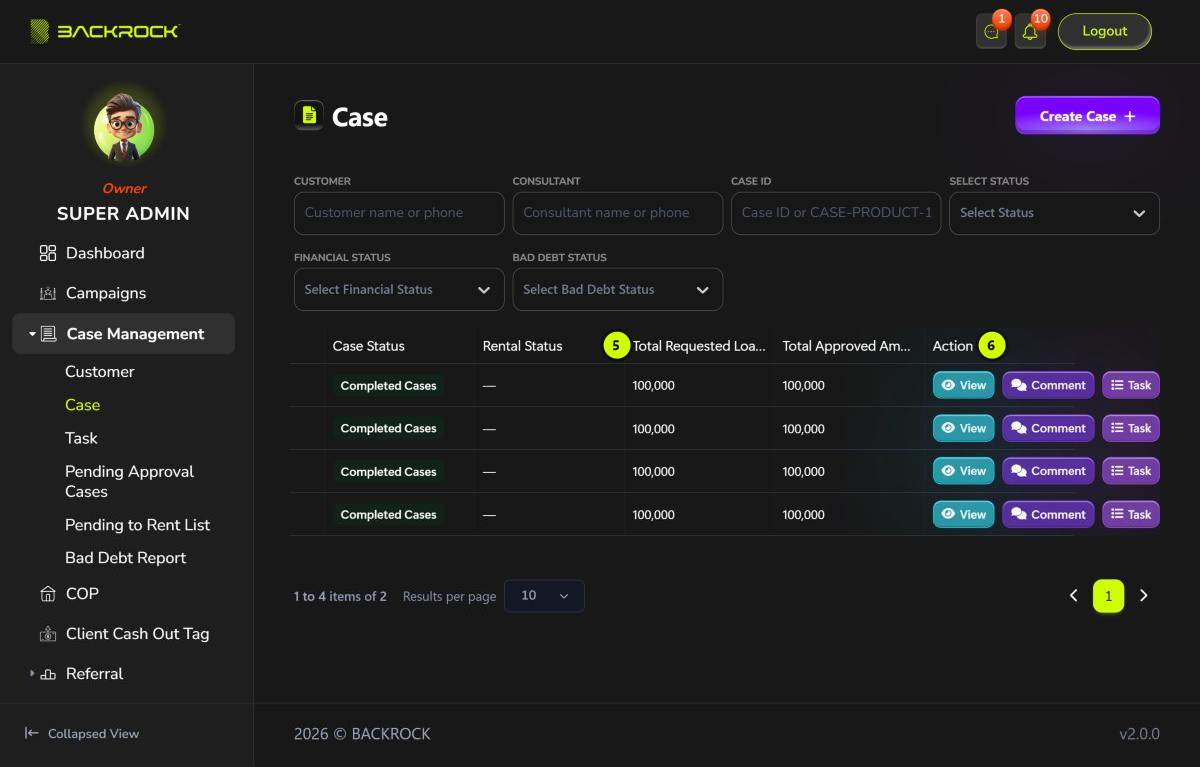
5. Amounts
- Total Requested Loan Amount: the loan amounts of all the banks in the case, added together.
- Total Approved Amount: the amounts approved by the banks, added together.
6. Action
| Button | What it does |
|---|---|
| View | Opens the case. See Case Details |
| Comment | Opens the comments of the case. See below |
| Task | Opens the tasks of the case's current status. See below |
Comment (only if your role can view comments):
- Shows every comment on the case, with who wrote it and when.
- Type in Add a comment... and click Submit to add a comment.
- Click Mark as Solved when a comment has been dealt with. It then shows Solved.
Task:
- Shows the tasks of the case's current status.
- Click a task to mark it as done. There is no confirmation.
A task you mark as done can't be marked as not done again.
When all the required tasks of a status are done (and the status is approved, if it needs approval), the system moves the case on to its next status by itself, as soon as that status's conditions are met. See How a case moves through its statuses.