Pending Approval Cases
Pending Approval Cases lists the cases whose current status is waiting for an approval. Use it to approve them.
To open it: in the left menu, click Case Management > Pending Approval Cases. You can also click Pending Approval on the Dashboard.
You only see this page if your role can approve case statuses. The list only shows cases you can see. See Which cases you see.
Permissions
Set in Role & Permission:
| Item | Permission |
|---|---|
| Pending Approval Cases menu and list | Cases > Approve status |
| See every case, not only yours | Cases > View all |
| Approve | Cases > Approve status |
| View | Cases > View |
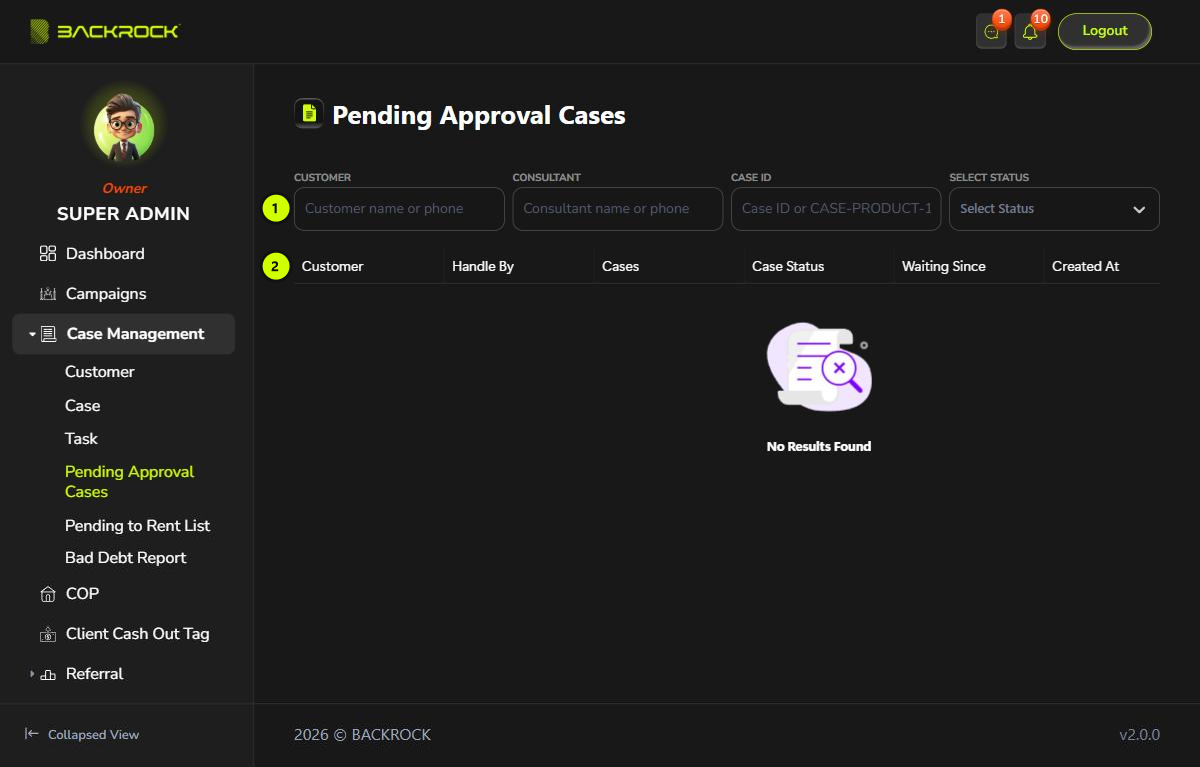
1. Filters
| Filter | How to use it |
|---|---|
| Customer | Type the customer's name or phone number |
| Case ID | Type the case number, for example CASE-COP-00056, or just the number 56 |
| Select Status | Choose a case status |
The list updates when you stop typing. Click × to clear a filter.
2. Case table
The cases that have been waiting longest are shown first. If there are none, you see No Results Found.
| Column | What it shows |
|---|---|
| Customer | The customer's name and phone number |
| Handle By | The person handling the case |
| Cases | The case number |
| Case Status | The status that is waiting for approval |
| Waiting Since | When the case reached this status |
| Created At | When the case was created |
| Action | Approve and View. Scroll the table to the right to see them |
Approve a case
- Click Approve on the case.
- Click Yes to confirm.
You see Case workflow status approved successfully and the case disappears from the list. If all the tasks of the status are done, the system moves the case on to its next status. See How a case moves through its statuses.
Click View to open the Case Details first if you want to check the case. You can approve it there too. You only see View if your role can view cases.
When a case starts waiting for approval, its handler and deal maker get a notification if their role can approve.