Task
The Task page shows cases as cards on a board, one column per status. Use it to see what still needs to be done on each case and to tick off tasks.
To open it: in the left menu, click Case Management > Task.
The board only shows cases you can see. See Which cases you see.
Permissions
Set in Role & Permission:
| Item | Permission |
|---|---|
| Task menu and board | Cases > View |
| See every case, not only yours | Cases > View all |
| View more details, Task List (mark a task as done), Comments | Cases > View |
| Approve | Cases > Approve status |
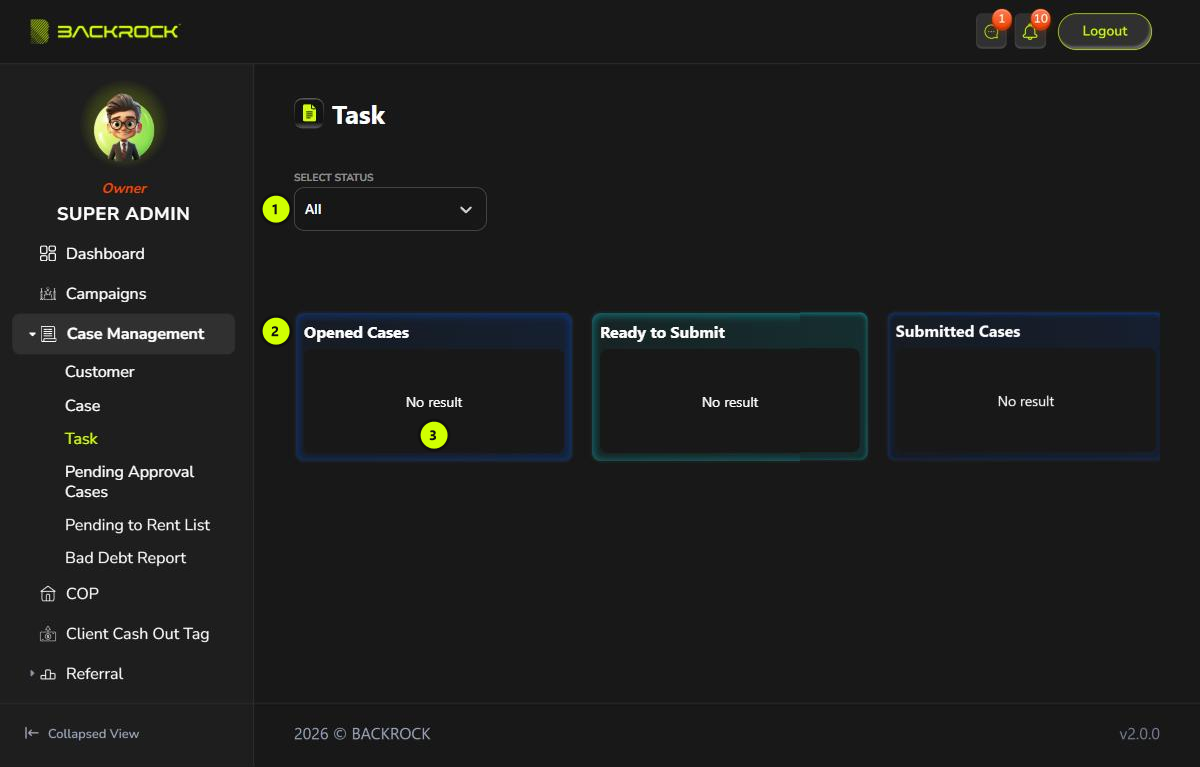
1. Select Status
Choose a status to show only that column. Choose All to show every column.
2. Columns
The board has a column for each of these statuses: Opened Cases, Ready to Submit, Submitted Cases and Approved Cases. Each column shows how many cases it has. A case is in the column of its current status. Cases in any other status are not on the board.
If the columns don't fit on the screen, drag the board left or right to see the others.
If a column has no cases, it shows No result.
3. Case cards
Each card shows:
- The case number, for example
CASE-COP-00056. - The customer and their company.
- The task progress of the current status:
- No task in this status
- Pending all task complete, with how many are done, for example
(1/3) - All task complete
- Mandatory Task: the tasks that are not done yet.
- If the status is waiting for an approval: an Approve button if your role can approve case statuses, otherwise Pending approval.
Moving a card does not change its status. Statuses change by themselves when the tasks and approval are done, or from Case Details.
Open a case card
Click a card to open it.
- View more details opens the Case Details.
- Task List shows the tasks of the current status. Click a task to mark it as done. There is no confirmation.
- Comments shows the comments on the case. Click Mark as Solved when a comment has been dealt with. To add a comment, type in Add a comment... and click Submit.
A task you mark as done can't be marked as not done again.
When all the required tasks are done (and the status is approved, if it needs approval), the system moves the case on to its next status. See How a case moves through its statuses.
Approve a case
If the case's status is waiting for an approval and your role can approve case statuses, click Approve on the card or in the case window, then click Yes to confirm. The board refreshes. You can also approve from Pending Approval Cases or Case Details.