Create, Edit or View COP Stock
Use this page to add a new COP property, look at its details, or change them.
To open it:
- New COP stock: on the COP Stock List, click Create COP Stock. The page is called Create COP Stock.
- View COP stock: click View on its row. The page is called COP Stock Details, and all fields are read only.
- Edit COP stock: click Edit on its row. The page is called Edit COP Stock.
You can only open COP stock you can see on the COP Stock List. For any other COP stock, you see You are not allowed to access this COP.
Permissions
Set in Role & Permission:
| Item | Permission |
|---|---|
| Create COP Stock (Submit) | COP > Create |
| Subsales Caller list | Users > View |
| COP Stock Details (View) | COP > View |
| Edit COP Stock (Update) | COP > Edit |
| Approve COP / Reject COP at the top | COP > Close deal |
Without Users > View, the Subsales Caller list is empty and you can't create COP stock (unless you are a subsales tele-caller).
The page is split into sections. Click − on a section to hide it, and + to show it again.
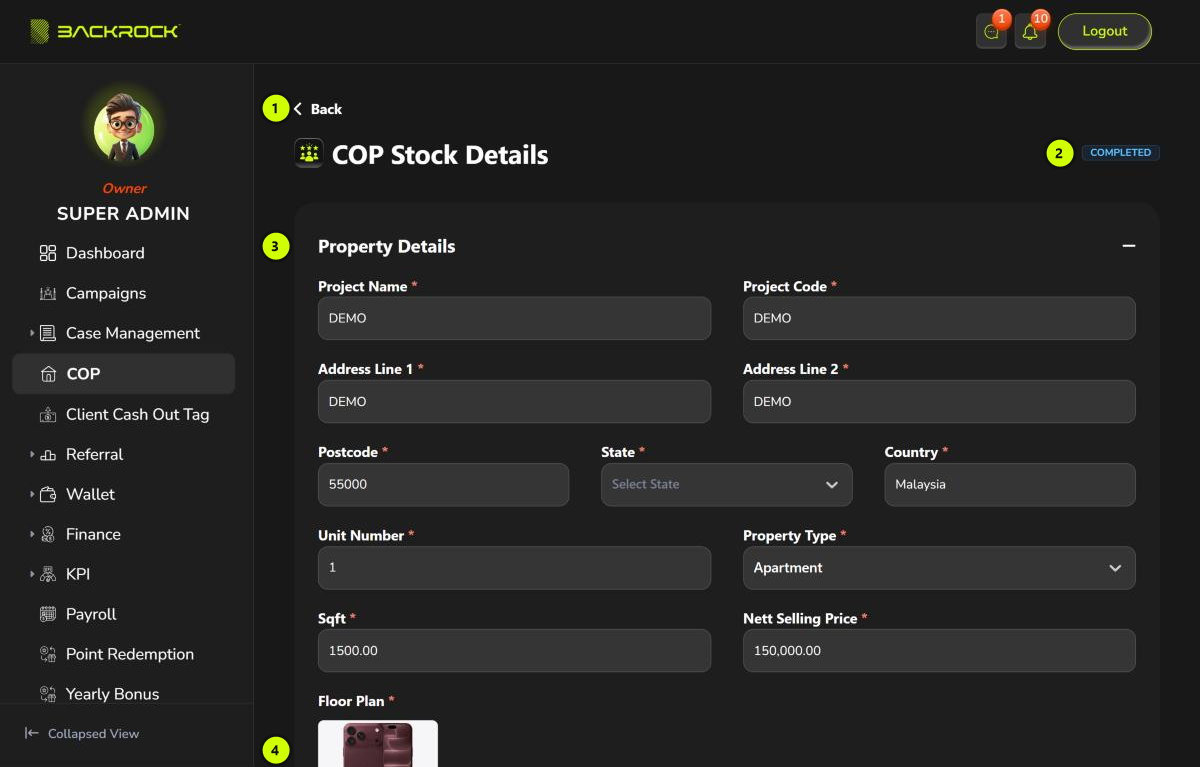
1. Back
Returns to the COP Stock List.
2. Deal status
When you view or edit COP stock, its deal status is shown on the right, for example COMPLETED. See Deal statuses.
When the deal is pending and your role can close deals, Approve COP and Reject COP buttons appear here too. See Approve or reject the COP.
3. Property Details
| Field | What to fill in |
|---|---|
| Project Name and Project Code | The project the property is in |
| Address Line 1 and Address Line 2 | The property's address |
| Postcode, State and Country | Country is filled in with Malaysia. You can change it |
| Unit Number | The unit number of the property |
| Property Type | Choose the type, for example apartment, condo, terrace or shoplot |
| Sqft | The size of the property in square feet |
| Nett Selling Price | The nett selling price |
Each COP property can only be added once. If another COP stock already has the same address and unit number, you see A COP record with the same address and unit number already exists.
4. Floor Plan
Click the upload area and choose the floor plan. You can upload a JPG, PNG, WEBP or PDF file of up to 5MB. To change it, click the bin icon on the file, then upload another one.
When you view or edit COP stock, click the floor plan to open it in a larger view.
Photos
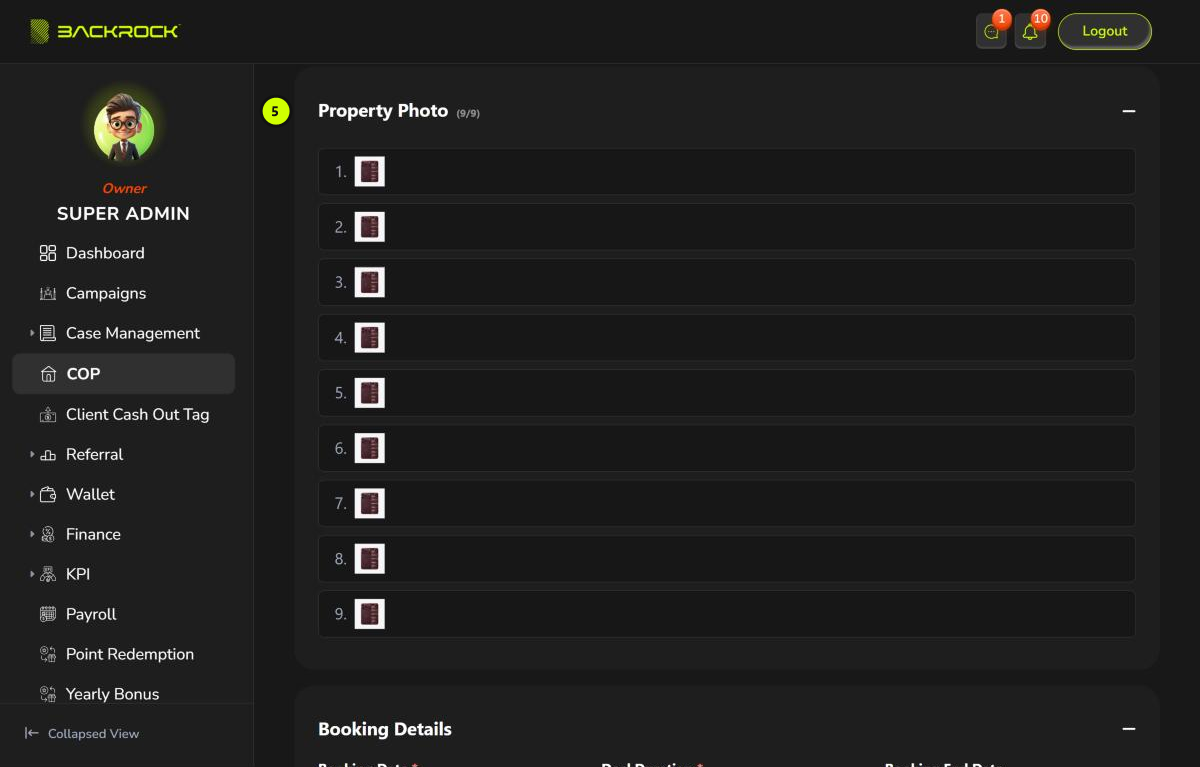
5. Property Photo
Only on COP Stock Details. Shows the property photos the runner uploaded, and how many there are out of 9, for example (9/9). Click a photo to open it in a larger view. Use the arrows, or the left and right arrow keys, to move between photos.
The runner adds the photos with Upload Image. See Upload the photos.
Booking and owner details
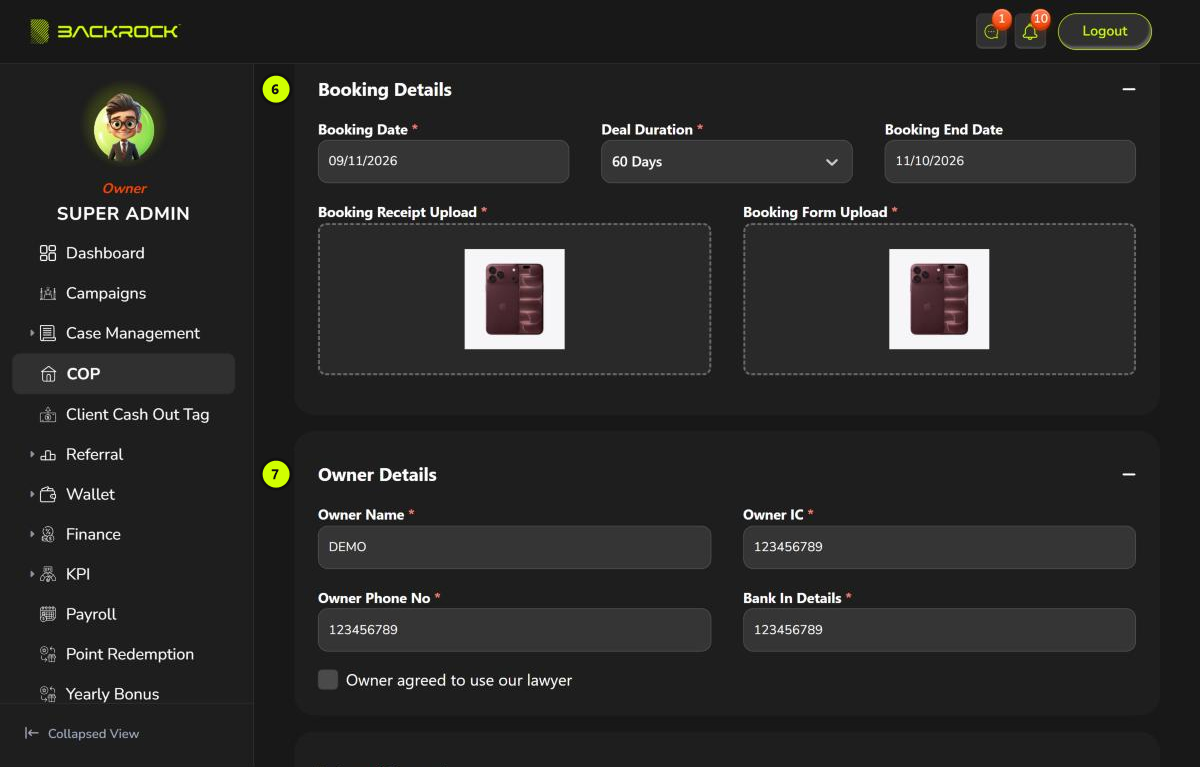
6. Booking Details
| Field | What to fill in |
|---|---|
| Booking Date | The date the property was booked |
| Deal Duration | 60 Days, 75 Days or 90 Days |
| Booking End Date | Worked out from the booking date and the deal duration. You can't change it |
| Booking Receipt Upload | The booking receipt. JPG, PNG or PDF, up to 5MB |
| Booking Form Upload | The booking form. JPG, PNG or PDF, up to 5MB |
When you view or edit COP stock, click the receipt or form to open it in a larger view.
To replace the booking receipt or booking form when you edit COP stock, click the bin icon on the file, then upload another one.
7. Owner Details
- Owner Name, Owner IC and Owner Phone No: the property owner's details.
- Bank In Details: the owner's bank details.
- Owner agreed to use our lawyer: tick this if the owner agreed. It is optional.
Internal record
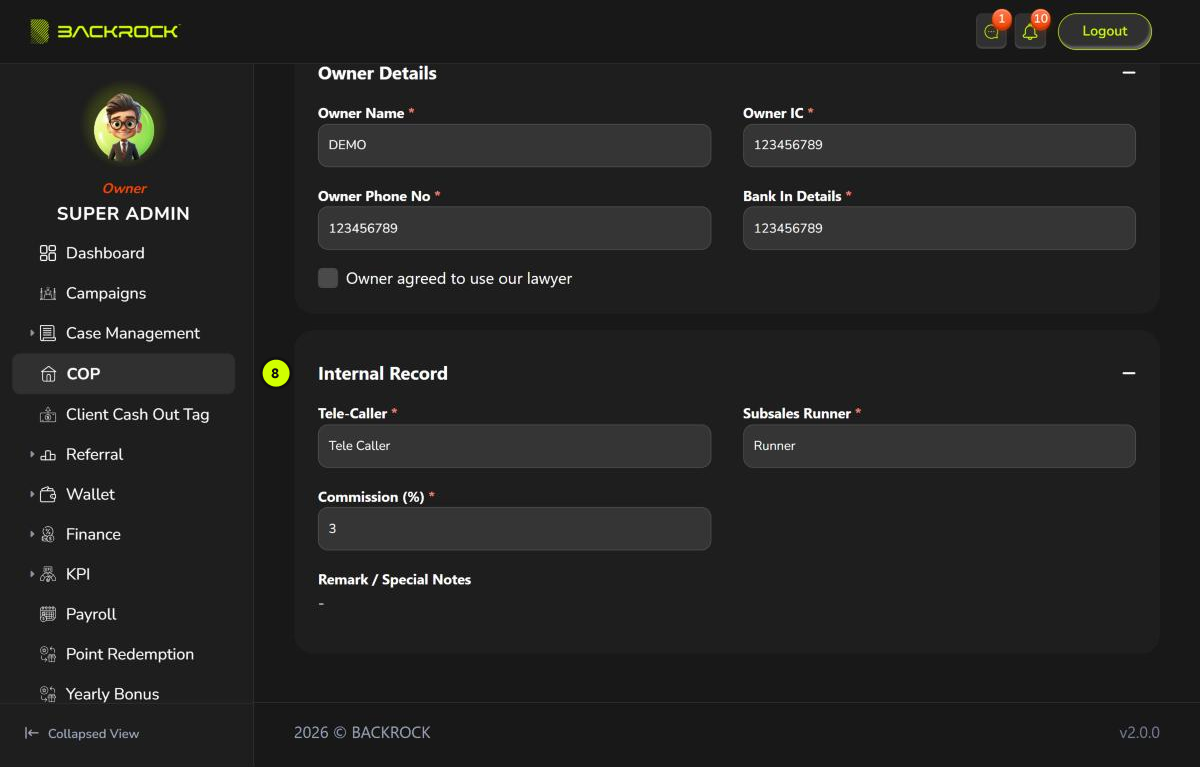
8. Internal Record
| Field | What it shows |
|---|---|
| Subsales Caller | Only when you create COP stock. Choose the subsales tele-lead or tele-caller for the deal. If you are a subsales tele-caller, you are the caller and you don't see this field |
| Tele-Caller | Only on COP Stock Details. The subsales caller of the deal |
| Subsales Runner | Only on COP Stock Details. The runner assigned to the deal |
| Commission (%) | The commission rate of the deal. A new COP stock starts at 3. Subsales tele-callers can't change it |
| Remark / Special Notes | Any notes (optional) |
Photo Approval
Only on COP Stock Details, after the runner has uploaded the photos. Shows the result of the photo review:
- Pending: the photos are waiting for review.
- Approved: the photos were approved.
- Rejected: the photos were rejected. The reason is shown below.
To review the photos, see Approve the photos.
Submit / Update
Fields marked with a red * are required. If one is empty, it shows This field is required.
- New COP stock: click Submit, then Submit again to confirm. You see COP created successfully and return to the COP Stock List. The new COP stock starts as Booked.
- Edit: click Update, then Update again to confirm. You see COP updated successfully and stay on the page.
Click Cancel to return to the COP Stock List without saving.