COP Stock List
The COP Stock List shows the COP properties (COP stock). From here you can add a property, open its details and move each deal through its steps.
To open it: in the left menu, click COP.
You see the COP stock you are part of: as its subsales caller, its runner, or the caller's tele-lead or subsales owner. If your role can view all COP stock, you see all of it.
Permissions
Set in Role & Permission:
| Item | Permission |
|---|---|
| COP menu and list, View | COP > View |
| See all COP stock, not only yours | COP > View all |
| Create COP Stock | COP > Create |
| Edit | COP > Edit |
| Assign Runner | COP > Assign runner |
| Upload Image | COP > Upload photos (and you must be the deal's runner) |
| Approve Photo | COP > Approve photos |
| Approve COP / Reject COP | COP > Close deal |
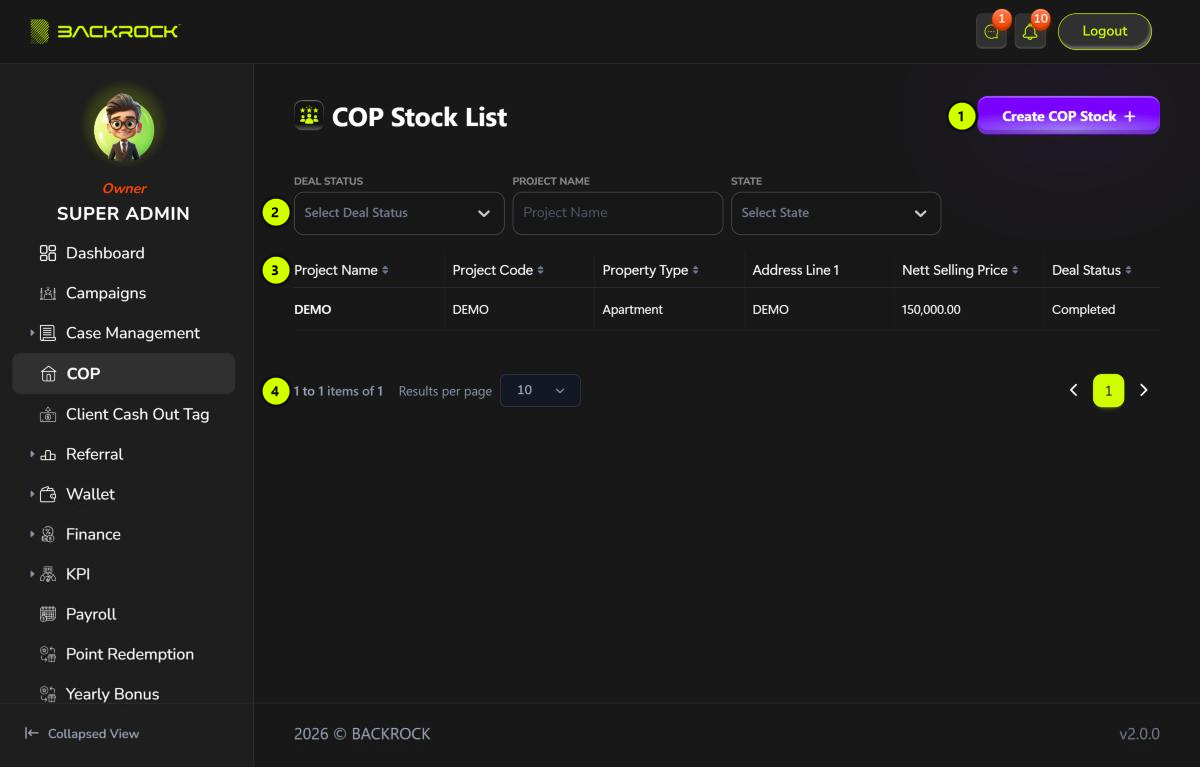
1. Create COP Stock
Opens the form to add a new COP property. See Create, Edit or View COP Stock.
You only see this button if your role can create COP stock.
2. Filters
| Filter | What it does |
|---|---|
| Deal Status | Shows only the COP stock in that status. Click × to clear it. See Deal statuses below |
| Project Name | Type part of a project name. The list updates as you type. Click × to clear it |
| State | Shows only the COP stock in that state. Click × to clear it |
3. COP table
The COP stock with the latest booking end date is shown first.
| Column | What it shows |
|---|---|
| Project Name | The project the property is in |
| Project Code | The project's code |
| Property Type | For example apartment, condo, terrace, semi-D, bungalow, shoplot or land |
| Address Line 1 | The first line of the property's address |
| Nett Selling Price | The nett selling price of the property |
| Deal Status | Where the deal is now. See Deal statuses below |
| Deal Duration | How long the deal runs: 60, 75 or 90 days |
| Booking Date | When the property was booked |
| Remaining Days | See part 5 |
| Owner Name | The property owner's name |
| Action | See part 6 |
If no COP stock matches, the table shows No Results Found.
4. Pages
Use the arrows or page numbers on the right to move between pages. Use Results per page on the left to choose how many rows to show.
Remaining Days and actions
The table is wider than the page. Scroll it to the right to see Remaining Days and Action.
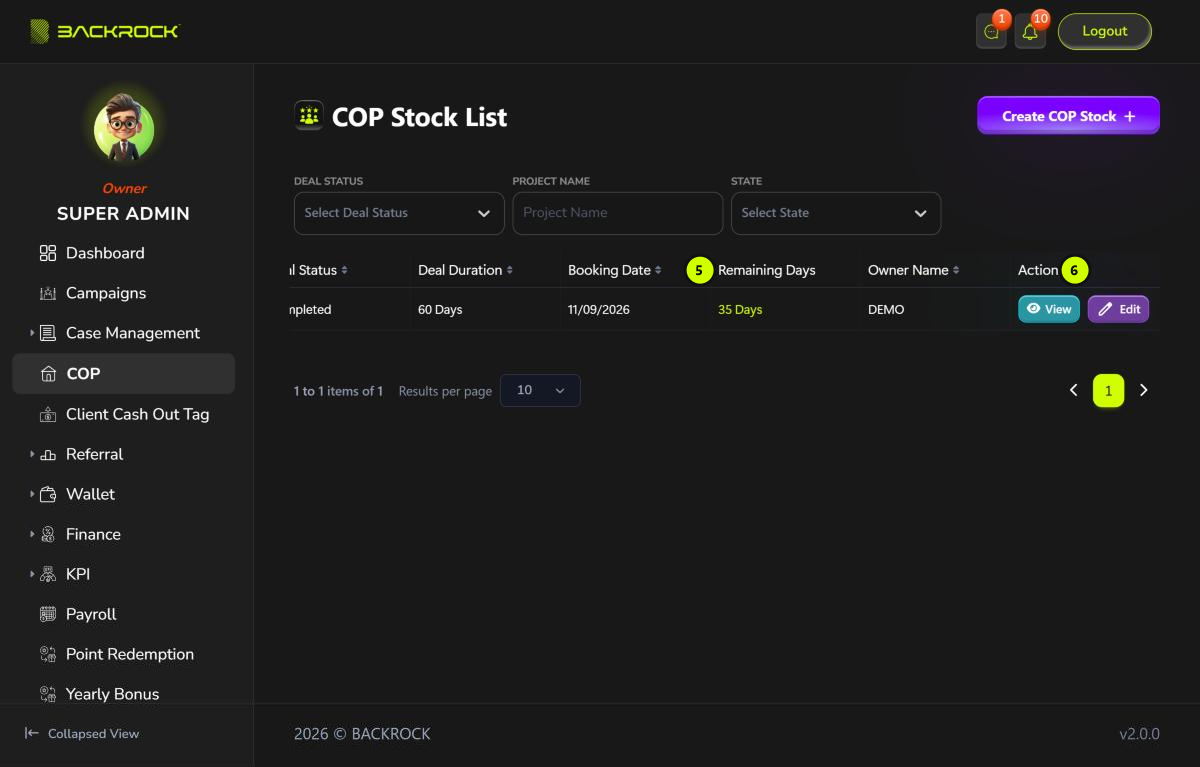
5. Remaining Days
How many days are left until the booking end date, for example 35 Days. Once the booking end date has passed, it shows Expired in red.
6. Action
The buttons on a row depend on the deal status and on what your role can do.
| Button | When you see it | What it does |
|---|---|---|
| Assign Runner | The deal is booked and your role can assign runners | Choose the subsales runner. See Assign a runner |
| Upload Image | The deal is in progress, you are its runner, and your role can upload photos | Upload the 9 property photos. See Upload the photos |
| Approve Photo | The deal is in progress, the photos are waiting for review, and your role can approve photos | Check the photos and approve or reject them. See Approve the photos |
| Approve COP / Reject COP | The deal is pending and your role can close deals | Complete or cancel the deal. See Approve or reject the COP |
| View | Your role can view COP stock | Opens the COP stock details. All fields are read only |
| Edit | Your role can edit COP stock | Opens the COP stock form so you can change it |
Deal statuses
| Status | What it means |
|---|---|
| Booked | The COP stock has been created. It is waiting for a runner |
| In Progress | A runner has been assigned. The runner uploads the property photos, and the photos are reviewed |
| Pending | The photos are approved. The deal is waiting to be approved or rejected |
| Completed | The COP was approved. The property can now be used in a COP case |
| Cancelled | The COP was rejected |
| Expired | The booking end date passed before the deal was completed or cancelled |
See COP Process for how a deal moves from one status to the next.