Dashboard Overview
The Dashboard is your home page in the Admin Portal. It gives you a quick summary of your cases, the approvals waiting for you, case fees, your wallet, your campaign, the latest announcements and the company goal.
To open it: sign in to the Admin Portal. You land on the Dashboard. From any other page, click Dashboard in the left menu. If your role has none of the Dashboard permissions below, the Dashboard menu is hidden and you see the 403 page after you sign in; use the left menu to go to your pages.
- The case numbers only count the cases you can see. If your role can view all cases, every case is counted. Otherwise, only the cases you are assigned to are counted.
- Some sections only appear if your role has access to them. See Permissions below.
Permissions
Set in Role & Permission:
| Section | Permission |
|---|---|
| Case Summary | Dashboard > Case summary |
| Task Summary | Cases > Approve status |
| Financial Summary | Dashboard > Financial summary |
| Wallet Summary | Dashboard > Wallet summary |
| Campaign Progress | Dashboard > Campaign progress |
| Announcement | Dashboard > Announcement |
| Company Goals | Dashboard > Company goals |
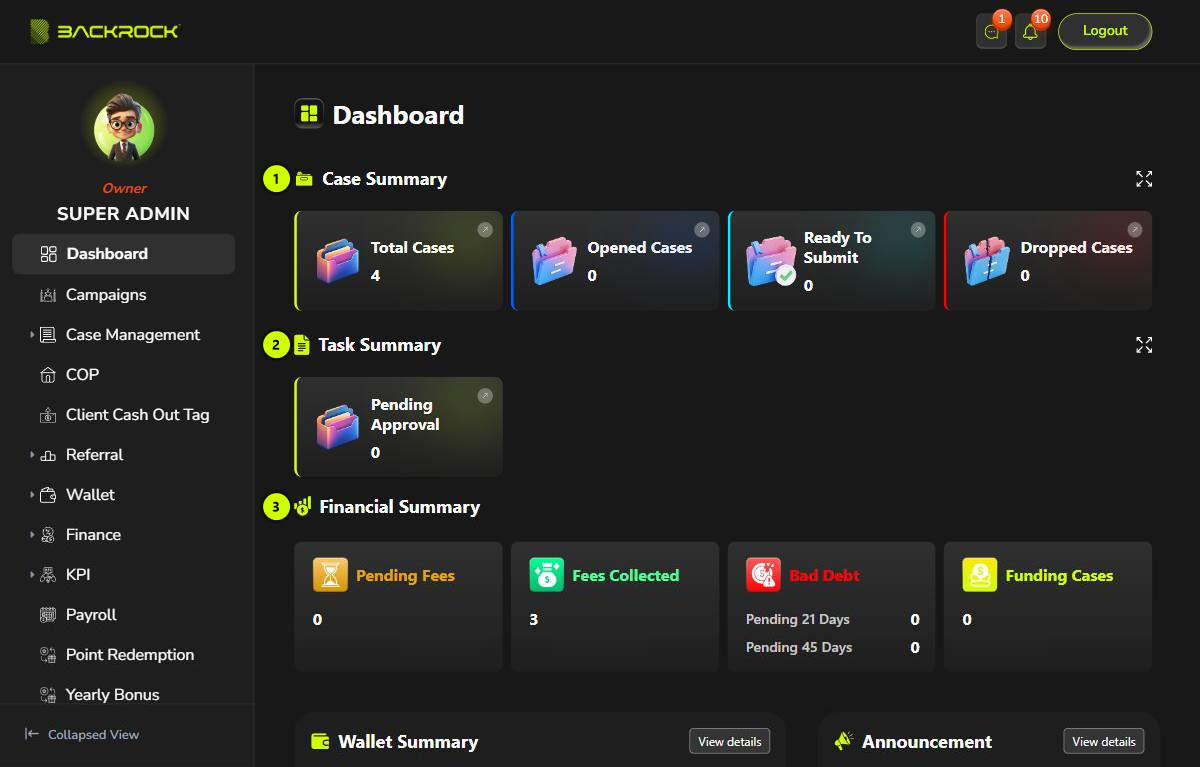
1. Case Summary
Each card shows how many cases are in one case status. Total Cases shows all your cases.
| Card | Cases counted |
|---|---|
| Total Cases | All your cases |
| Opened Cases | Cases in the Opened Cases status |
| Ready To Submit | Cases in the Ready to Submit status |
| Dropped Cases | Cases in the Dropped Cases status |
| Under Submitting | Cases in the Under Submitting status |
| Submitted Case | Cases in the Submitted Cases status |
| Under Processing | Cases in the Under Processing status |
| Approved Cases | Cases in the Approved Cases status |
| Rejected Cases | Cases in the Rejected Cases status |
| Pending Disburse | Cases in the Pending Disburse status |
| Disbursed Case | Cases in the Disbursed Cases status |
| Completed Cases | Cases in the Completed Cases status |
- Only the first row of cards is shown. Click the expand button (the four-arrow icon) at the top-right of the section to show all the cards. Click it again to show one row. On a phone, swipe the cards left or right instead.
- Click a card to open the Case page (Case Management > Case) with the Select Status filter already set to that status. Total Cases opens the page with no filter.
2. Task Summary
You only see this section if your role can approve case statuses.
- Pending Approval: how many case steps are waiting for approval, in the cases you can see.
- Click the card to open the Pending Approval Cases page (Case Management > Pending Approval Cases), where you can review them.
3. Financial Summary
These cards count cases, not money.
| Card | What it shows | Click it to open |
|---|---|---|
| Pending Fees | Cases whose fee is Unpaid or Partially Paid | The Case page, with the Financial Status filter set to Unpaid and Partially Paid |
| Fees Collected | Cases whose fee is Fully Paid | The Case page, with the Financial Status filter set to Fully Paid |
| Bad Debt | Pending 21 Days: cases at the 21-day bad debt stage. Pending 45 Days: cases at the 45-day bad debt stage. | The Case page, with the Bad Debt Status filter set to Pending 21 Days and Pending 45 Days |
| Funding Cases | Active settlements | The Settlement List page (Finance > Settlement) |
- A case gets a fee status once every bank in the case has disbursed and the case has a fee to collect. It starts as Unpaid, becomes Partially Paid after the first payment, and Fully Paid when nothing is left to pay.
- A case moves to Bad Debt when its fee is still not paid 21 days after every bank has disbursed, and to the 45-day stage after 45 days. This only applies to products that use bad debt. Once the fee is paid, the case is removed from Bad Debt.
- You only see Funding Cases if your role can view settlements.
4. Wallet Summary
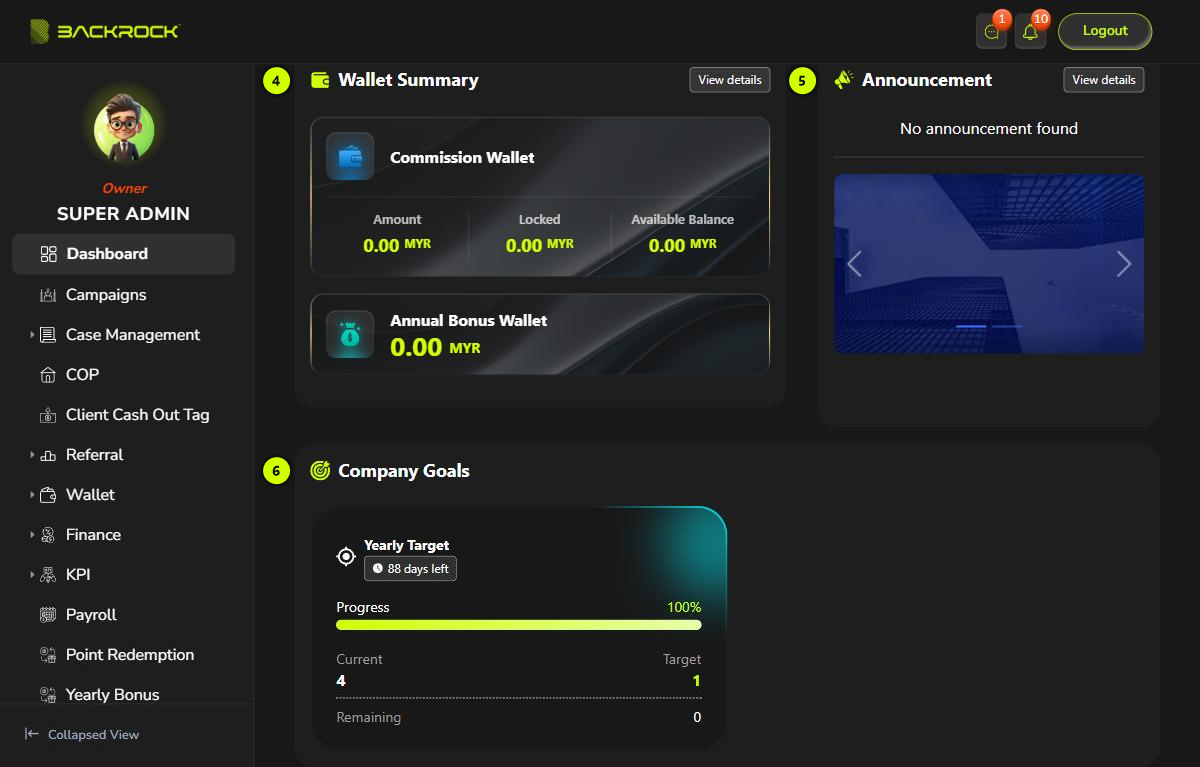
Shows your own wallets, in MYR.
- Commission Wallet shows three amounts:
- Amount: the total in the wallet.
- Locked: money on hold that you can't use yet. For example, part of your commission is held when one of your cases reaches the 21-day Bad Debt stage.
- Available Balance: Amount minus Locked.
- Any other wallet shows the balance you can use.
- Click View details to open the Transaction History page (Wallet > Transaction History).
Campaign Progress
This section appears under Wallet Summary, but only if you have joined a campaign. That is why it is not in the screenshot above.
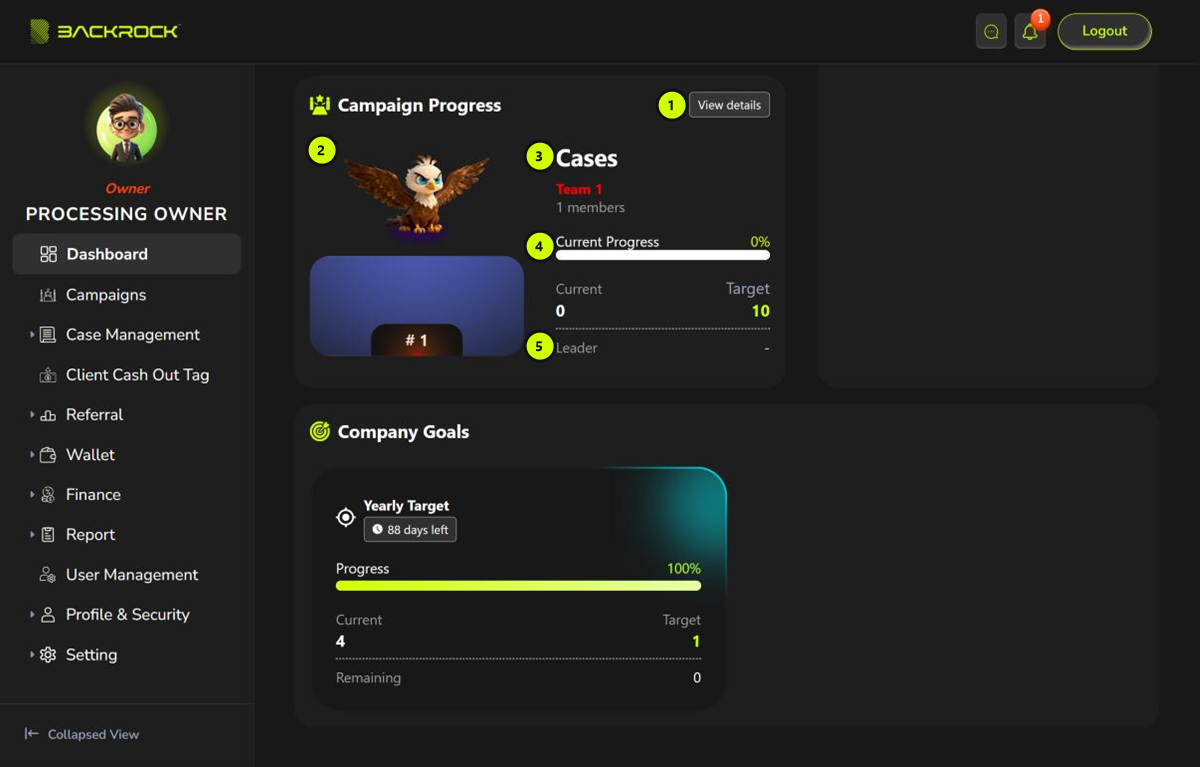
- View details: opens the Campaign page. See Campaigns.
- Team: your team's icon and its rank in the campaign, for example
# 1. - Campaign: the campaign name, your team name and how many members your team has.
- Progress:
- Current Progress: how far your team is towards the campaign target, in %.
- Current: your team's current value.
- Target: the campaign target.
- Leader: your team leader. If your team has no leader, it shows -.
If you joined more than one campaign, a dropdown appears next to View details. Choose a campaign there to see its progress. Your newest campaign is shown first.
5. Announcement
- Shows the 5 latest announcements for you. Only announcements that are active today are shown. The newest is at the top. A message longer than 100 characters is cut short with ....
- Each one shows the title, the start of the message and the date.
- Click an announcement to read all of it, including its picture or video. Opening it marks it as read. Click Close to go back.
- If there are no announcements, you see No announcement found.
- Click View details to open the Announcement page with all your announcements.
Banners: if there are active banners and your role can view banners, they are shown under the announcements. They are part of the Announcement section, so they are hidden too when the Announcement section is. They change every 5 seconds. Click a banner to see it in full size.
Some announcements are set to pop up. When you open the Dashboard, any pop-up announcement you haven't read yet appears in a window. If there is more than one, use the dots at the bottom to move between them. Click Got It! to close the window. Once you have seen a pop-up announcement, it does not pop up again.
6. Company Goals
Shows the company goal for this year.
- The goal name, and how many days left until the end of the goal.
- Progress: how much of the target is reached, in %. It stops at 100%.
- Current: the result so far. Target: the goal for the year.
- Remaining: how much is still needed to reach the target (Target minus Current).
- For a Case goal, Current is the number of cases that reached Completed Cases this year, across the whole company.
- If there is no goal for this year, you see No data.
The Dashboard loads its numbers when you open it. If something looks out of date, refresh the page.