IMS Processing KPI
Each month, the IMS processing team gets a KPI score for every member. The scores are saved as a KPI batch: one batch for one department and one month.
An IMS batch also holds the IMS commission pool for that month. When you disburse the batch, the pool is shared out as commission, partly based on each member's score.
The scores also count towards the Yearly Bonus.
To open it: in the left menu, click KPI > IMS Processing. The page is called KPI List.
Permissions
Set in Role & Permission:
| Item | Permission |
|---|---|
| IMS Processing menu, list and View | IMS KPI > View |
| Create KPI | IMS KPI > Create |
| Edit, Claim | IMS KPI > Edit |
| Delete (a batch, or a member's score) | IMS KPI > Delete |
| Disburse Comm | IMS KPI > Disburse |
| View on the IMS Pool Summary cards | Commission Approvals > View |
| Approve or reject in the Pending Approval Amount list | Set per layer for commission approvals. See the Approval page |
KPI List
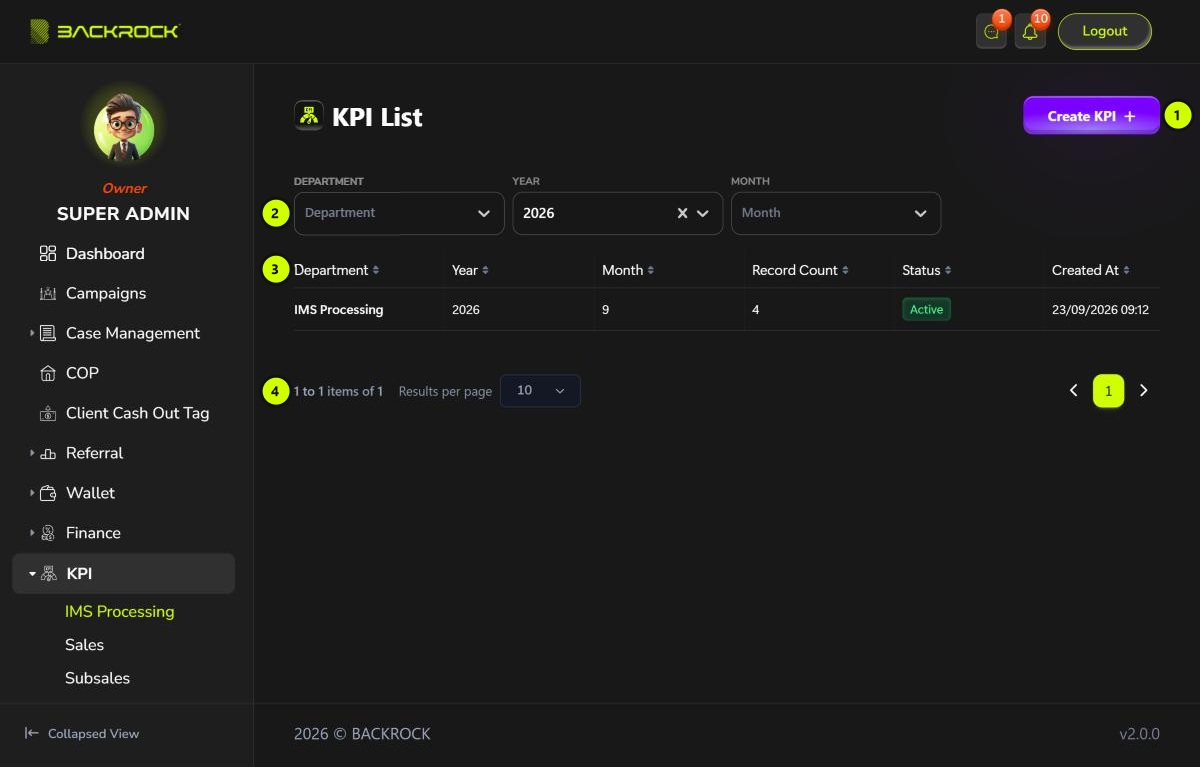
1. Create KPI
Opens the form to add a KPI batch. See Create a KPI batch. You only see this button if your role can create IMS KPI.
2. Filters
| Filter | What it does |
|---|---|
| Department | Shows only the batches of that department |
| Year | Shows only the batches of that year. The current year is selected when the page opens |
| Month | Shows only the batches of that month |
Only IMS processing batches are listed here. Sales and Subsales batches are on their own pages.
3. KPI table
The newest batches are shown first.
| Column | What it shows |
|---|---|
| Department | The department the batch is for |
| Year and Month | The month the batch is for |
| Record Count | How many members have a score in the batch |
| Status | Active |
| Created At | When the batch was created |
4. Pages
Use Results per page to choose how many batches to show, and the page numbers to move between pages.
Disbursed At and actions
The table is wider than the page. Scroll it to the right to see Disbursed At, Remark and Action.
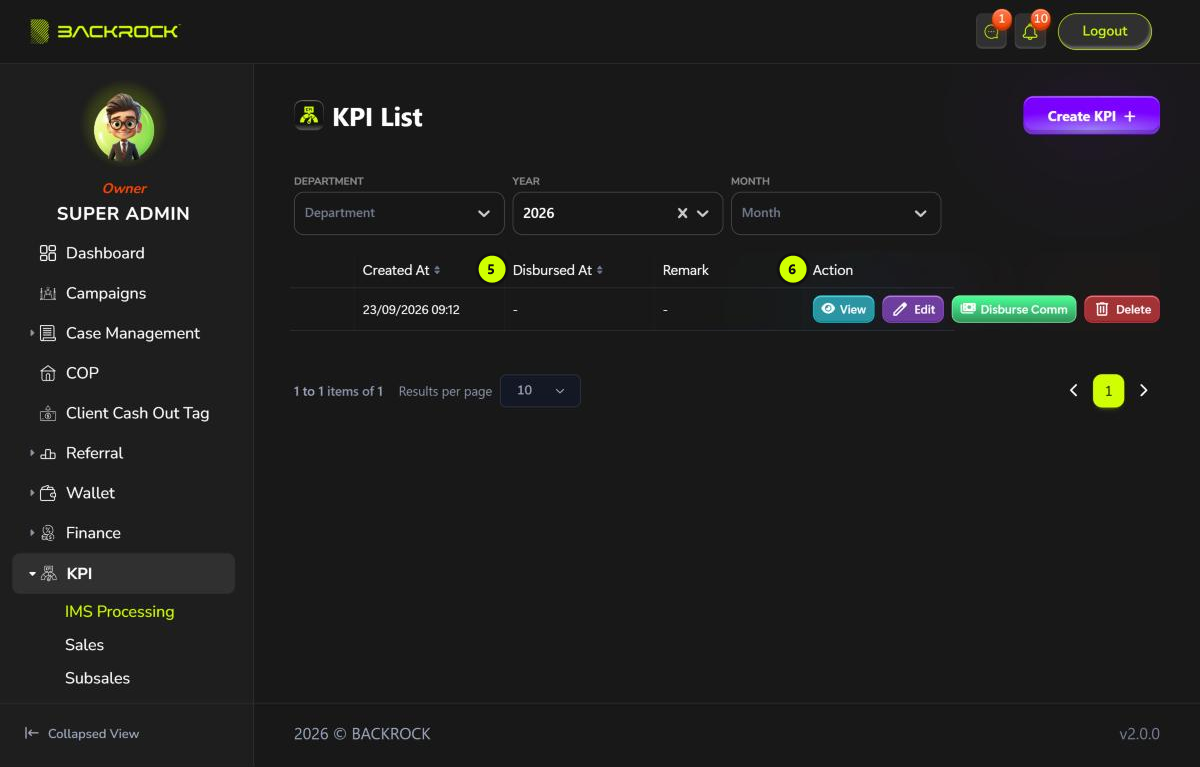
5. Disbursed At
When the commission of the batch was disbursed, or - if it has not been disbursed yet.
6. Action
| Button | When you see it | What it does |
|---|---|---|
| View | Your role can view IMS KPI | Opens the batch details |
| Edit | The batch is not disbursed yet, and your role can edit IMS KPI | Opens the batch so you can change scores. See Edit a KPI batch |
| Disburse Comm | The batch is not disbursed yet, and your role can disburse | Pays out the batch's commission pool. See Disburse the commission |
| Delete | The batch is not disbursed yet, and your role can delete IMS KPI | Deletes the batch and its scores. Click Delete to confirm |
Once a batch is disbursed, it can no longer be edited or deleted.
Create a KPI batch
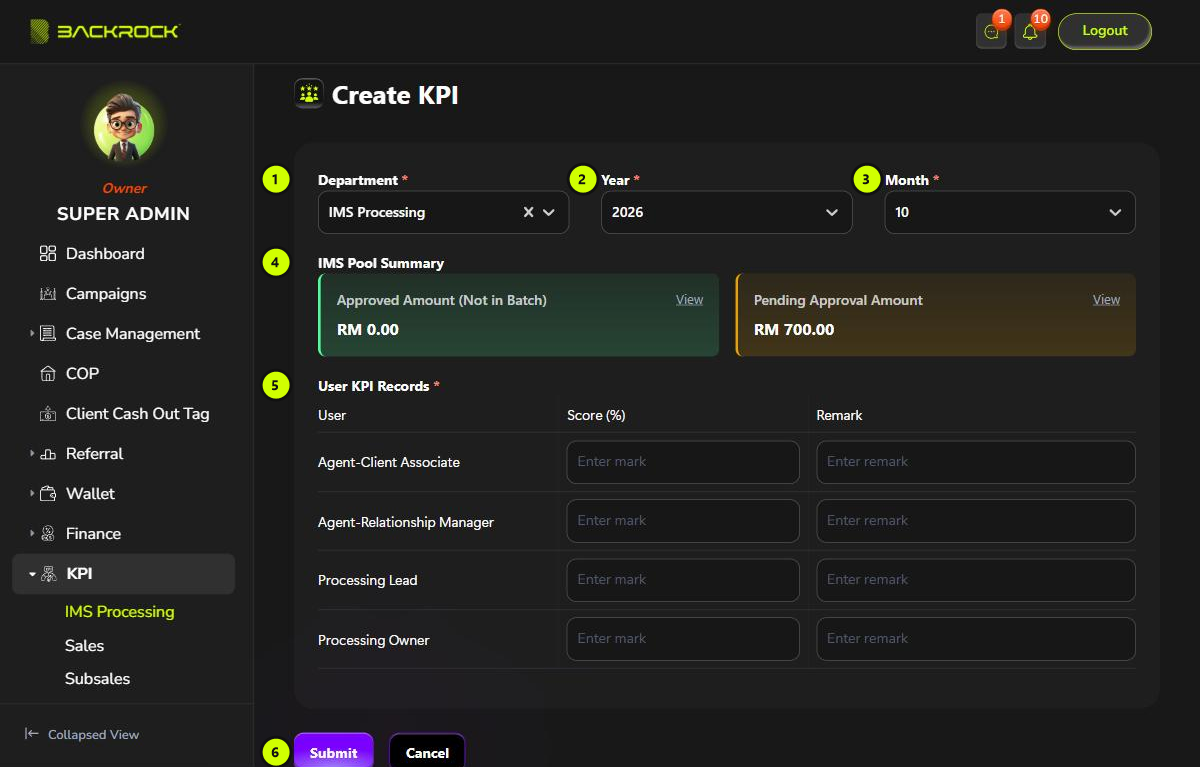
- Department (required): choose the IMS processing department.
- Year (required): the current year is selected.
- Month (required): the current month is selected.
- IMS Pool Summary: appears after you choose the department, year and month.
- Approved Amount (Not in Batch): the approved IMS commission for this department, up to and including this month, that is not in a batch yet. This amount goes into the new batch.
- Pending Approval Amount: IMS commission that is still waiting for approval. It is not in the batch until it is approved.
- Click View on a card to see the cases behind the amount. You only see View if your role can view commission approvals. In the Pending Approval Amount list, you can approve or reject a commission if your role can.
- User KPI Records (required): every active member of the department is listed. Type each member's Score (%), from 0 to 100 with up to one decimal place, and a Remark if needed. Members you leave blank are not added.
- Submit: click it, then Submit again to confirm. You see a success message and return to the KPI List. Click Cancel to leave without saving.
You see:
- This field is required if the department, year or month is empty.
- At least one KPI record is required if no member has a score.
- Mark must be a number between 0 and 100 with at most one decimal place if a score is not valid.
Each department can only have one batch per month. If the batch already exists, you see an error. Edit the existing batch instead.
Batch details
Click View on a row to open Processing KPI Details. Everything is read only.
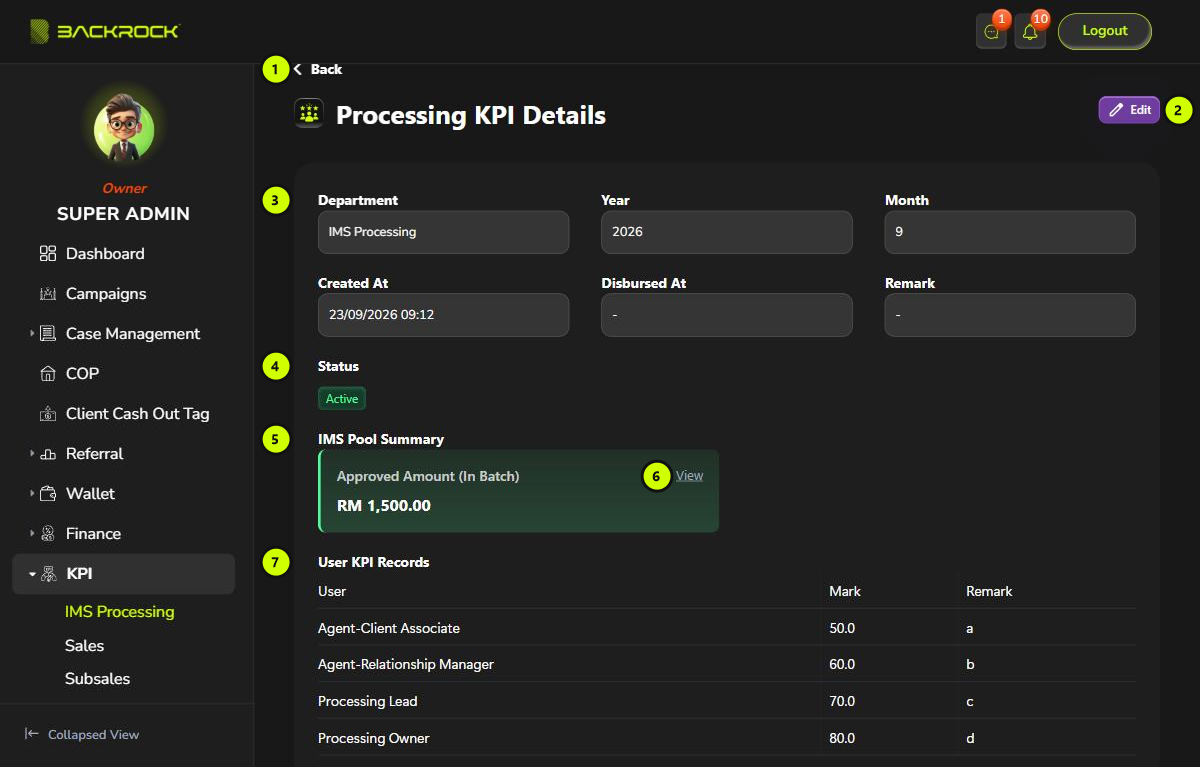
- Back: returns to the KPI List.
- Edit: opens the batch for editing, if your role can edit IMS KPI and the batch is not disbursed yet.
- Batch details: the department, year, month, when it was created, when it was disbursed, and the remark.
- Status: Active.
- IMS Pool Summary: Approved Amount (In Batch) is the commission pool held by this batch.
- View: shows the cases behind the pool.
- User KPI Records: each member's Mark and Remark.
Edit a KPI batch
Click Edit on a row, or Edit on the batch details.
- Department, Year and Month can't be changed.
- Change a member's Score (%) or Remark, or add a score for a member who doesn't have one yet. Members left blank are not changed.
- Click Delete next to a member to remove their score, then confirm. You need permission to delete IMS KPI.
- IMS Pool Summary shows three cards:
- Approved Amount (In This Batch): the pool the batch holds now.
- Approved Amount (Not in Batch): approved commission that came in after the batch was created. Click Claim, then confirm, to add it to this batch. Claim is not shown once the batch is disbursed.
- Pending Approval Amount: commission still waiting for approval.
Click Update, then Update again to confirm. The batch details open.
The table only lists the department's current active members. A member who has left the department is not shown here, but their score still shows on the batch details.
Disburse the commission
When the scores for the month are final, pay out the batch's commission pool.
- On the KPI List, click Disburse Comm on the batch.
- Click Submit to confirm.
Disbursed At is filled in, and the batch can no longer be changed. The pool is shared out according to the bonus settings. With the default settings:
- 70% is shared equally between the members with a score. Each member receives their full share with a score of 84 or more, 60% of it with 60 to 83, and 40% of it below 60.
- 10% goes to the team leads and 20% to the team owners of the cases.
- Anything not paid to a person stays with the company.
The commissions then wait for approval on the Approval page. After the final approval, they are paid into each person's wallet.
Yearly Bonus
Each member's KPI scores for the year are averaged, and the average is used to work out the KPI part of their Yearly Bonus. Months without a score are left out of the average.