Subsales KPI
Each month, every member of a subsales department, for example the subsales owners, runners, tele-leads and tele-callers, gets a KPI score. The scores are saved as a KPI batch: one batch for one department and one month.
Subsales KPI scores count towards the KPI part of each member's Yearly Bonus. Unlike IMS Processing KPI, a subsales batch holds no commission and is not disbursed.
To open it: in the left menu, click KPI > Subsales.
Permissions
Set in Role & Permission:
| Item | Permission |
|---|---|
| Subsales menu, list and View | Subsales KPI > View |
| Create Subsales KPI | Subsales KPI > Create |
| Edit | Subsales KPI > Edit |
| Delete (a batch, or a member's score) | Subsales KPI > Delete |
Subsales KPI List
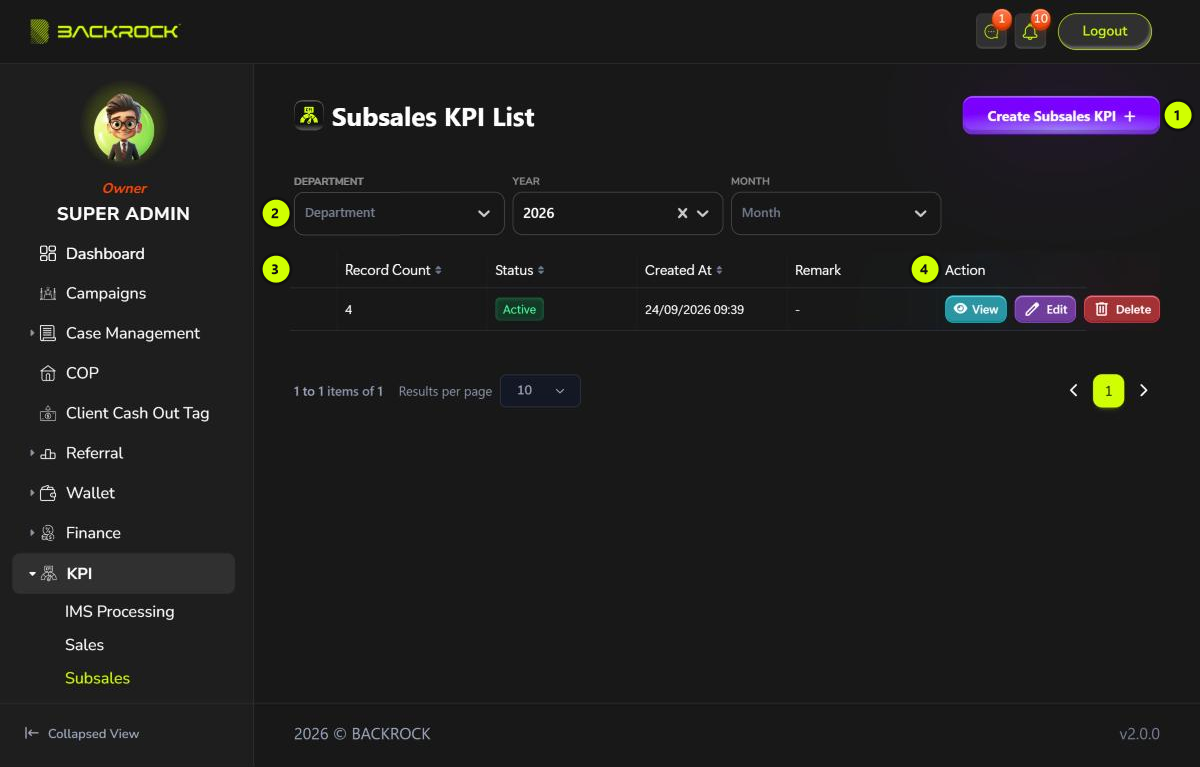
- Create Subsales KPI: opens the form to add a batch. You only see it if your role can create Subsales KPI.
- Filters: Department, Year (the current year is selected when the page opens) and Month.
- KPI table: the newest batches first, with the Department, Year, Month, Record Count (how many members have a score), Status, Created At and Remark. The table is wider than the page; scroll it to the right to see all columns.
- Action:
- View: opens the batch details (Subsales KPI Details). Everything is read only.
- Edit: opens the batch so you can change scores. You need permission to edit Subsales KPI.
- Delete: deletes the batch and its scores, after you confirm. You need permission to delete Subsales KPI.
Use Results per page and the page numbers at the bottom to move between pages.
Create a Subsales KPI batch
Click Create Subsales KPI. The form works like the IMS Processing form, without the IMS Pool Summary.
- Choose the Department, Year and Month (all required). The current year and month are selected.
- In User KPI Records, every active member of the department is listed. Type each member's Score (%) (0 to 100, up to one decimal place) and a Remark if needed. Members you leave blank are not added.
- Click Submit, then Submit again to confirm. You return to the list.
You need at least one score. Each department can only have one batch per month.
Edit a Subsales KPI batch
Click Edit on a row, or Edit on the batch details.
- Department, Year and Month can't be changed.
- Change a member's Score (%) or Remark, or add a score for a member who doesn't have one yet. Members left blank are not changed.
- Click Delete next to a member to remove their score. You need permission to delete Subsales KPI.
- Click Update, then Update again to confirm. The batch details open.
The table only lists the department's current active members. A member who has left the department is not shown here, but their score still shows on the batch details.