Point Redemption
Customers can use their points to redeem rewards in the Member Portal (see Point Redemption in the Member Portal guide). Each redemption appears here. When the reward has been sent, you mark it as delivered. You can also cancel a redemption; the customer then gets their points back.
To open it: in the left menu, click Point Redemption.
Permissions
Set in Role & Permission:
| Item | Permission |
|---|---|
| Point Redemption menu and list | Reward Redemptions > View |
| Mark as Delivered, Reject | Reward Redemptions > Edit |
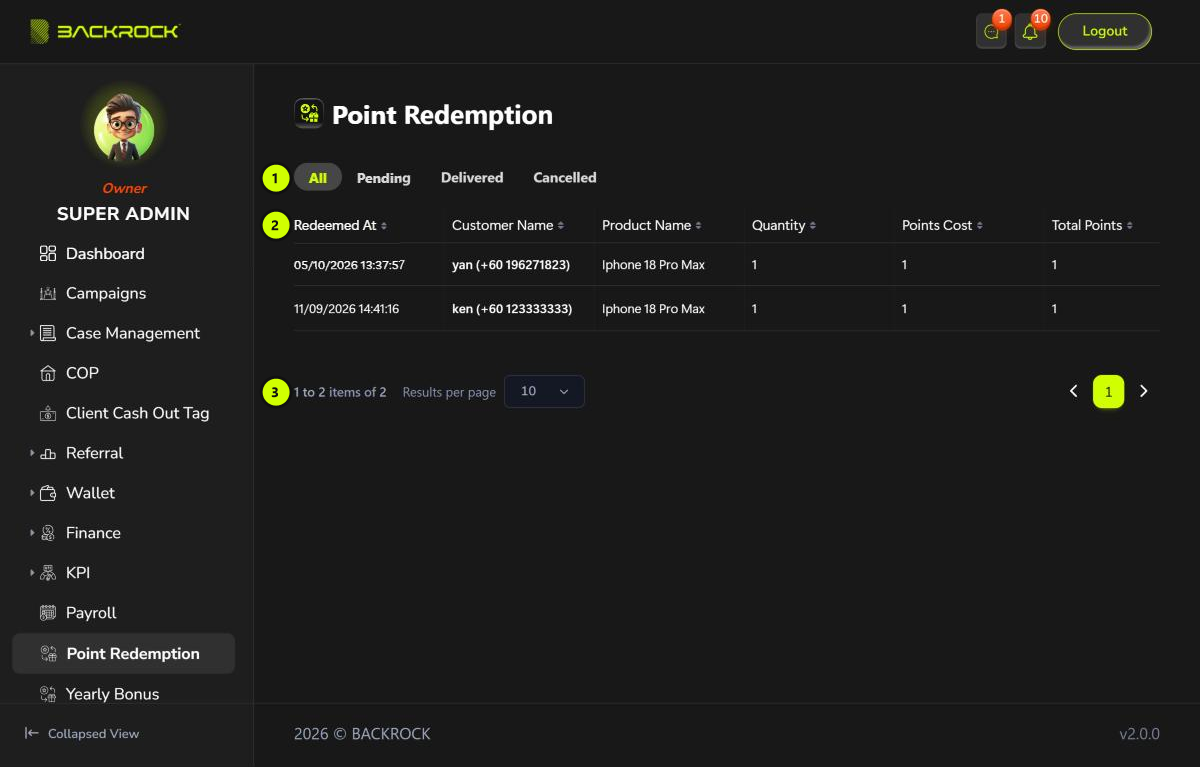
1. Status tabs
Click a tab to show only the redemptions in that status: All, Pending, Delivered or Cancelled.
2. Redemption table
The newest redemptions are shown first. Click Redeemed At or Total Points to sort by that column.
| Column | What it shows |
|---|---|
| Redeemed At | When the customer redeemed the reward |
| Customer Name | The customer, with their phone number |
| Product Name | The reward |
| Quantity | How many the customer redeemed |
| Points Cost | The points for one item |
| Total Points | The points used: Points Cost × Quantity |
3. Pages
Use Results per page and the page numbers to move between pages.
Delivery, status and actions
The table is wider than the page. Scroll it to the right to see the rest.
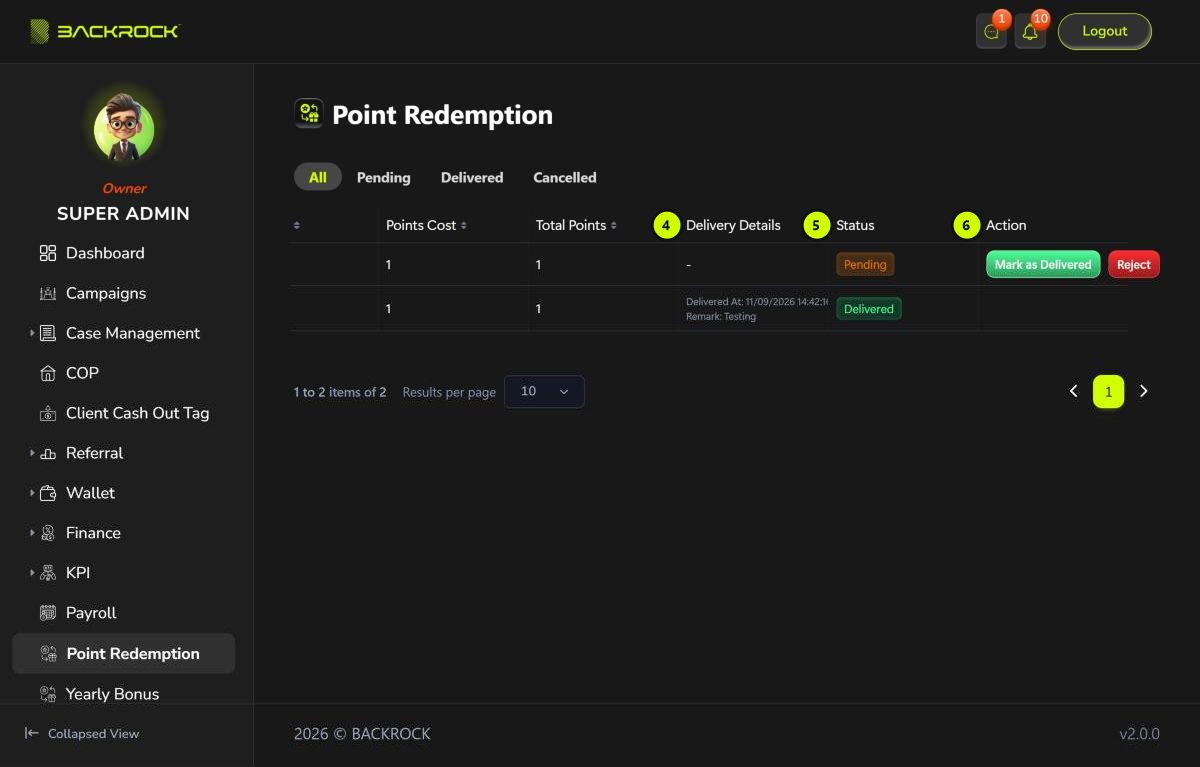
4. Delivery Details
For rewards that are sent by courier: the recipient, their phone number and the delivery address. After delivery, it also shows the Tracking No., when it was Delivered At, and the Remark.
5. Status
| Status | What it means |
|---|---|
| Pending | Waiting to be delivered |
| Delivered | The reward has been delivered |
| Cancelled | The redemption was cancelled and the points were returned |
6. Action
You see the buttons on Pending redemptions, if your role can edit reward redemptions.
Mark as Delivered
- Click Mark as Delivered.
- Check the Product Name, Customer Name and Recipient.
- If the reward is sent by courier, type the Tracking No. It is required. Otherwise you see Please enter tracking number. For a reward that isn't sent by courier, there is no Tracking No. field and Recipient shows -.
- Type a Remark if needed.
- Click Mark as Delivered, then Yes to confirm.
You see Redemption marked as delivered. The status changes to Delivered and the customer gets a notification.
Cancel a redemption
- Click Reject.
- Check the Product Name, Customer Name and Total Points.
- Type the reason in Remark. It is required. Otherwise you see Please enter remark.
- Click Confirm Cancel, then Yes to confirm.
You see Redemption cancelled and points refunded. The status changes to Cancelled, the Total Points go back to the customer, the reward goes back into stock, and the customer gets a notification.
A redemption that is already delivered or cancelled can't be changed.