Login Password
Change the password you use to log in to the Admin Portal.
To open it: in the left menu, click Profile & Security > Login Password.
Permissions
Set in Role & Permission:
| Item | Permission |
|---|---|
| Login Password menu, page and Submit | Profile & Security > Login password |
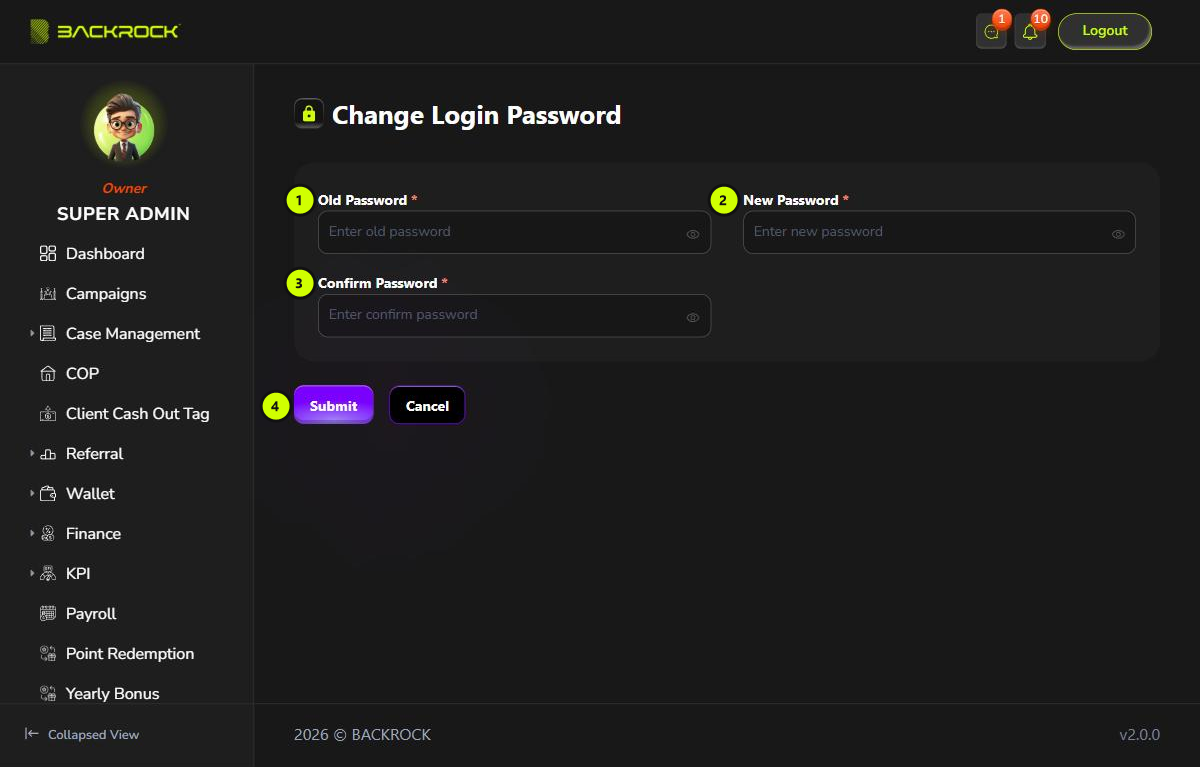
1. Old Password
Type your current password. Click the eye to show or hide what you type.
2. New Password
Type the new password. It must be at least 6 characters.
3. Confirm Password
Type the new password again.
4. Submit and Cancel
- Click Submit to change the password. You see Password reset successfully and the form is cleared. Use the new password the next time you log in.
- Click Cancel to clear the form.
| Message | What it means |
|---|---|
| This field is required | A field is empty |
| Password must be at least 6 characters long | The new password is too short |
| Passwords do not match | New Password and Confirm Password are different |
| Invalid old password | Old Password is wrong |
note
Changing your password doesn't log you out on other computers or phones where you are already logged in. Log out there yourself.
If you forgot your password, ask an admin for help. The password can't be reset from the user's details.