Team Hierarchy
The Team Hierarchy page shows everyone in your team, level by level. You can see it as a list or as a tree.
To open it: in the left menu, click Referral > Team Hierarchy.
Permissions
Set in Role & Permission:
| Item | Permission |
|---|---|
| Team Hierarchy menu and page | Referrals > View team hierarchy |
| My Team / Whole Company switch | Referrals > View all |
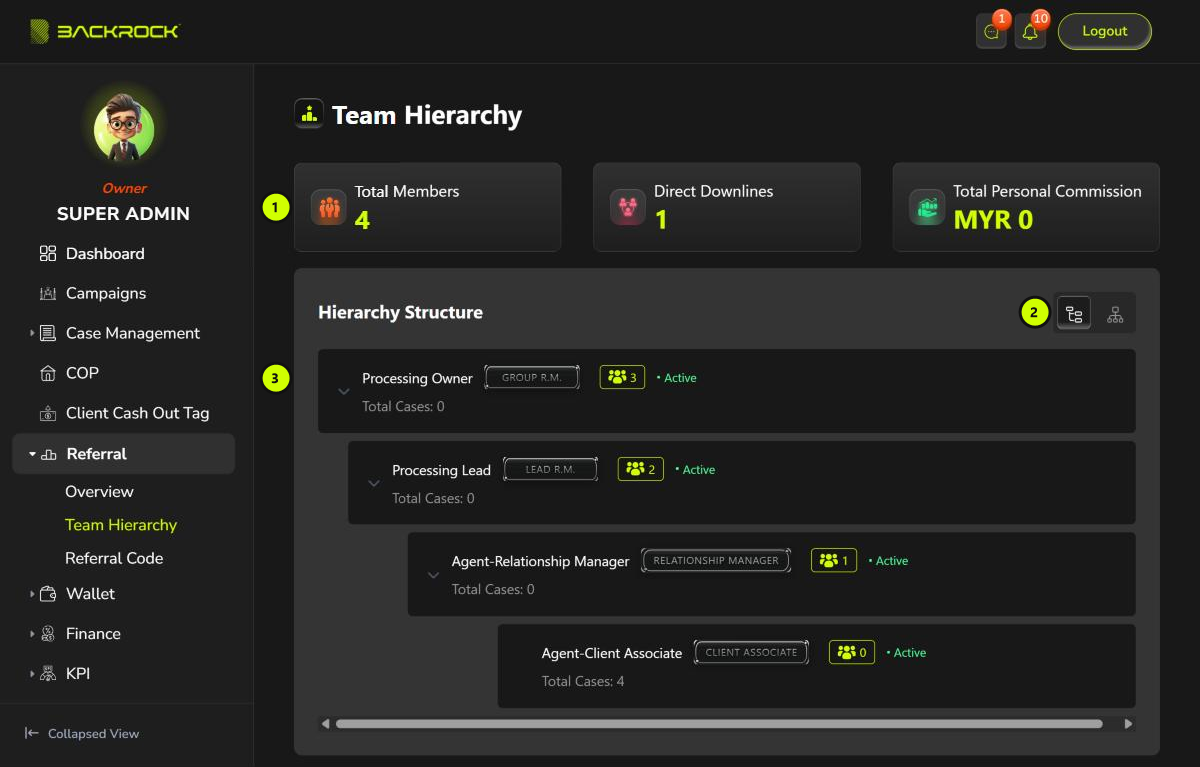
1. Summary cards
| Card | What it shows |
|---|---|
| Total Members | How many people are in your whole team, at every level |
| Direct Downlines | How many agents registered with your referral code |
| Total Personal Commission | The total of your own commissions that have been paid out, in MYR |
2. List or tree
Click the icons on the right of Hierarchy Structure to switch between the list view (left icon) and the tree view (right icon). The page opens in the list view.
3. List view
The list starts with your direct downlines. Each row shows:
- The member's name and rank, for example GROUP R.M.
- The people icon with a number: how many people are in that member's own team, at every level.
- Active or Inactive.
- Total Cases: how many of the cases they handle are completed.
Click the arrow on the left of a row to show that member's direct downlines below it. Click it again to hide them. Each level is shown a little further to the right. If the list is wider than the box, scroll it left or right.
If you have no downlines, you see No downlines.
Tree view
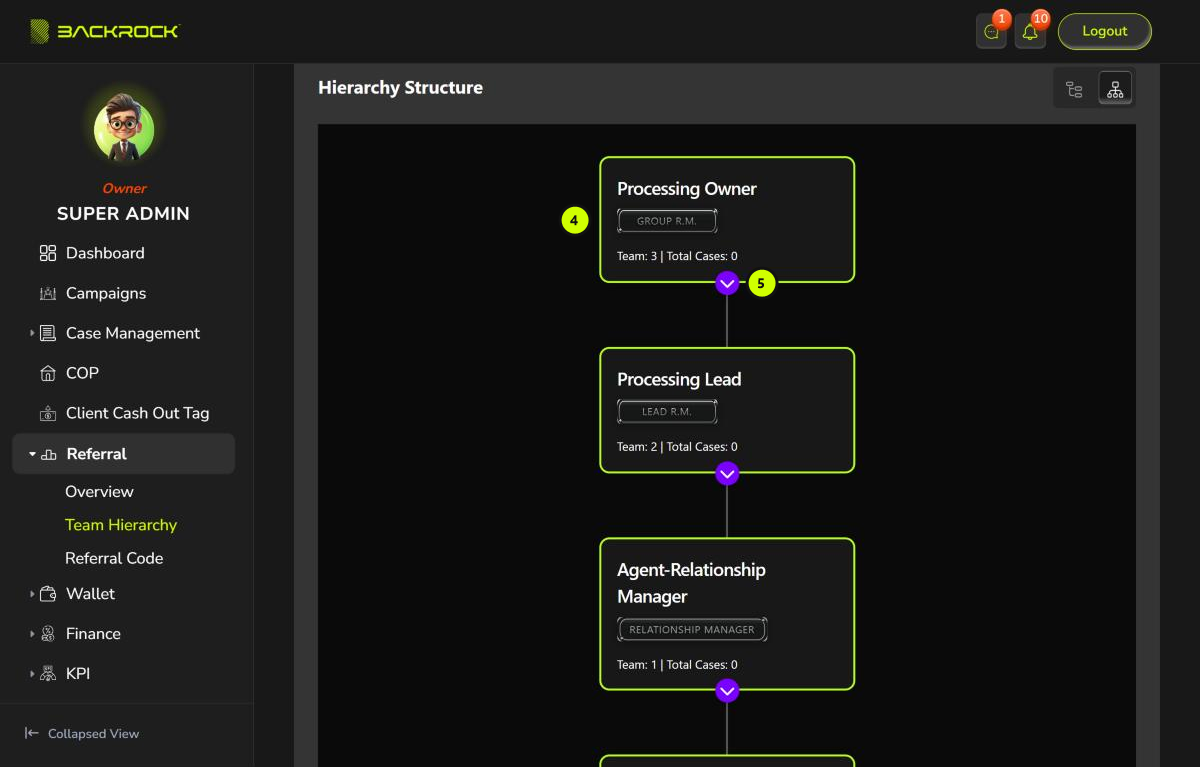
4. Member cards
Each member is shown as a card with their name, their rank, Team (how many people are in their own team) and Total Cases (how many of the cases they handle are completed).
If you have more than one direct downline, the tree starts with a card with your name. Its Team and Total Cases add up the cards below it.
5. Show or hide downlines
Click the purple arrow under a card to show that member's direct downlines below it. Click it again to hide them. The arrow only appears when the member has a team.
My Team or Whole Company
If your role can view all, My Team and Whole Company appear at the top right. The page opens on My Team, which is everything described above.
Click Whole Company to see every agent in the company, not only your team:
- The summary cards show Total Members (all active agents) and Top-level Agents (active agents who have no upline). There is no Total Personal Commission card.
- The list starts with the top-level agents. Click the arrow on a row to show that agent's direct downlines, as in the list view.
- Type a name or phone number in the search box to find any agent, at any level. Clear the box to go back to the top-level agents.
- 20 agents are shown at a time. Click Load More at the bottom to see more.
- Whole Company only has the list view. There is no tree view.
Click My Team to go back to your own team.