IMS Pool Report
When a case's commissions are worked out, part of the margin is set aside for the IMS Processing team. These amounts are collected in the IMS pool. Each month, the pool is added to an IMS Processing KPI batch and shared out to the team by their KPI scores. See IMS Processing KPI.
The IMS Pool Report shows how much each case added to the pool, and whether it has been shared out yet.
To open it: in the left menu, click Report > IMS Pool Report.
Permissions
Set in Role & Permission:
| Item | Permission |
|---|---|
| IMS Pool Report menu, list and Export | Reports > View ims pool report |
| Open a case from Case ID | Cases > View |
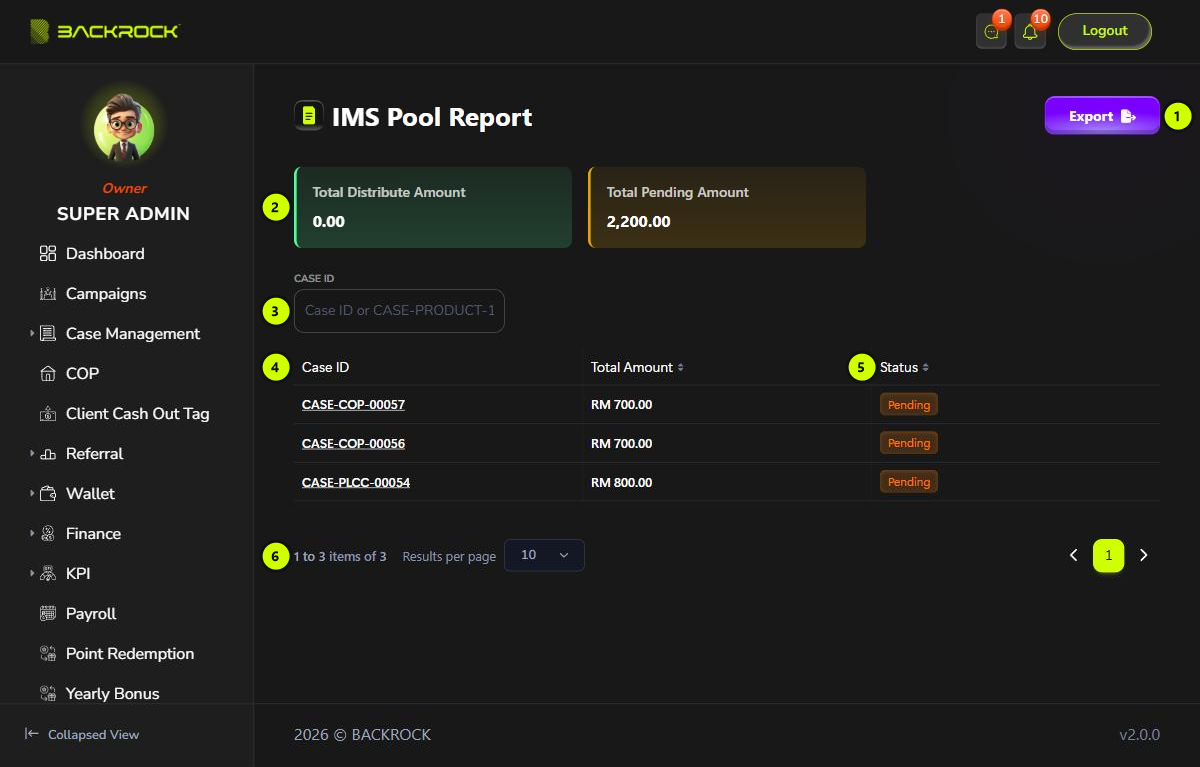
1. Export
Downloads the list as a CSV file that you can open in Excel, with the Case ID, Total Amount and Status.
2. Totals
- Total Distribute Amount: the total that has already been shared out through a KPI batch.
- Total Pending Amount: the total that has not been shared out yet.
Both totals are in RM and cover all cases. They don't change when you search for a case.
3. Case ID
Type a case number to show only that case, for example 57 or CASE-COP-00057.
4. Case table
The newest amounts are shown first.
- Case ID: click it to open the case details. If your role can't view cases, it is shown as plain text.
- Total Amount: the amount the case added to the pool.
5. Status
| Status | What it means |
|---|---|
| Pending | Not shared out yet. It can still be waiting for its approval, waiting to be added to a KPI batch, or in a KPI batch that hasn't been disbursed |
| Distributed | Shared out: the KPI batch it is in has been disbursed. The IMS commissions still need to be approved on the Approval page, in the IMS Commission tab, before they are paid |
| Deleted | The case's commission was rejected, so the amount is not in the pool |
An amount only goes into a KPI batch after its commission line is approved on the Approval page, in the Case Commission tab.
6. Pages
Use Results per page and the page numbers to move between pages.