Transaction Logs
Transaction Logs lists every amount that went into or out of a wallet, for both agents and customers. The page heading is Transaction History.
To open it: in the left menu, click Report > Transaction Logs.
Permissions
Set in Role & Permission:
| Item | Permission |
|---|---|
| Transaction Logs menu, list and Export | Reports > View transaction logs |
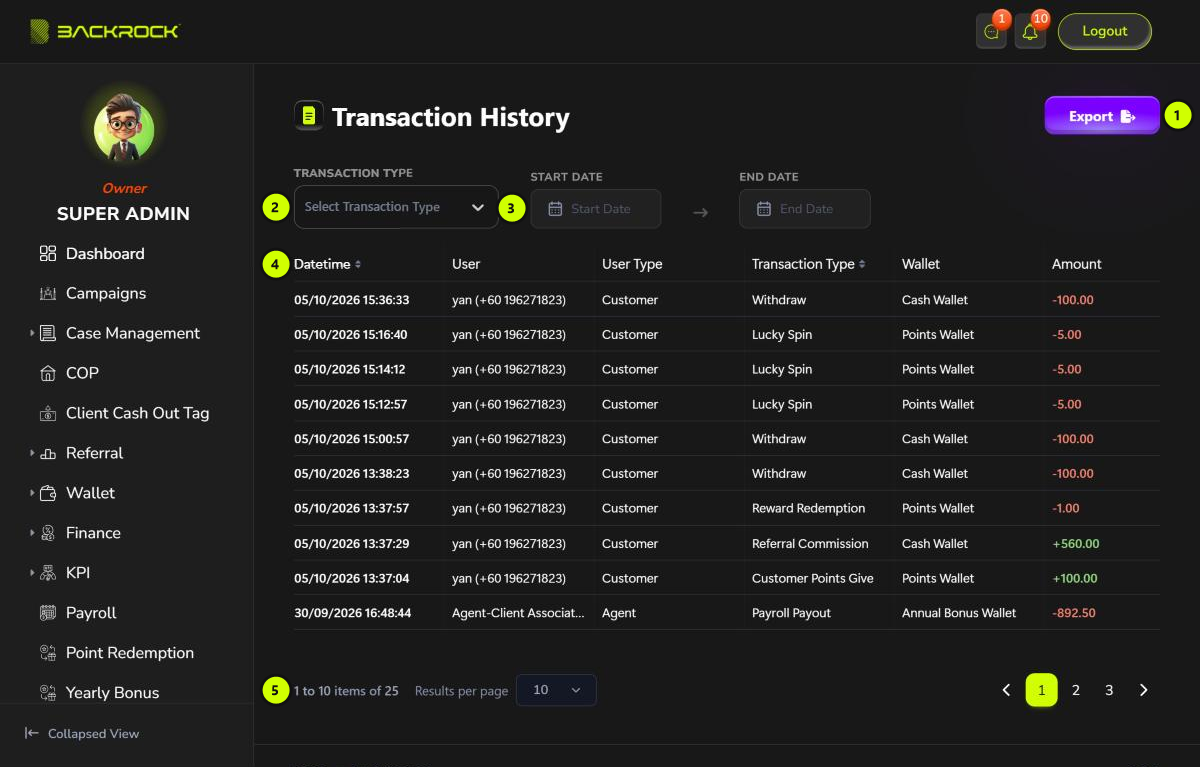
1. Export
Downloads the transactions as a CSV file that you can open in Excel. The current filters are applied. The file has the Datetime, User, User Type, Transaction Type, Wallet, Before Amount, Amount, After Amount and Description.
2. Transaction Type
Show only one kind of transaction. Click × to show all again. Some examples:
| Transaction Type | What it is |
|---|---|
| Withdraw | A customer withdrew money from their Cash Wallet |
| Lucky Spin | Points used to play the lucky spin |
| Reward Redemption | Points used to redeem a reward |
| Payroll Payout | Commission or yearly bonus taken out of the wallet when a payslip is approved |
| A bonus name, for example Close Case Bonus or Referral Commission | A commission paid into the wallet after its approval |
3. Start Date and End Date
Show only the transactions between two dates. Both dates are included. Click Clear to remove the dates.
4. Transaction table
The newest transactions are shown first. Click Datetime or Transaction Type to sort.
| Column | What it shows |
|---|---|
| Datetime | When the transaction happened |
| User | The person's name and phone number |
| User Type | Agent or Customer |
| Transaction Type | The kind of transaction |
| Wallet | The wallet it went into or out of |
| Amount | Green with + for money in, red with − for money out |
5. Pages
Use Results per page and the page numbers to move between pages.
Balances and description
The table is wider than the page. Scroll it to the right to see the rest.
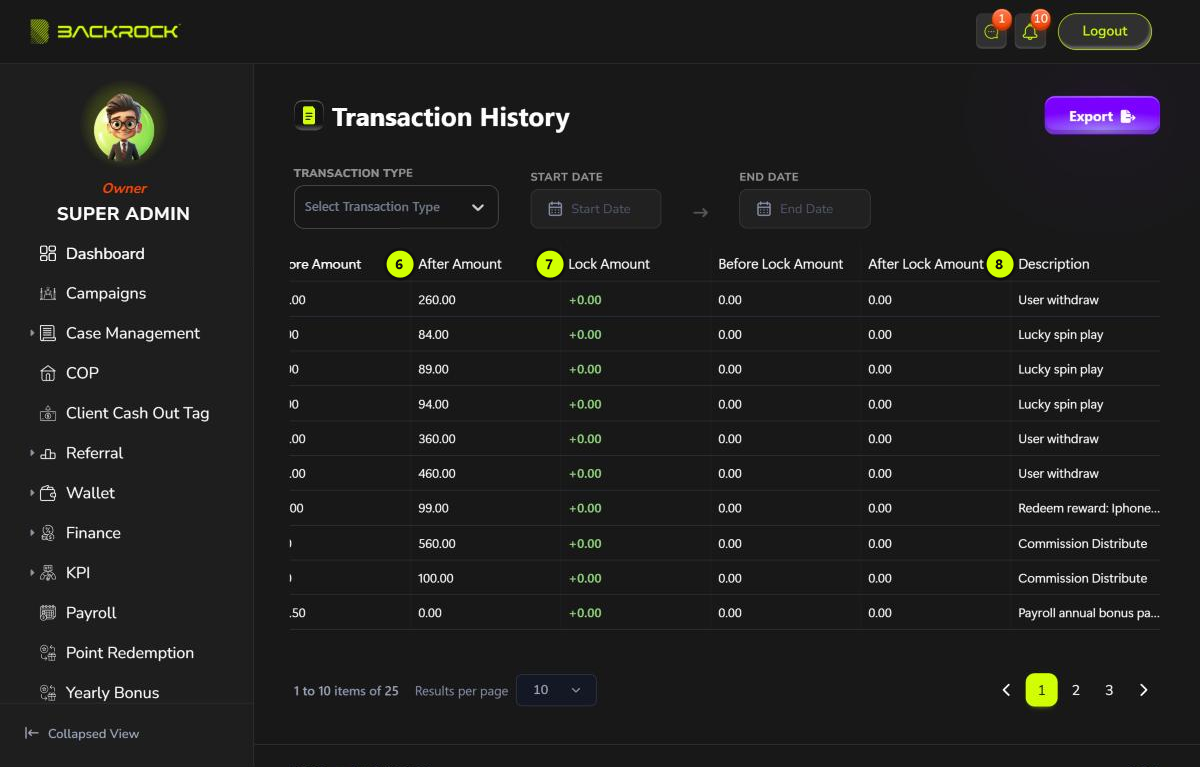
6. Before Amount and After Amount
The wallet balance before and after the transaction. They show - for a transaction that only locks or unlocks money.
7. Lock columns
Part of a wallet can be locked, for example while a bad debt is being checked. Locked money is still in the wallet but can't be used yet.
| Column | What it shows |
|---|---|
| Lock Amount | How much the transaction locked (+, in green) or unlocked (-, in red) |
| Before Lock Amount | The locked amount before the transaction |
| After Lock Amount | The locked amount after the transaction |
See the Wallet Balance page for how much is locked in each wallet now.
8. Description
A short note on the transaction, for example User withdraw or Commission Distribute.