Achievement Badges
Customers earn a badge when they reach its target. The system checks every few minutes and gives each badge once. Customers see their badges in the Member Portal. You can see who earned which badge in the Badge Entitlements Report.
To open it: in the left menu, click Setting > Achievement Badges.
Permissions
Set in Role & Permission:
| Item | Permission |
|---|---|
| Achievement Badges menu and list | Achievement Badges > View |
| Create Badge | Achievement Badges > Create |
| Edit, Delete | Achievement Badges > Edit |
Badge list
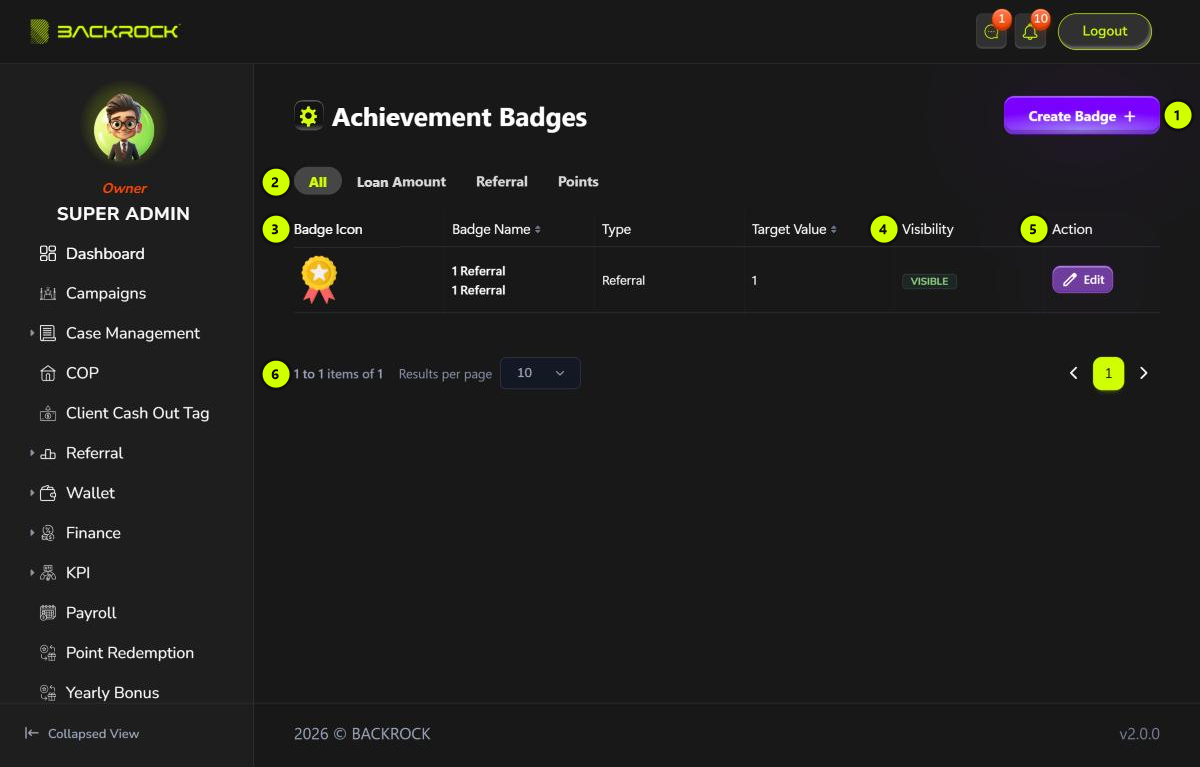
- Create Badge: opens the form to add a badge. You only see it if your role can create badges.
- Type tabs: All, Loan Amount, Referral or Points.
- Badge table: the newest badges are shown first, with the Badge Icon, the Badge Name in English and Chinese, the Type and the Target Value.
- Visibility: Visible or Hidden.
- Edit: opens the badge to change it. You need permission to edit badges.
- Pages: use Results per page and the page numbers to move between pages.
Next to Edit, the bin icon (Delete) removes the badge from the list. Click it, then click Yes to confirm. You see Badge deleted successfully (soft delete). You need permission to edit badges.
Badge types
| Type | What is counted | Example |
|---|---|---|
| Loan Amount | The total approved loan amount of the customer's cases, plus the cases of everyone in their referral downline | Target 1,000,000 = RM 1M approved |
| Referral | The number of customers they referred directly | Target 10 = 10 referrals |
| Points | All the points they have ever earned, not their current balance | Target 1,000 = 1,000 points earned |
Create a badge
Click Create Badge.
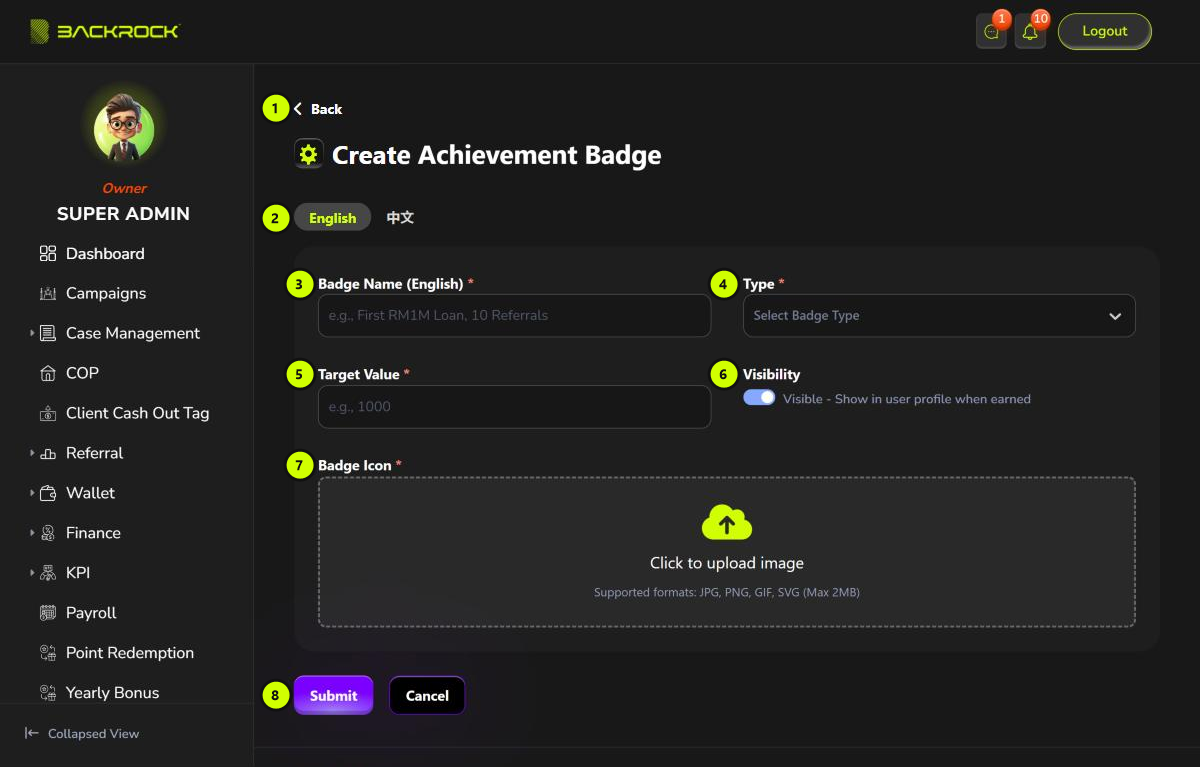
- Back: returns to the list without saving.
- English / 中文: switch between the English and Chinese names. Fill in both.
- Badge Name (required, in both languages), for example "First RM1M Loan".
- Type (required): Loan Amount, Referral or Points.
- Target Value (required): a number greater than 0.
- Visibility: on (Visible) by default.
- Badge Icon (required): click the box and choose a JPG or PNG file of up to 2MB.
- Submit: saves the badge. You see Badge created successfully and return to the list. Click Cancel to leave without saving.
Customers who already reach the target get the new badge within a few minutes.
Visibility doesn't hide the badge from customers at the moment. Hidden badges are still shown in the Member Portal.
Edit a badge
Click Edit on a row, change the fields, then click Update. You see Badge updated successfully.
- A new name or icon is shown straight away to customers who have the badge.
- A new type or target applies to new awards only. Customers who already have the badge keep it.
- Badges are never taken away from a customer.