Announcement
Announcements are messages for the people who use the Admin Portal. They appear in the Announcement card on the Dashboard. An announcement can also pop up once for each user when they open the Dashboard.
To open it: in the left menu, click Setting > Announcement.
Permissions
Set in Role & Permission:
| Item | Permission |
|---|---|
| Announcement menu, list and View | Announcements > View |
| Create Announcement | Announcements > Create |
| Edit | Announcements > Edit |
| Delete | Announcements > Delete |
| Target User list | Users > View (Users > View all to list users of other departments) |
Announcement List
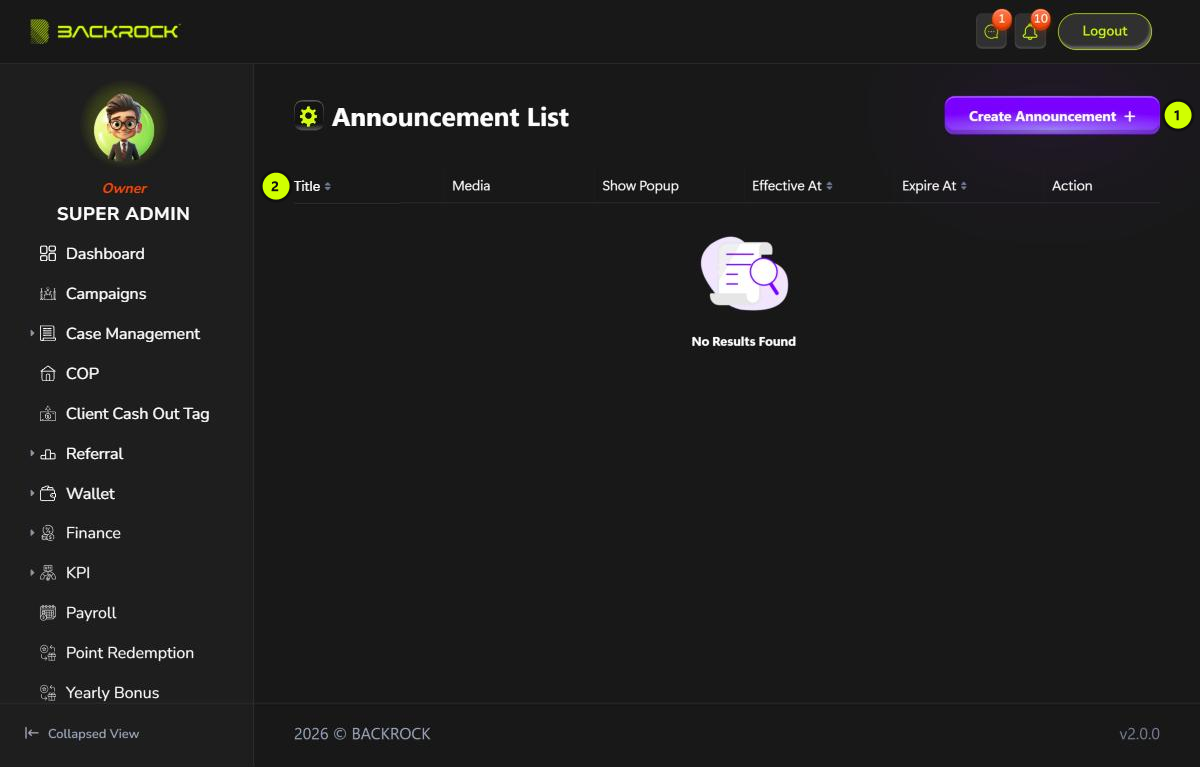
- Create Announcement: opens the form to add an announcement. You only see it if your role can create announcements.
- Announcement table: the newest announcements are shown first. Click Effective At or Expire At to sort.
| Column | What it shows |
|---|---|
| Title | The English title, with the Chinese title below it |
| Media | Click the picture icon to open the image. A video icon shows if there is a video link |
| Show Popup | Yes if it pops up on the Dashboard |
| Effective At | The first day it is shown |
| Expire At | The last day it is shown |
| Action | Edit and Delete, if your role can. If your role can only view announcements, View opens the announcement read-only (Announcement Details), with its full text in both languages |
Click Delete, then Yes, to delete an announcement. It can't be brought back.
Create an announcement
Click Create Announcement.
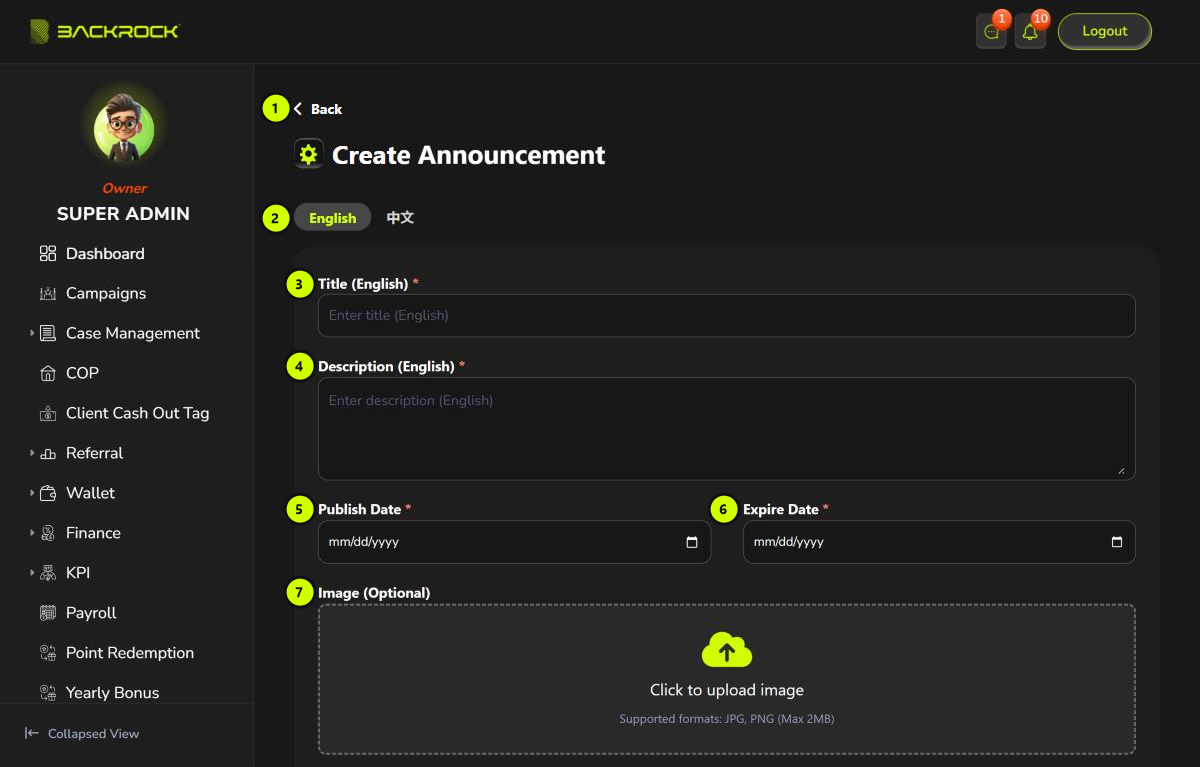
- Back: returns to the list without saving.
- English / 中文: switch between the English and Chinese text. Fill in both.
- Title (required, in both languages).
- Description (required, in both languages): the message.
- Publish Date (required): the first day it is shown.
- Expire Date (required): the last day it is shown. It can't be before the publish date.
- Image (optional): click the box and choose a JPG or PNG file of up to 2MB.
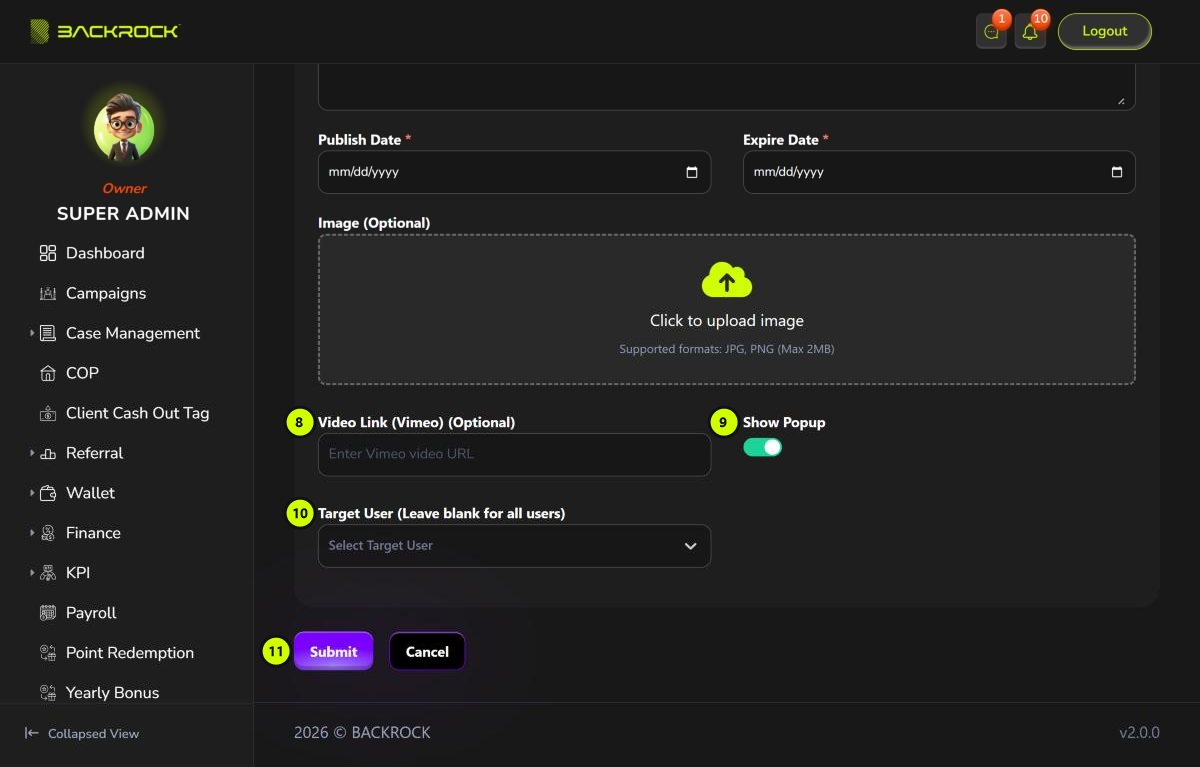
- Video Link (Vimeo) (optional): a Vimeo link, for example
https://vimeo.com/123456. - Show Popup: on by default. When it is on, each user sees the announcement once as a popup when they open the Dashboard.
- Target User: choose the users who should see it. Leave it empty to show it to everyone.
- Submit: saves the announcement. You see Announcement created successfully and return to the list. Click Cancel to leave without saving.
If a required field is empty, it shows an error such as Title is required.
An announcement shows from its publish date to its expire date, both included. No notification is sent when you add it.
Edit an announcement
Click Edit on a row, change the fields, then click Update. You see Announcement updated successfully.
On the edit form, the English and 中文 labels are swapped at the moment: the English tab shows the Chinese text. The text is still saved in the right language.