Banner
Banners are pictures that rotate below the announcements in the Announcement card on the Dashboard. They change every 5 seconds. Click a banner to see it full size.
To open it: in the left menu, click Setting > Banner.
Permissions
Set in Role & Permission:
| Item | Permission |
|---|---|
| Banner menu and list | Banners > View |
| Create Banner | Banners > Create |
| Edit | Banners > Edit |
| Delete | Banners > Delete |
Banner List
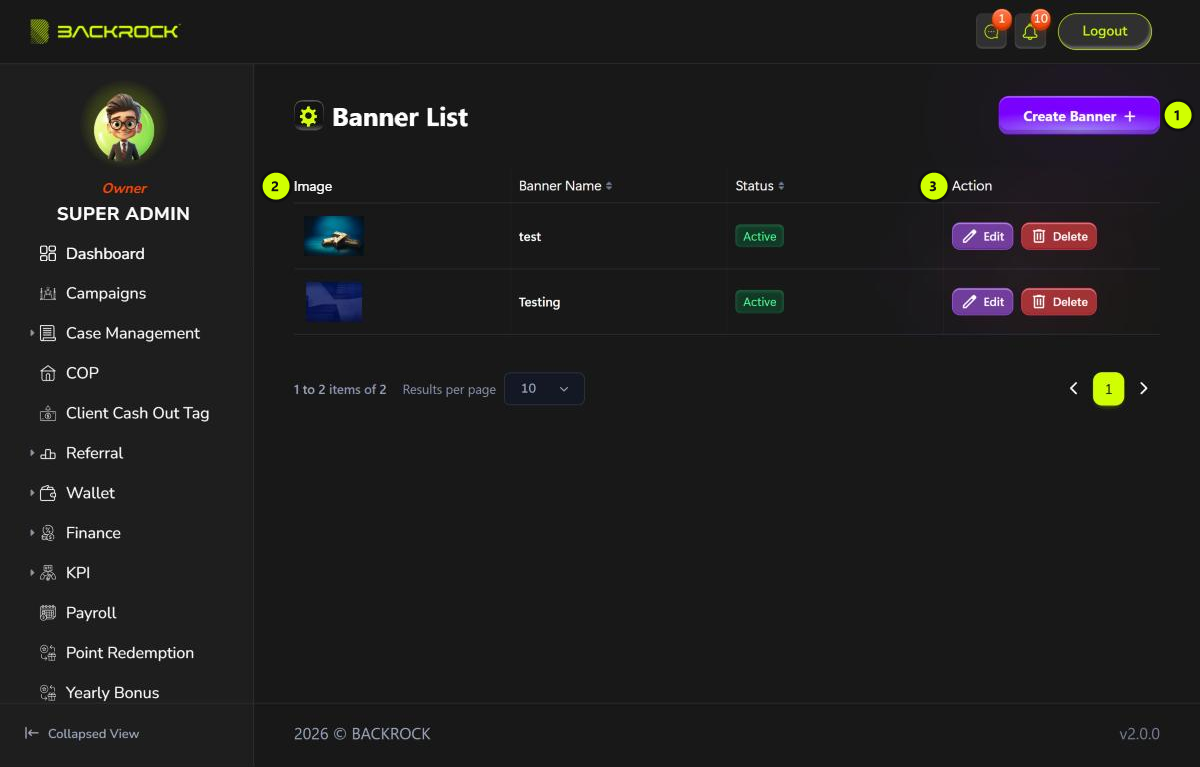
- Create Banner: opens the form to add a banner. You only see it if your role can create banners.
- Banner table: the Image, Banner Name and Status of each banner. The newest banners are shown first. Click Status to sort.
- Action:
- Edit: opens the banner to change it. You need permission to edit banners.
- Delete: click it, then Yes, to delete the banner. You see Banner deleted successfully. It can't be brought back. You need permission to delete banners.
caution
Banners can't be switched off. To stop showing a banner, delete it.
Create a banner
Click Create Banner.
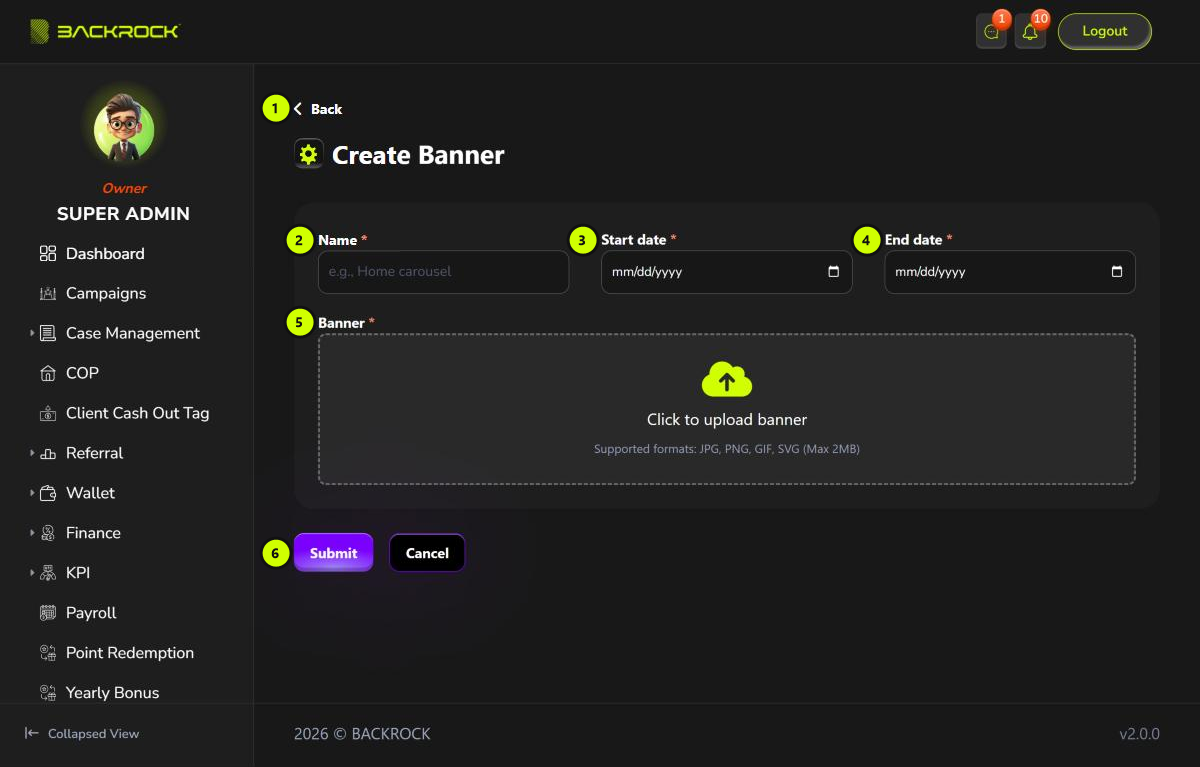
- Back: returns to the list without saving.
- Name (required): a name to recognise the banner, for example "Home carousel".
- Start date (required).
- End date (required): can't be before the start date.
- Banner (required): click the box and choose a JPG or PNG file of up to 2MB. The banner is shown 180 pixels high, so use a wide picture.
- Submit: saves the banner. You see Banner created successfully and return to the list. Click Cancel to leave without saving.
note
- The start and end dates don't control when the banner is shown at the moment. A banner shows from the moment it is added until it is deleted.
- Only users whose role can view banners see them on the Dashboard.
Edit a banner
Click Edit on a row, change the fields or choose a new picture, then click Update. You see Banner updated successfully.