Campaigns
Here you set up the team campaigns that agents take part in on the Campaigns page. You choose the target, the dates, the prizes and the teams, and you give the agents the campaign code to join. Each agent is put into a team automatically when they join.
A member scores 1 point for each case they handle that reaches one of the target statuses after they joined and before the campaign ends. A team's score is the total of its members' scores. Prizes and penalties are only text: nothing is paid into any wallet.
To open it: in the left menu, click Setting > Campaigns. The page heading is Game Campaigns.
Permissions
Set in Role & Permission:
| Item | Permission |
|---|---|
| Campaigns menu, list and View | Campaigns > View |
| Create Campaign | Campaigns > Create |
| Edit | Campaigns > Edit |
| Delete | Campaigns > Delete |
| Department list in the form | Departments > View |
Without Departments > View, the Department list is empty.
Game Campaigns list
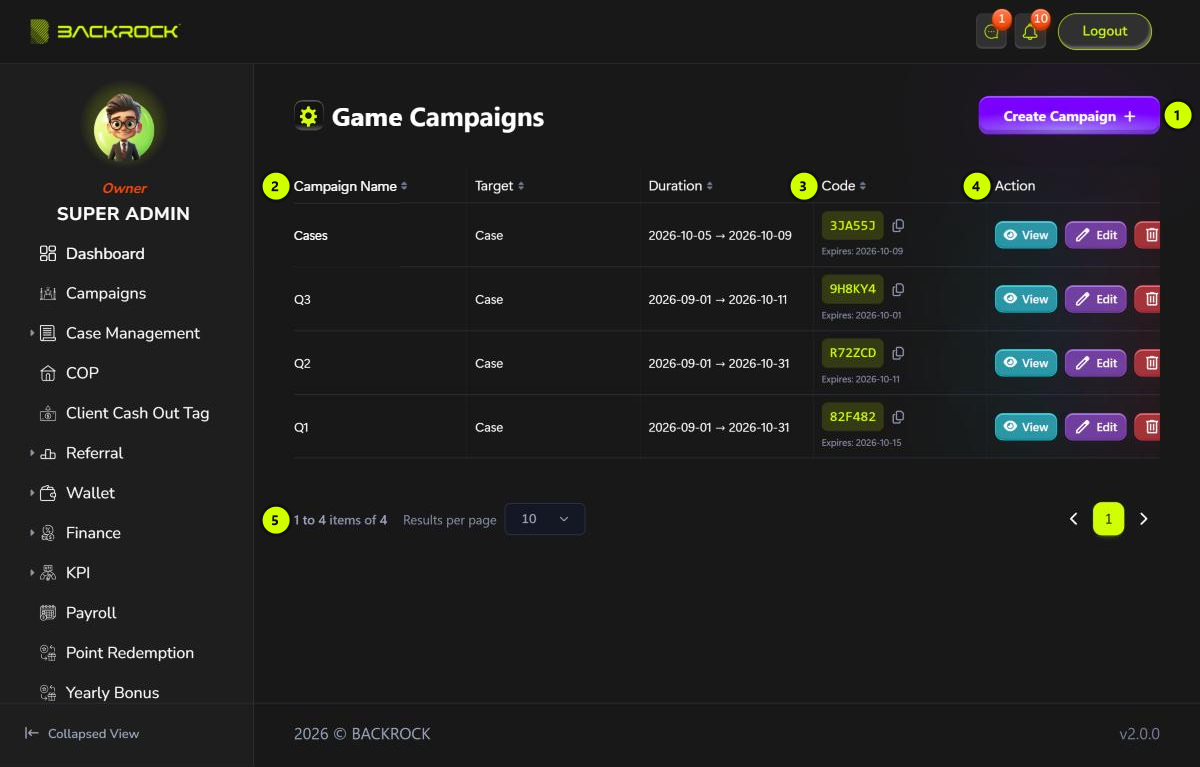
- Create Campaign: opens the form to add a campaign. You only see it if your role can create campaigns.
- Campaign table: the newest campaigns first, with the Campaign Name, the Target type (Case or Sales) and the Duration.
- Code: the campaign code agents use to join, and the last day they can join (Expires). Click the copy icon to copy the code.
- Action:
- View: shows the campaign, its current result and each team's members and scores.
- Edit: opens the campaign to change it. You need permission to edit campaigns.
- Delete: click it, then Yes, to delete the campaign. It disappears for the agents too. You need permission to delete campaigns.
- Pages: use Results per page and the page numbers to move between pages.
Create a campaign
Click Create Campaign. The form is long; its parts are shown in two pictures.
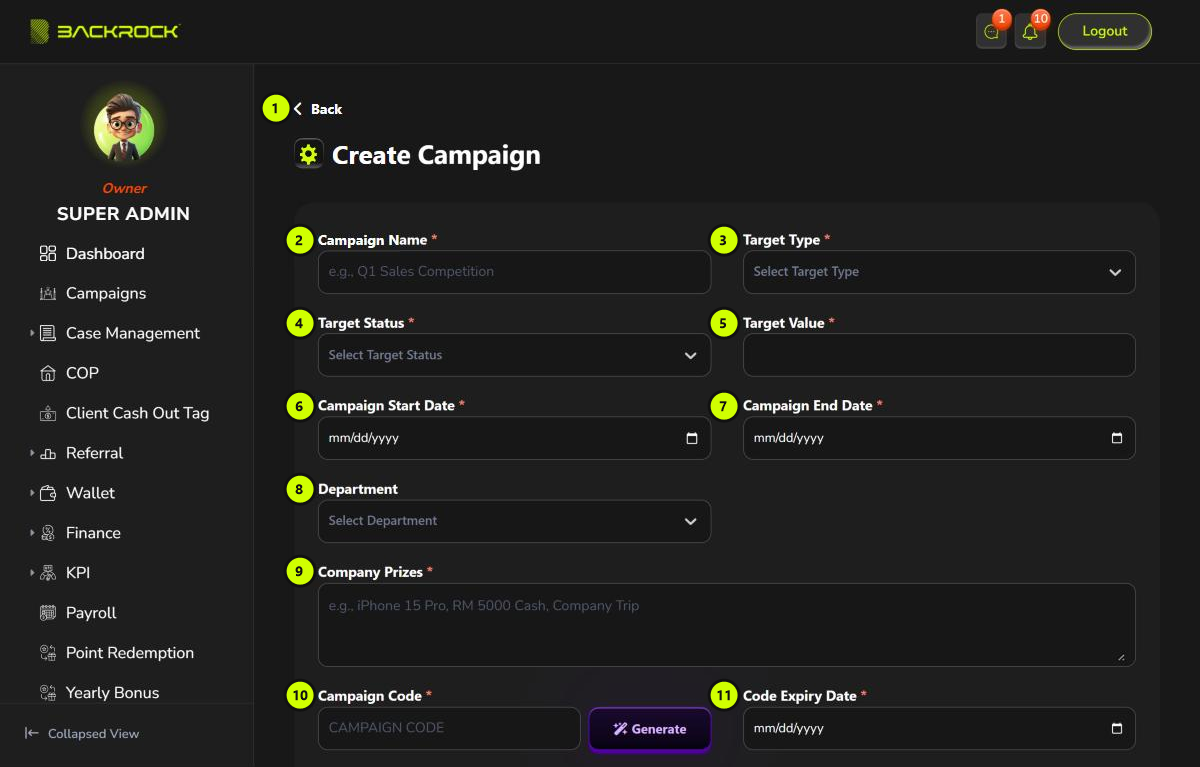
- Back: returns to the list without saving.
- Campaign Name (required), for example "Q1 Sales Competition".
- Target Type (required): Case or Sales.
- Target Status (required): the case statuses that count, for example Completed. You can choose more than one.
- Target Value (required): the target total, a whole number. You can only type digits.
- Campaign Start Date (required).
- Campaign End Date (required): can't be before the start date.
- Department (optional): only agents of this department can join. Leave it empty to let every department join.
- Company Prizes (required): what the winning team gets, for example "Company Trip".
- Campaign Code (required): click Generate to make a 6-character code, or type your own. Each code can only be used by one campaign.
- Code Expiry Date (required): the last day agents can join. It can't be after the end date.
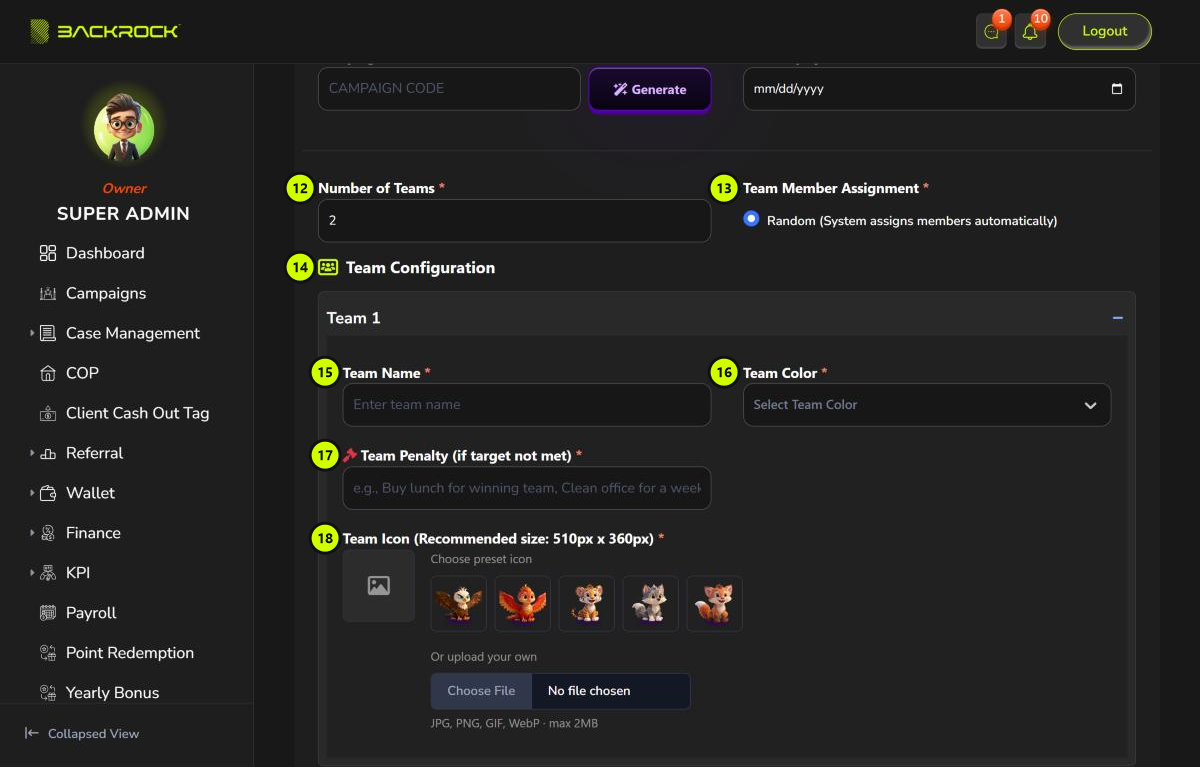
- Number of Teams (required): at least 2. It can't be changed after the campaign is created.
- Team Member Assignment: Random. The system puts each agent who joins into a team.
- Team Configuration: one section for each team.
- Team Name (required).
- Team Color (required).
- Team Penalty (required): what the team does if it doesn't reach the target, for example "Buy lunch for the winning team".
- Team Icon (required): click a preset icon, or upload your own JPG or PNG file of up to 2MB.
At the bottom, click Submit to save. You see Campaign created successfully and return to the list. Click Cancel to leave without saving.
Messages you may see:
| Message | What to do |
|---|---|
| join_code already in use | Generate or type another code |
| join_code_expire_date cannot be greater than end_date | Choose a code expiry date on or before the end date |
For a Sales campaign, scores are not counted automatically at the moment. Use Case campaigns.
Edit a campaign
Click Edit on a row, change the fields, then click Update. You see Campaign updated successfully.
The scores are always worked out from the current settings. If you change the target status, target type or dates of a running campaign, everyone's score changes, including what they scored before.
Avoid editing a campaign that agents have already joined:
- Each Update adds the members' current scores again, so the scores become too high.
- Changing the team leader fails with an error.