Company Goals
The company goal is the company's target for a year, for example the number of cases to complete. It is used in two places:
- The Company Goals card on the Dashboard shows how far the company is this year.
- The Yearly Bonus uses it for Company Target Completion (%), which decides the profit tier.
There can only be one goal for each year.
To open it: in the left menu, click Setting > Company Goals.
Permissions
Set in Role & Permission:
| Item | Permission |
|---|---|
| Company Goals menu and list | Company Goals > View |
| Create Goal | Company Goals > Create |
| Edit | Company Goals > Edit |
| Delete | Company Goals > Delete |
Company Goals List
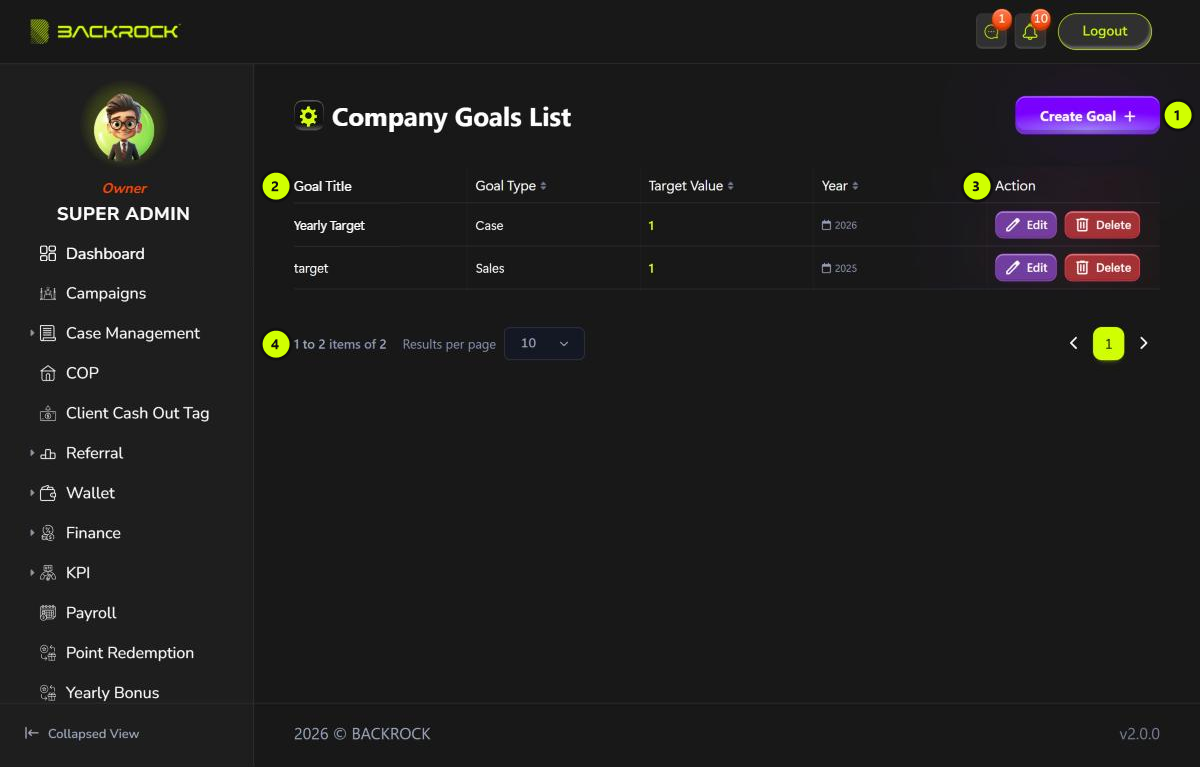
- Create Goal: opens the form to add a goal. You only see it if your role can create company goals.
- Goal table: the Goal Title, Goal Type, Target Value and Year. The newest year is shown first. Click Goal Type or Year to sort.
- Action:
- Edit: opens the goal to change it. You need permission to edit company goals.
- Delete: click it, then Yes, to delete the goal. You need permission to delete company goals.
- Pages: use Results per page and the page numbers to move between pages.
How progress is counted
| Goal Type | What is counted |
|---|---|
| Case | The number of cases that reached Completed Cases during the year, for the whole company. A case that is later moved out of Completed Cases stops counting |
| Sales | Not counted yet. The progress stays empty |
Use Case for the yearly goal. A Sales goal can't be used for the Yearly Bonus: submitting the yearly bonus fails with The company goal type of … has no calculation yet.
Create a goal
Click Create Goal.
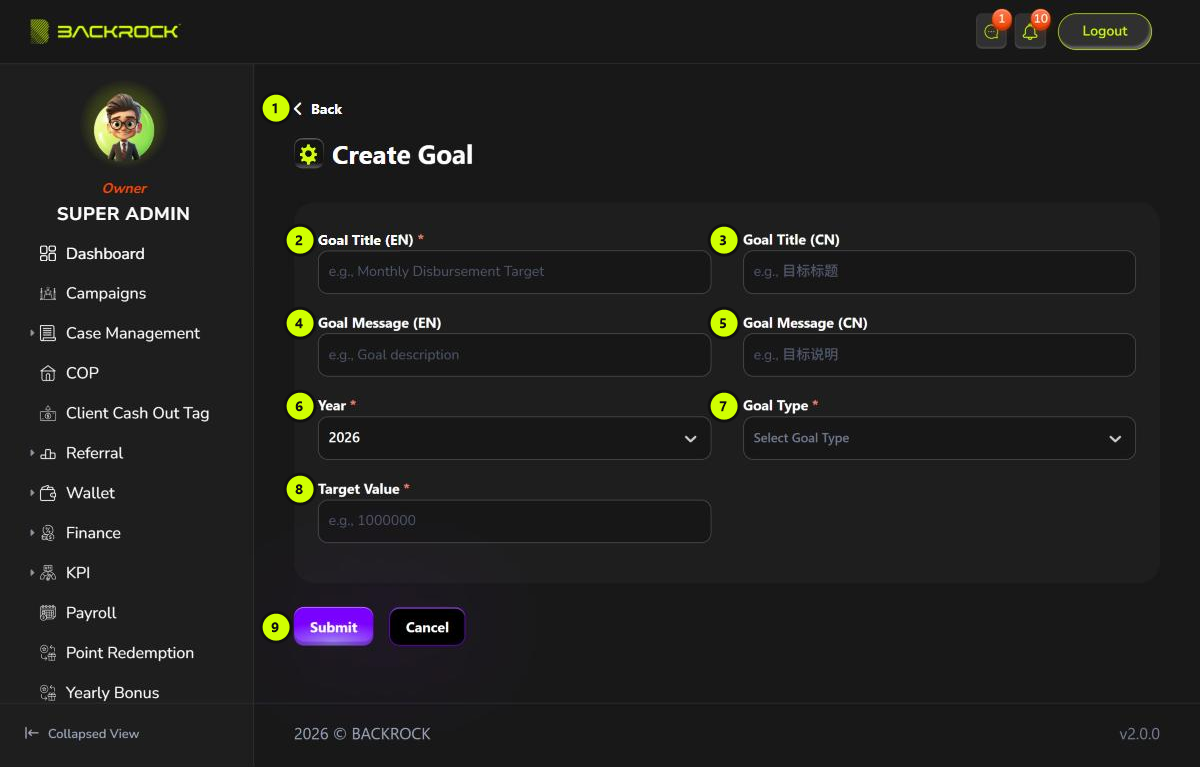
- Back: returns to the list without saving.
- Goal Title (EN): the title in English, for example "Yearly Case Target". Fill in the English or the Chinese title, or both.
- Goal Title (CN): the title in Chinese.
- Goal Message (EN) (optional): a short description.
- Goal Message (CN) (optional).
- Year (required): the current year is selected.
- Goal Type (required): Case or Sales.
- Target Value (required): a whole number greater than 0, for example 500 cases. You can only type digits.
- Submit: saves the goal. You see Company goal created successfully and return to the list. Click Cancel to leave without saving.
If the year already has a goal, you see Company goal for … already exists. Edit the existing goal instead.
Edit a goal
Click Edit on a row, change the fields, then click Update. You see Company goal updated successfully. The year can't be changed.
A yearly bonus that is already submitted or approved keeps the figures it was submitted with. Changing or deleting the goal afterwards doesn't change it.