Department
Every user belongs to a department (see Create, View and Edit a User). Each department has a category: Processing, Sales or Subsales. The category decides:
- which positions (Tagging) a user of the department can have;
- which KPI page the department's members are scored on: IMS Processing, Sales or Subsales;
- which share of the Yearly Bonus the members get.
Users can only see the users of their own department, unless their role can view all users.
To open it: in the left menu, click Setting > Department.
Permissions
Set in Role & Permission:
| Item | Permission |
|---|---|
| Department menu and list | Departments > View |
| Create Department | Departments > Create |
| Edit | Departments > Edit |
Department List
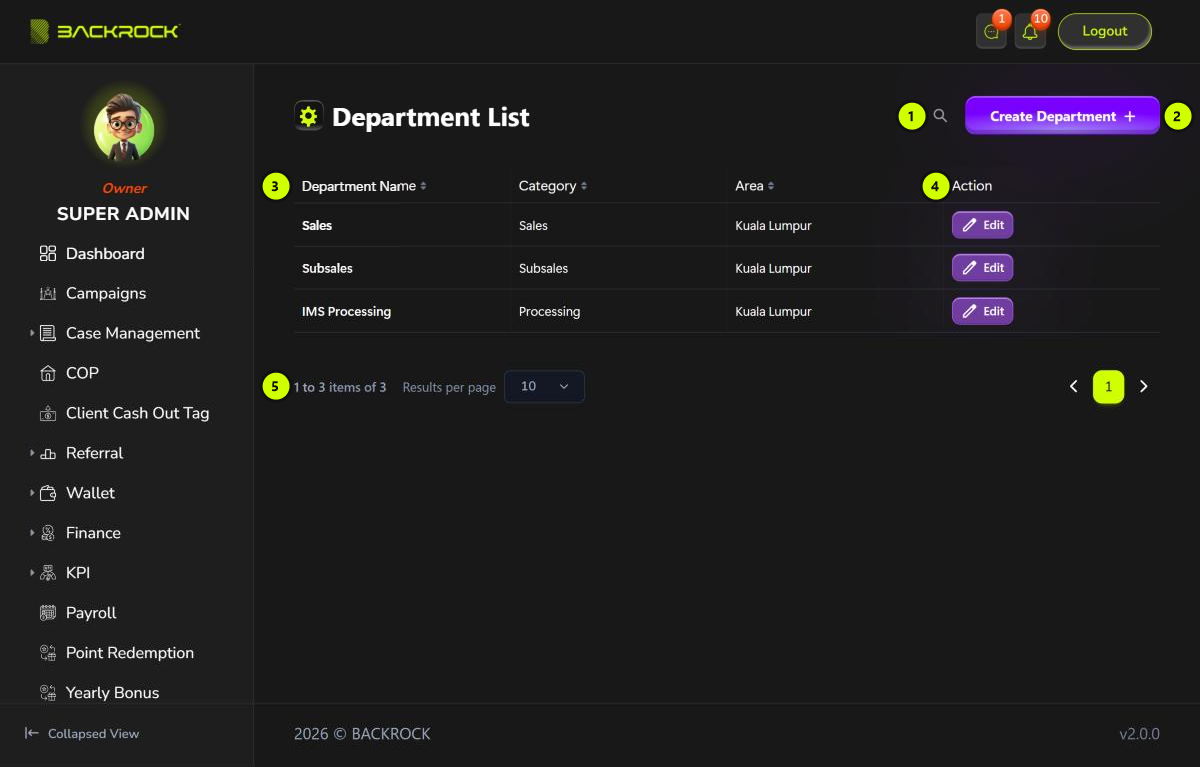
- Search: click the magnifier and type a department name.
- Create Department: opens the form to add a department. You only see it if your role can create departments.
- Department table: the Department Name, Category and Area. The newest departments are shown first. Click Department Name or Category to sort.
- Edit: opens the department to change it. You need permission to edit departments.
- Pages: use Results per page and the page numbers to move between pages.
Departments can't be deleted or switched off.
Create a department
Click Create Department.
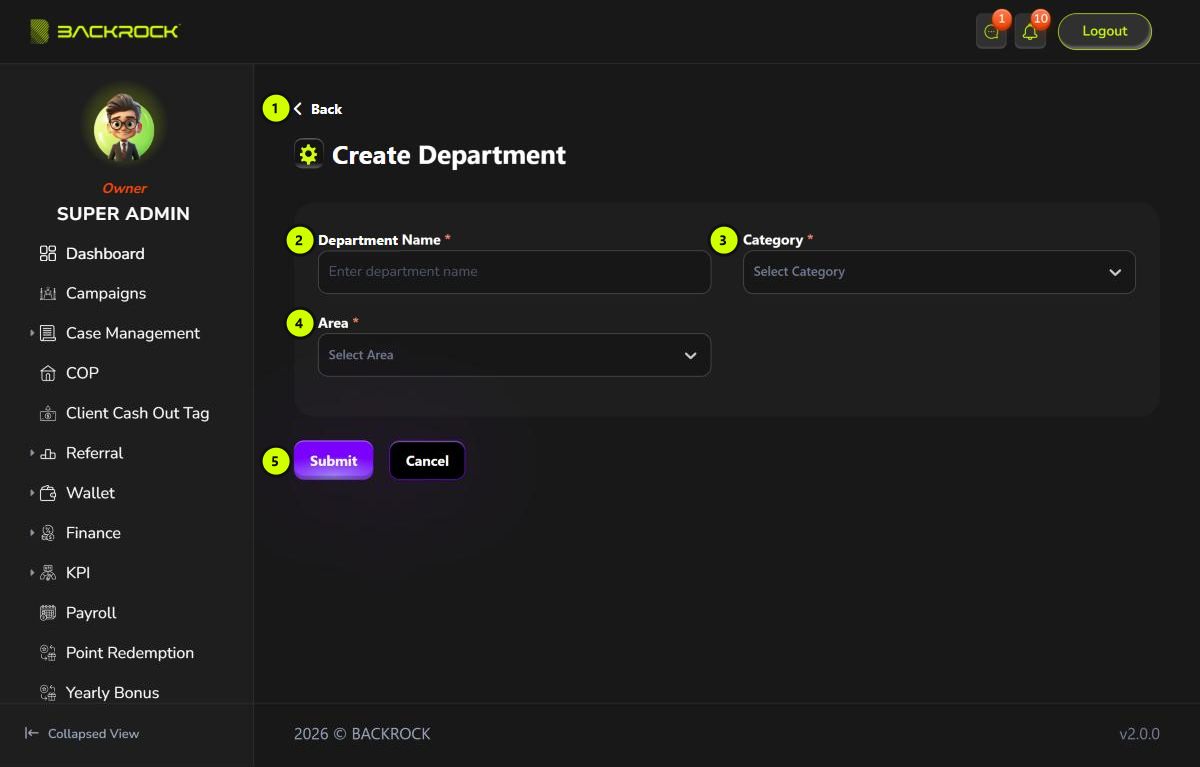
- Back: returns to the list without saving.
- Department Name (required).
- Category (required): Processing, Sales or Subsales.
- Area (required): the state, for example Kuala Lumpur.
- Submit: saves the department. You see Department created successfully and return to the list. Click Cancel to leave without saving.
Each category can only have one department in each area. Otherwise you see A department with the same category and area already exists.
Edit a department
Click Edit on a row, change the fields, then click Update. You see Department updated successfully.
Avoid changing the Category of a department that already has users. Their positions (Tagging) belong to the old category and are not updated.