Lucky Spin
Customers can spend points from their Points Wallet to play a lucky spin in the Member Portal (see Lucky Spin in the Member Portal guide). Each spin wins one prize. You can see every spin in Spin Result.
To open it: in the left menu, click Setting > Lucky Spin. The page heading is Lucky Spin Setting.
Permissions
Set in Role & Permission:
| Item | Permission |
|---|---|
| Lucky Spin menu and list | Lucky Spins > View |
| Create Lucky Spin | Lucky Spins > Create |
| Edit, Delete | Lucky Spins > Edit |
Lucky Spin list
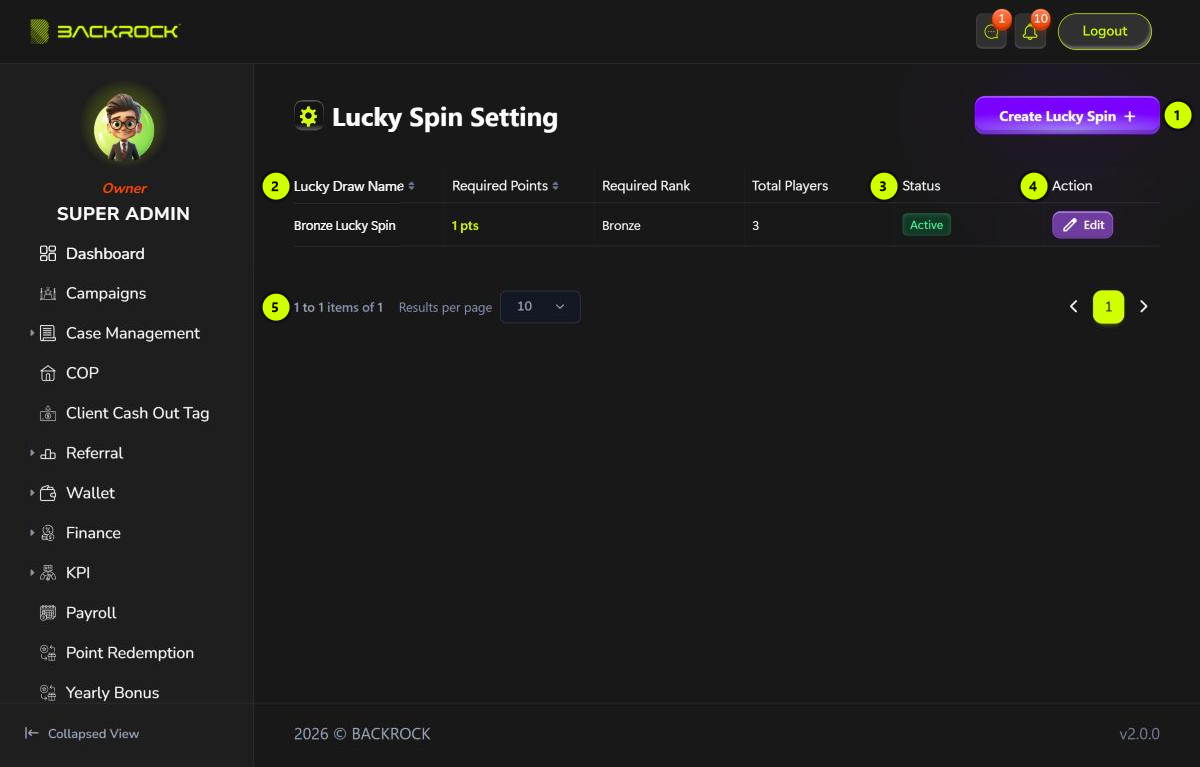
- Create Lucky Spin: opens the form to add a lucky spin. You only see it if your role can create lucky spins.
- Lucky spin table: the Lucky Draw Name, the Required Points for one spin, the lowest customer rank that can play (Required Rank), and Total Players: the number of spins played so far.
- Status: Active or Inactive.
- Edit: opens the lucky spin to change it. You need permission to edit lucky spins.
- Pages: use Results per page and the page numbers to move between pages.
Next to Edit, the bin icon (Delete) removes the lucky spin from the list. Click it, then click Yes to confirm. You see Lucky spin deleted successfully (soft delete). You need permission to edit lucky spins.
Create a lucky spin
Click Create Lucky Spin. The form below shows an existing lucky spin.
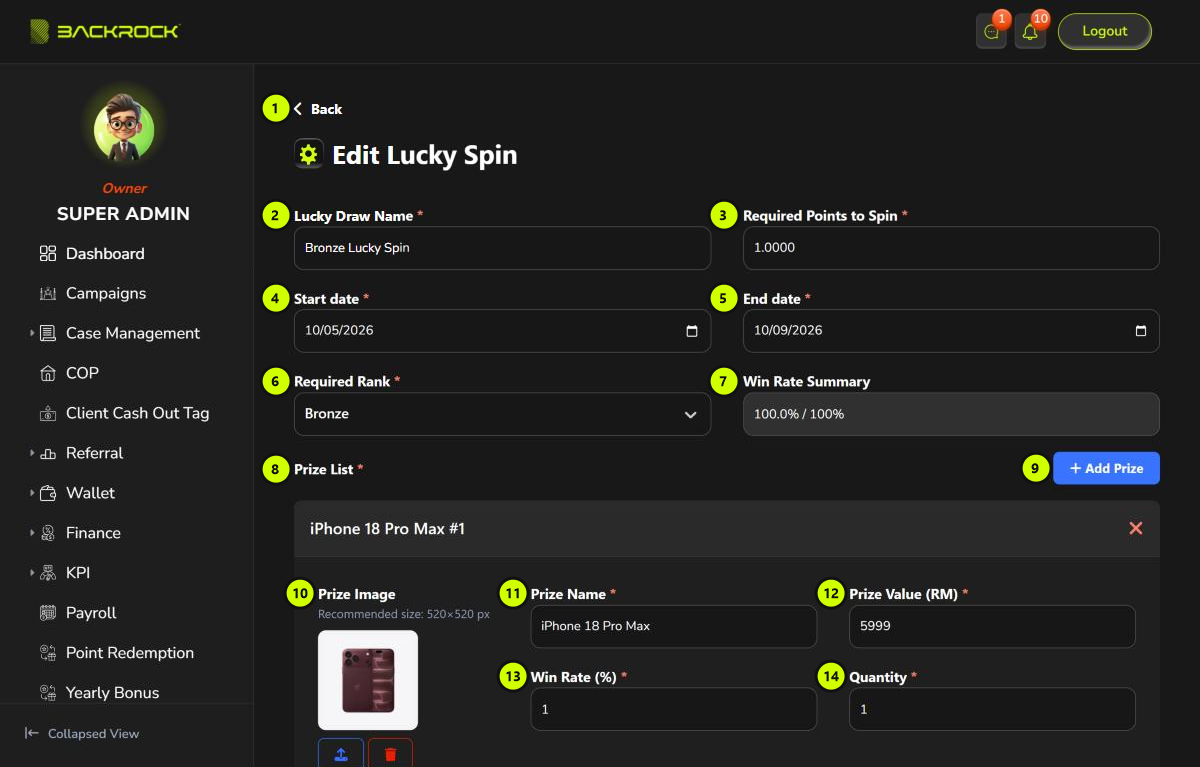
- Back: returns to the list without saving.
- Lucky Draw Name (required).
- Required Points to Spin (required): the points taken from the customer's Points Wallet for each spin.
- Start date (required).
- End date (required): can't be before the start date.
- Required Rank (required): the lowest customer rank that can play. Customers with this rank or higher can play. See Customer Ranking.
- Win Rate Summary: the total win rate of all prizes. It can't be more than 100%.
- Prize List (required): add at least one prize.
- Add Prize: adds a prize. Click × on a prize to remove it.
- Prize Image (optional): a JPG, PNG, GIF or WEBP file of up to 2MB. The best size is 520×520 pixels.
- Prize Name (required).
- Prize Value (RM) (required): for information only.
- Win Rate (%) (required): how likely the prize is.
- Quantity (required): how many of the prize are left, a whole number. You can only type digits.
At the bottom, click Submit to save. You see Lucky spin created successfully and return to the list. Click Cancel to leave without saving. A new lucky spin is Active.
How a prize is picked
- Customers can play while the lucky spin is between its start and end dates, if their rank is high enough and they have enough points.
- Each spin always wins one prize. Add a prize such as "Thank You" with value 0 if you want a "no prize" result. It needs a quantity too.
- The win rates are compared with each other. If they add up to less than 100%, the real chances are higher than shown. For example, two prizes at 10% and 40% are really won 20% and 80% of the time.
- Each time a prize is won, its Quantity goes down by 1. A prize with no quantity left can't be won, and the other prizes become more likely.
- The system doesn't send the prize. Arrange it with the customer yourself.
Edit a lucky spin
Click Edit on a row, change the fields, then click Update. You see Lucky spin updated successfully.
- A prize that has already been won can't be removed.
- Quantity shows the stock when you opened the page. If customers play while you edit, their wins are not counted when you click Update. Edit lucky spins when few customers are playing.
- A new prize name, value or image also changes how past spins are shown.