Product
Every case is for a product. The product decides:
- how the case's commission is worked out (see Commission);
- whether a charging fee is collected from the customer, and the bad debt rule;
- the tasks to tick off at each case status.
When a case is created, it keeps a copy of its product. Changing a product only affects cases created after the change.
To open it: in the left menu, click Setting > Product.
Permissions
Set in Role & Permission:
| Item | Permission |
|---|---|
| Product menu, list and View | Products > View |
| Create Product | Products > Create |
| Edit, Disable / Enable | Products > Edit |
| Status lists in the form | Status Configurations > View |
Without Status Configurations > View, the form can't load the statuses, so you can't create a product.
Product List
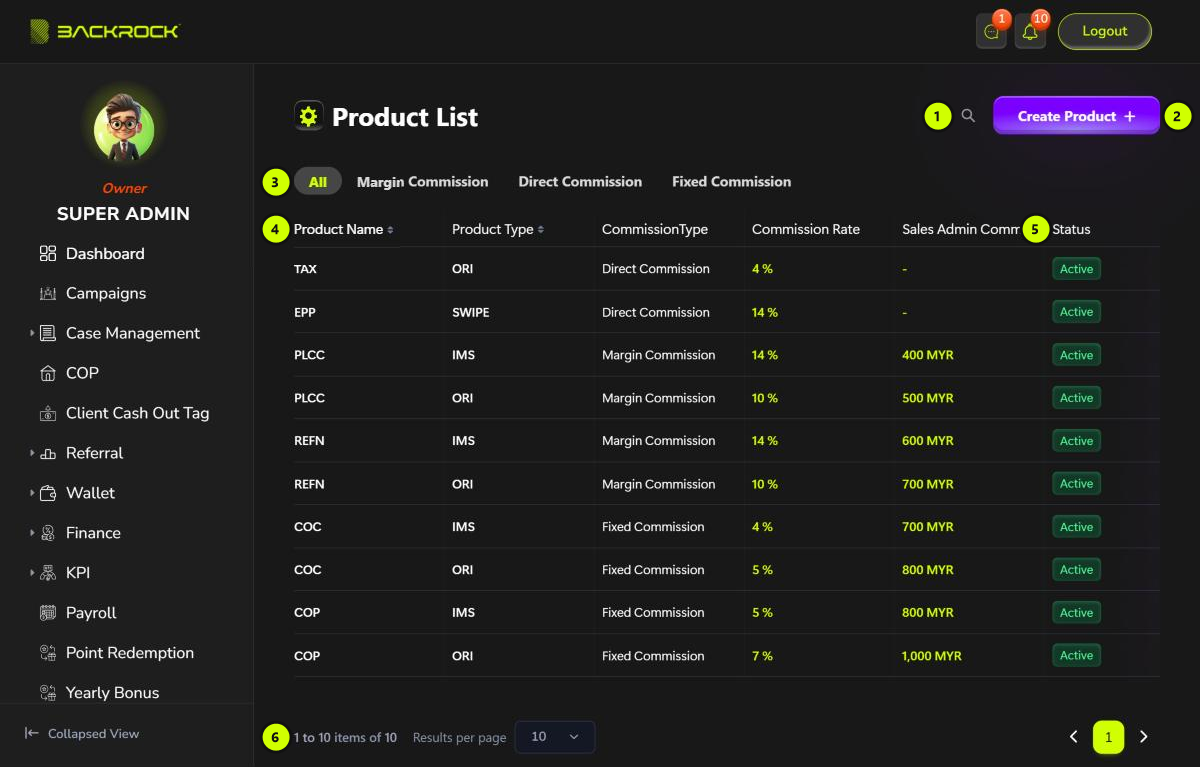
- Search: click the magnifier and type a product name.
- Create Product: opens the form to add a product. You only see it if your role can create products.
- Commission type tabs: All, Margin Commission, Direct Commission or Fixed Commission.
- Product table: the newest products first, with the Product Name, Product Type, Commission Type, Commission Rate and Sales Admin Commission. Click Product Name to sort.
- Status: Active or Inactive. Only active products can be chosen for a new case. Scroll the table to the right to see the Action column:
- Edit: opens the product to change it. You need permission to edit products.
- View: shown instead of Edit if your role can only view products. It opens the same page as Product Details, read-only.
- Pages: use Results per page and the page numbers to move between pages.
Products can't be deleted.
The Disable button doesn't work at the moment: it shows an error. A product can't be switched off yet.
Create a product
Click Create Product. The form has four sections. The pictures below show an existing product.
Product and commission details
-
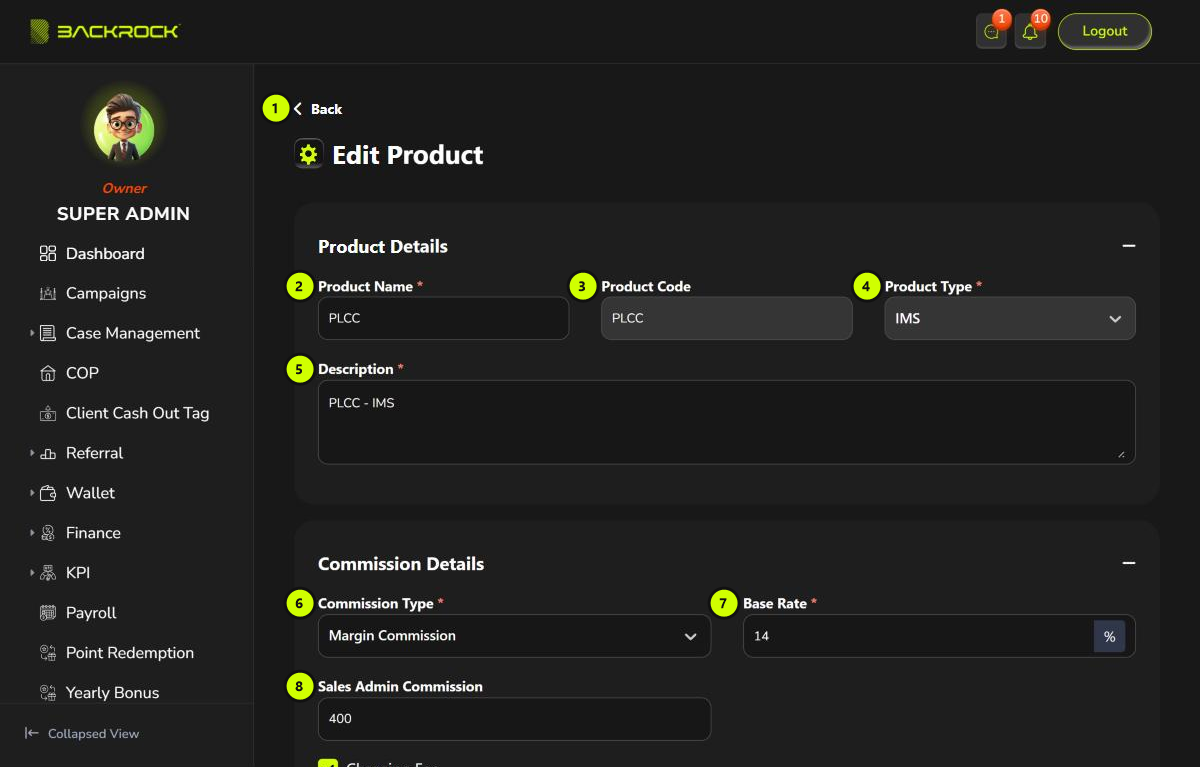
Back: returns to the list without saving.
-
Product Name (required).
-
Product Code (required): a short code used in the case numbers, for example
PLCCgivesCASE-PLCC-00012. It can't be changed later. -
Product Type (required): ORI, IMS or SWIPE. A customer can't have an ORI and an IMS product at the same time; SWIPE can go with either. It can't be changed later.
-
Description (required).
-
Commission Type (required):
Commission Type The amount shared out (margin) Margin Commission The charging fee minus the Base Rate % of the approved amount. Needs Charging Fee Direct Commission The Commission % of the approved amount Fixed Commission The same as Direct Commission -
Base Rate or Commission (required): a percentage.
-
Sales Admin Commission (optional): an amount in RM. A sales admin on Confirmation or Lead is paid up to this amount for each agreement.
Charging fee, bonuses and bad debt
-
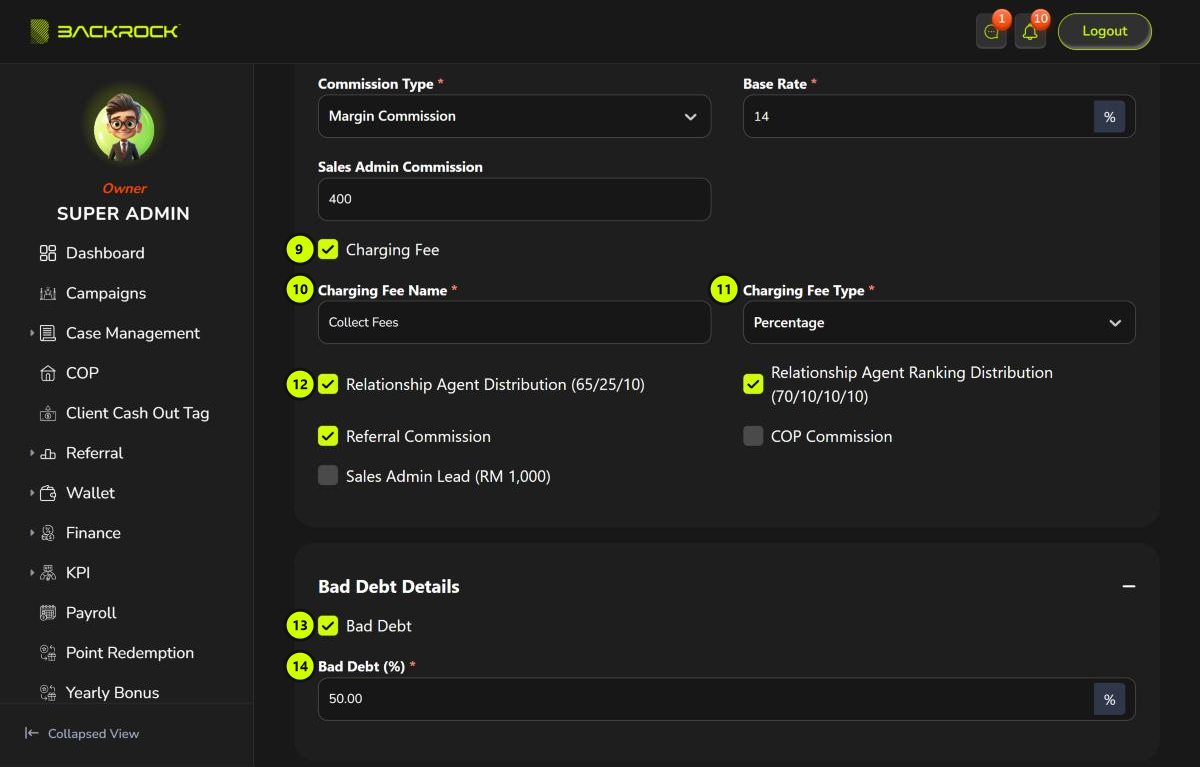
Charging Fee: tick it if a fee is collected from the customer. The amount is entered on each case. Without a charging fee, the case's commission is worked out as soon as the loans are disbursed.
-
Charging Fee Name (required with a charging fee).
-
Charging Fee Type (required with a charging fee): Percentage or Amount.
-
Bonuses: tick the bonuses this product pays.
- Relationship Agent Distribution: the deal maker's and IMS pool's share.
- Relationship Agent Ranking Distribution: the uplines' ranking commission.
- Referral Commission: the referring customer's share.
- Sales Admin Lead: the sales admin's leader's bonus.
- COP Commission: lets the case be linked to a COP.
If none of the first four is ticked, the whole margin is kept by the company, and the agent who handles the case gets nothing.
-
Bad Debt: tick it to use the bad debt rule for this product.
-
Bad Debt (%) (required with bad debt, 0 to 50): if the customer has paid at least this percentage of the repayment, the agent's commission is not held or deducted for bad debt.
Statuses and tasks
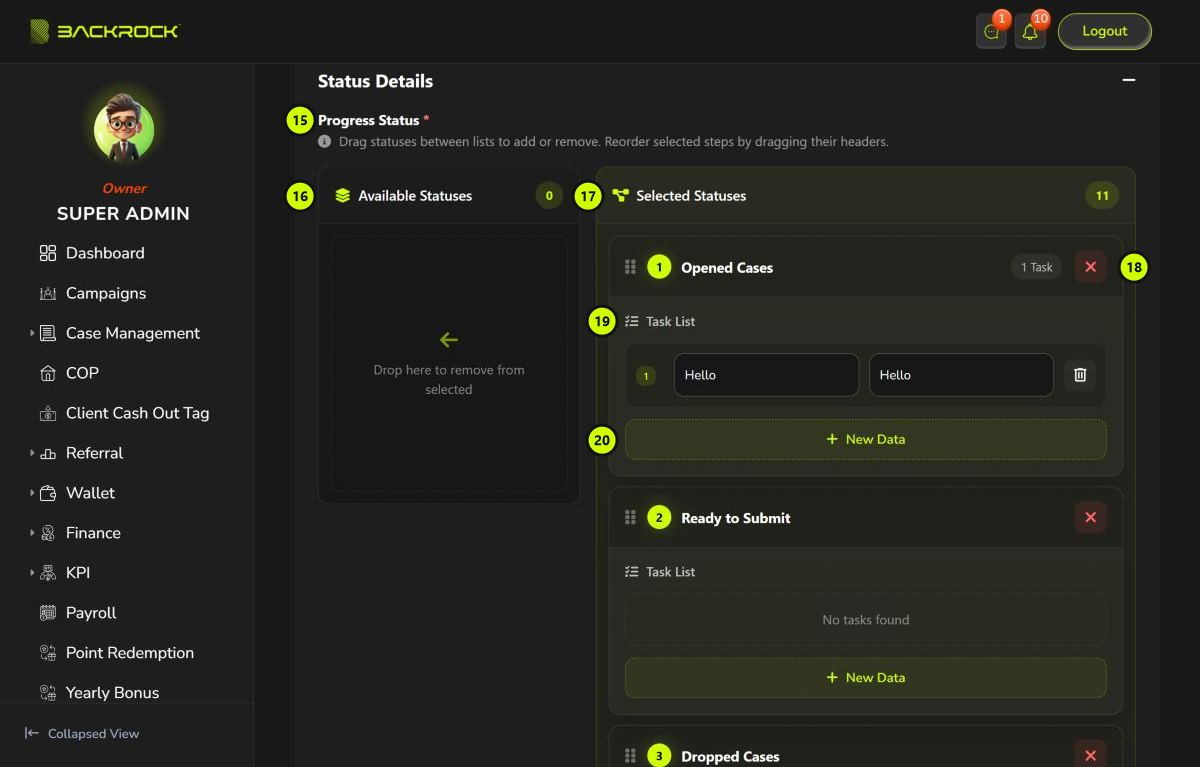
- Progress Status (required): the case statuses.
- Available Statuses: statuses not used. Drag a status here to remove it.
- Selected Statuses: the statuses of the case, in order. Drag a status by its header to move it.
- ×: removes the status.
- Task List: the tasks to tick off at this status. Type the task name and a description. Click the bin to remove a task.
- New Data: adds a task.
At the bottom, click Submit to save. You see Product created successfully and return to the list. Click Cancel to leave without saving.
A case always goes through every status in Status Configuration, in the same order. Here you only set the tasks of each status for this product.
Edit a product
Click Edit on a row, change the fields, then click Update. You see Product updated successfully. Cases that already exist are not changed.