Redemption Catalogue
The redemption catalogue is the list of rewards customers can redeem with their points in the Member Portal (see Point Redemption in the Member Portal guide). The redemptions they make are handled on the Point Redemption page.
To open it: in the left menu, click Setting > Redemption Catalogue.
Permissions
Set in Role & Permission:
| Item | Permission |
|---|---|
| Redemption Catalogue menu and list | Reward Products > View |
| Create Redemption Product | Reward Products > Create |
| Edit, Disable / Enable | Reward Products > Edit |
| Delete | Reward Products > Delete |
Redemption Catalogue list
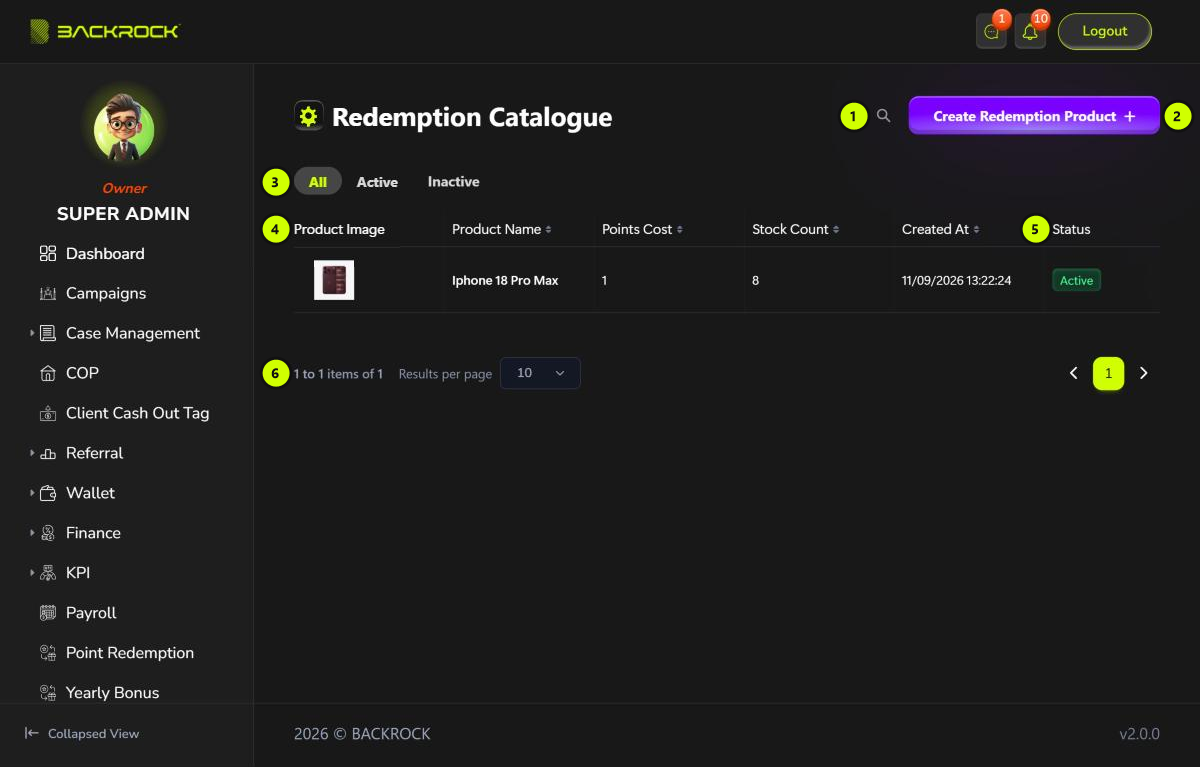
- Search: click the magnifier and type a product name.
- Create Redemption Product: opens the form to add a reward. You only see it if your role can create redemption products.
- Status tabs: All, Active or Inactive.
- Reward table: the Product Image, Product Name, Points Cost, Stock Count and Created At. Click a column title to sort.
- Status: Active or Inactive. Customers only see active rewards that are in stock. Scroll the table to the right to see the Action column:
- Edit: opens the reward to change it.
- Disable / Enable: click it, then Yes, to change the status.
- Delete: click it, then Yes. A reward that has been redeemed is set to Inactive instead of deleted.
- Pages: use Results per page and the page numbers to move between pages.
You need permission to create, edit or delete redemption products.
Create a reward
Click Create Redemption Product.
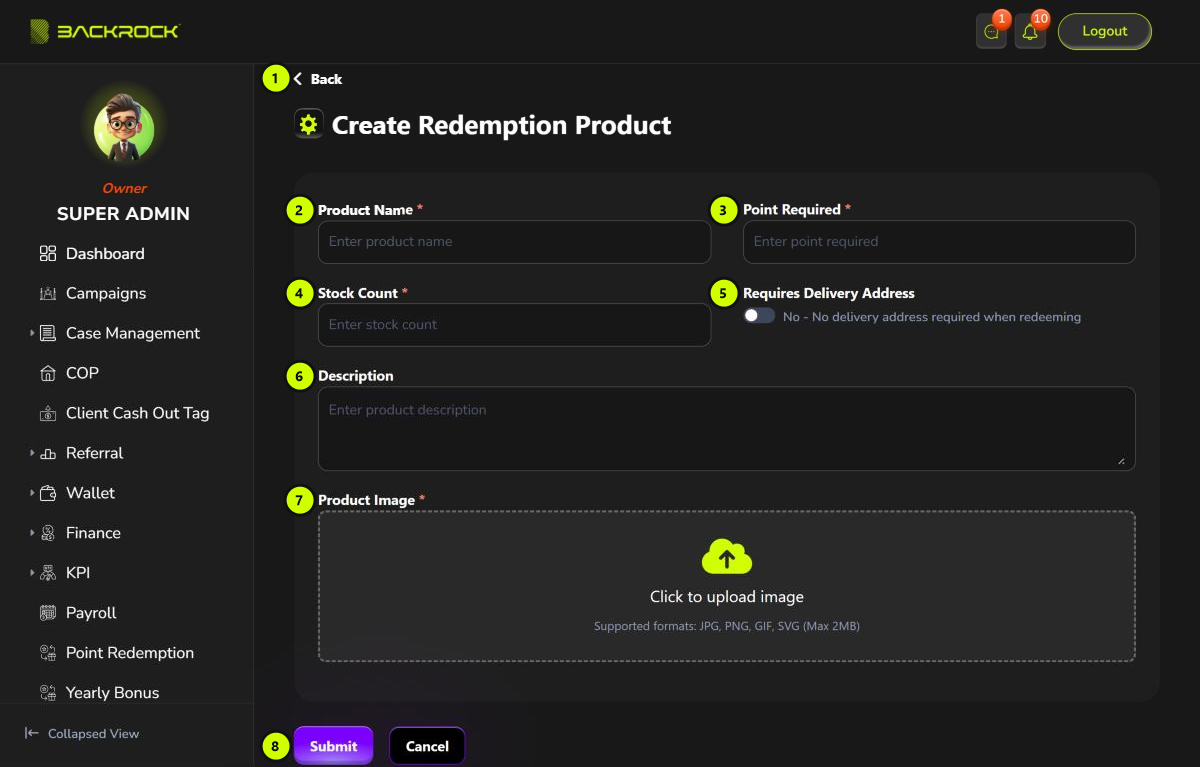
- Back: returns to the list without saving.
- Product Name (required).
- Point Required (required): the points for one item. Use a whole number greater than 0.
- Stock Count (required): how many items are available, a whole number. You can only type digits.
- Requires Delivery Address: turn it on if the reward is sent by courier. The customer then has to fill in a delivery address when they redeem it.
- Description (optional).
- Product Image (required): a JPG, PNG or WEBP file of up to 2MB.
- Submit: saves the reward. You see Reward product created successfully and return to the list. The reward is Active and customers can redeem it straight away. Click Cancel to leave without saving.
How stock works
- When a customer redeems a reward, the stock goes down and the points are taken from their Points Wallet straight away.
- When a redemption is cancelled, the stock and the points are given back.
- When the stock reaches 0, customers no longer see the reward.
Edit a reward
Click Edit on a row, change the fields, then click Update. You see Reward product updated successfully. Redemptions already made keep the name and points they were made with.
Stock Count is the total stock, not an amount to add. It shows the stock when you opened the page. If customers redeem the reward while you edit, their redemptions are not counted when you click Update. Reload the page first.