Transaction History
The Transaction History page shows every amount added to or taken from your own wallets, for example commissions and bonuses.
To open it: in the left menu, click Wallet > Transaction History.
Permissions
Set in Role & Permission:
| Item | Permission |
|---|---|
| Transaction History menu and page | Wallets > Transaction history |
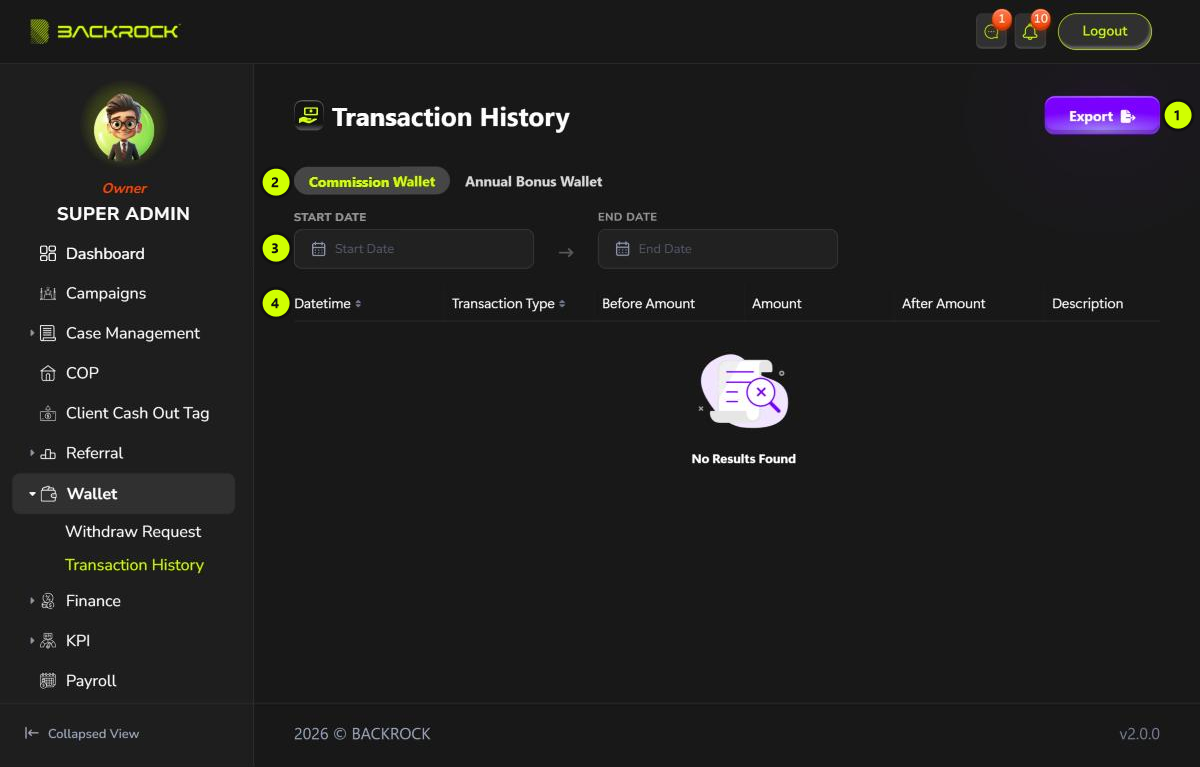
1. Export
Downloads the transactions of the selected wallet as a CSV file, for example to open in Excel. The file uses the same wallet and dates as the page. You see Exported successfully. If there is nothing to export, you see No data to export.
2. Wallets
There is a tab for each of your wallets, for example Commission Wallet and Annual Bonus Wallet. Click a tab to see that wallet's transactions.
3. Start Date and End Date
Choose a Start Date, an End Date, or both, to only see the transactions in that period. Both dates are included. The start date can't be after the end date.
Once a date is chosen, a Clear button appears. Click it to remove both dates.
4. Transaction table
The newest transactions are shown first.
| Column | What it shows |
|---|---|
| Datetime | When the transaction happened |
| Transaction Type | What kind of transaction it is |
| Before Amount | The wallet balance before the transaction |
| Amount | The amount added (+, in green) or taken (-, in red) |
| After Amount | The wallet balance after the transaction |
| Description | More details about the transaction |
Click Datetime or Transaction Type to sort by that column. If there are no transactions, you see No Results Found.
Use Results per page and the page numbers at the bottom to move between pages.