Yearly Bonus
Once a year, part of the company's profit is shared out as a yearly bonus. On this page you enter the year's costs. The system works out the profit, the bonus pool and each person's share. After the yearly bonus is approved, each person's share is paid into their Annual Bonus Wallet, and it is paid out with their next payslip (see Payroll).
To open it: in the left menu, click Yearly Bonus.
Permissions
Set in Role & Permission:
| Item | Permission |
|---|---|
| Yearly Bonus menu and page | Yearly Bonuses > View |
| Type COGS and OPEX, and Submit | Yearly Bonuses > Create |
| Approve or reject | Set per layer for yearly bonus approvals. See the Approval page |
| View on the Approval page | Yearly Bonuses > View |
Enter the year's figures
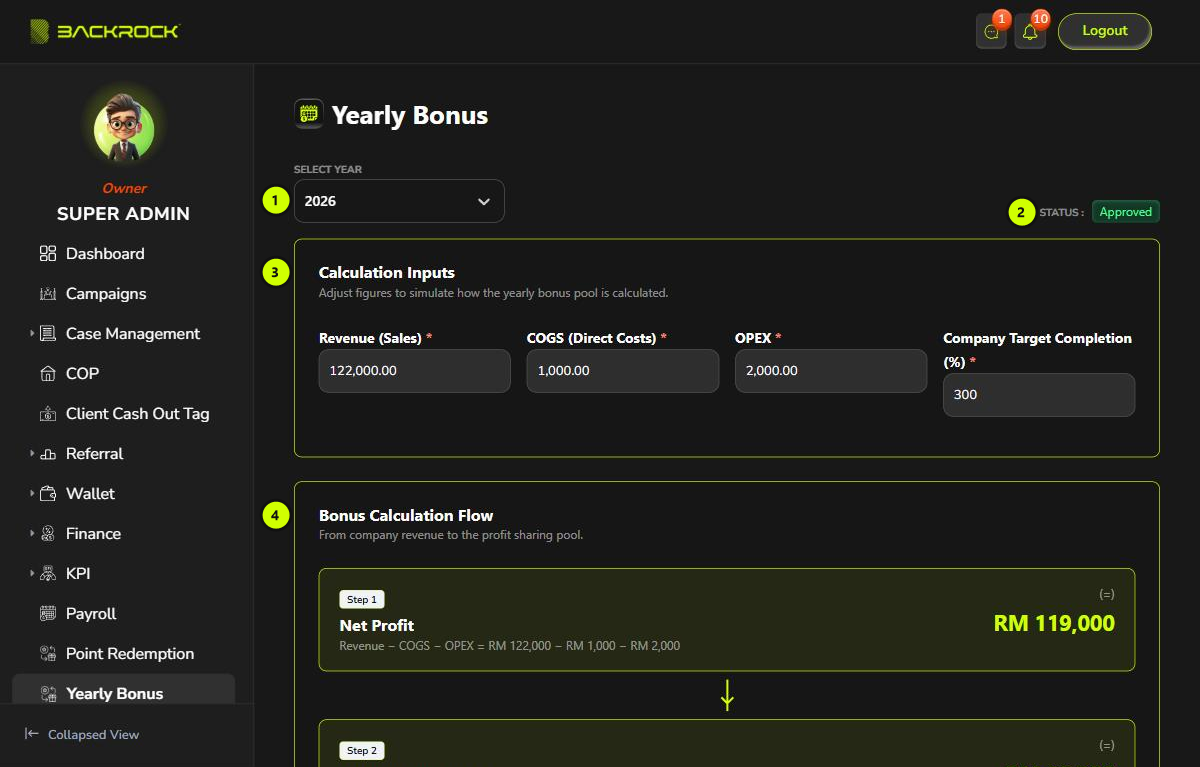
1. Select Year
Choose the year.
2. Status
| Status | What it means |
|---|---|
| New | The yearly bonus for this year has not been submitted yet |
| Rejected | The last submission was rejected. The reason is shown under the status, and you can submit the year again |
| Pending | Submitted and waiting for approval |
| Approved | Approved. The bonuses have been paid into the Annual Bonus Wallets |
3. Calculation Inputs
| Field | What it is |
|---|---|
| Revenue (Sales) | Filled in for you: the total of the approved payments received in the year. You can't change it |
| COGS (Direct Costs) | Type the year's direct costs |
| OPEX | Type the year's operating expenses |
| Company Target Completion (%) | Filled in for you from the company goal for the year. You can't change it |
The year needs a company goal first (see Company Goals). Without one, you see Company goal for … not found, Revenue (Sales) and Company Target Completion (%) stay empty, and the year can't be submitted.
To submit a new year:
- Type the COGS (Direct Costs) and OPEX. Both must be more than 0. Otherwise you see Please enter a valid COGS amount or Please enter a valid OPEX amount.
- Click Submit, then Submit again to confirm.
You see Yearly bonus created successfully, pending layer 1 approval. The status changes to Pending and the calculation appears below. You need permission to create yearly bonuses.
Each year can only have one yearly bonus. If it is rejected, the status shows Rejected with the reason, and you can submit the year again.
4. Bonus Calculation Flow
After the year is submitted, the page shows how the bonus pool is worked out, step by step.
How the bonus pool is worked out
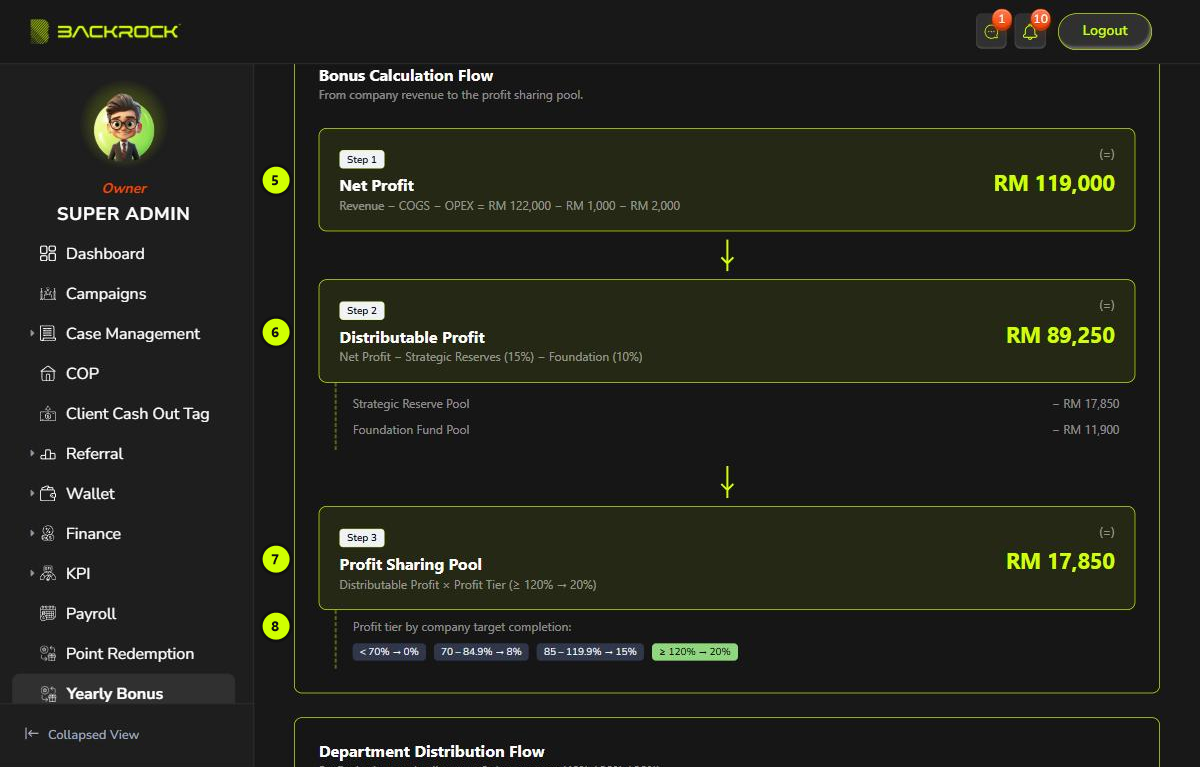
5. Step 1: Net Profit
Net Profit = Revenue − COGS − OPEX. If the result is a loss, there is no bonus.
6. Step 2: Distributable Profit
Part of the net profit is set aside first:
- Strategic Reserve Pool: 15% of the net profit.
- Foundation Fund Pool: 10% of the net profit.
Distributable Profit = Net Profit − the two pools.
7. Step 3: Profit Sharing Pool
Profit Sharing Pool = Distributable Profit × the profit tier.
8. Profit tier
The profit tier depends on how much of the company target was completed. The tier in use is shown in green.
| Company Target Completion | Profit tier |
|---|---|
| Below 70% | 0% (no bonus) |
| 70% to 84.9% | 8% |
| 85% to 119.9% | 15% |
| 120% and above | 20% |
How the pool is shared out
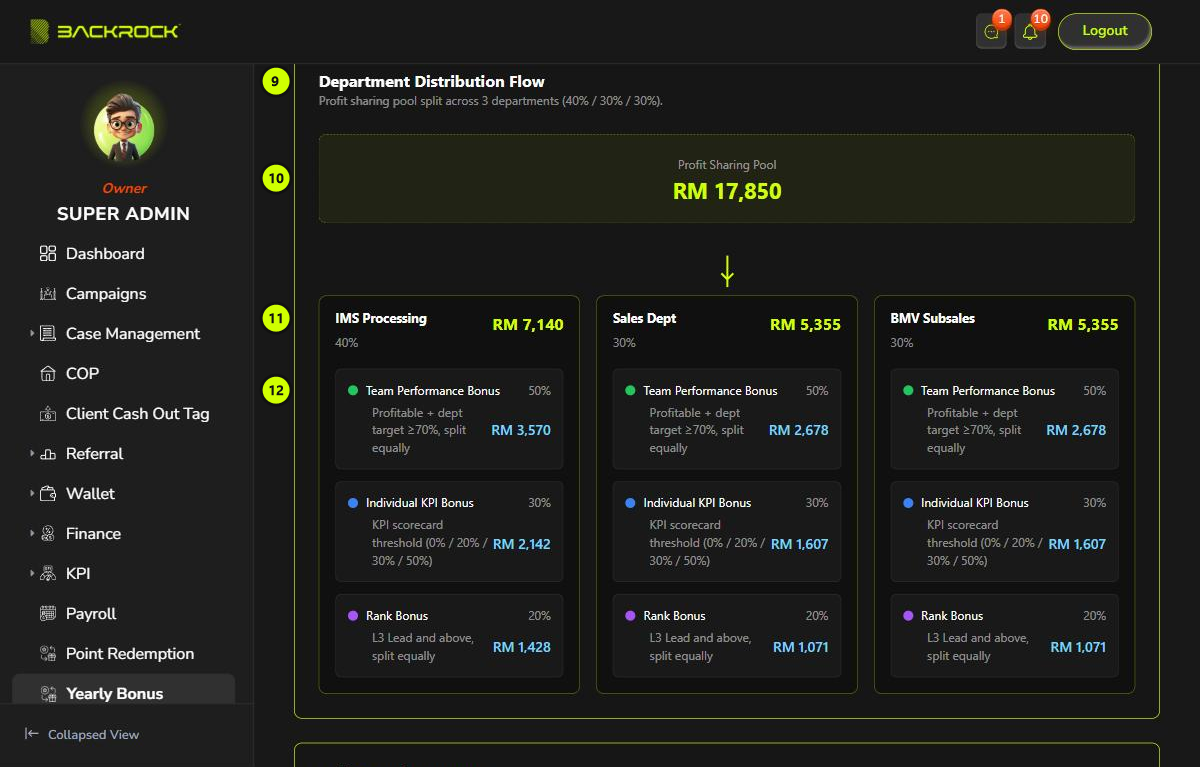
9. Department Distribution Flow
The profit sharing pool is shared between three departments.
10. Profit Sharing Pool
The total pool from Step 3.
11. Department shares
| Department | Share of the pool |
|---|---|
| IMS Processing | 40% |
| Sales Dept | 30% |
| BMV Subsales | 30% |
Click a department to see each person's bonus. See Department details.
12. Bonus parts
Each department's share is split into three parts. Everyone who is an active member of the department when the yearly bonus is submitted is included.
| Part | Share | Who gets it |
|---|---|---|
| Team Performance Bonus | 50% | Shared equally between everyone in the department |
| Individual KPI Bonus | 30% | Each person's equal share is scaled by their average KPI score for the year: the full share above 85, half above 70, 20% above 60, and nothing at 60 or below. People with no KPI score get nothing |
| Rank Bonus | 20% | Shared equally between the owners and leads in the department |
The amounts on the cards are the budget for each part. What is actually paid can be lower, for example when some people don't reach a KPI tier. Any amount not paid out stays with the company. The department details show the amounts actually paid.
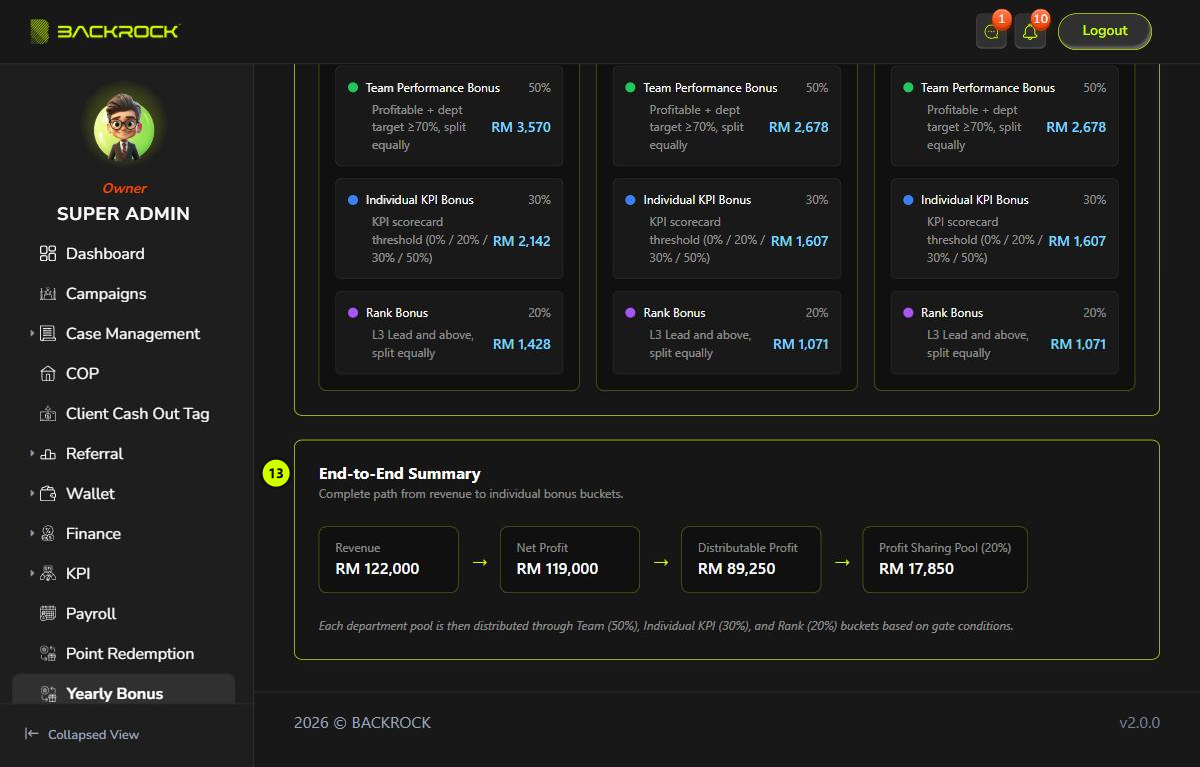
13. End-to-End Summary
The whole path in one line: Revenue → Net Profit → Distributable Profit → Profit Sharing Pool.
Department details
Click a department card to open its details.
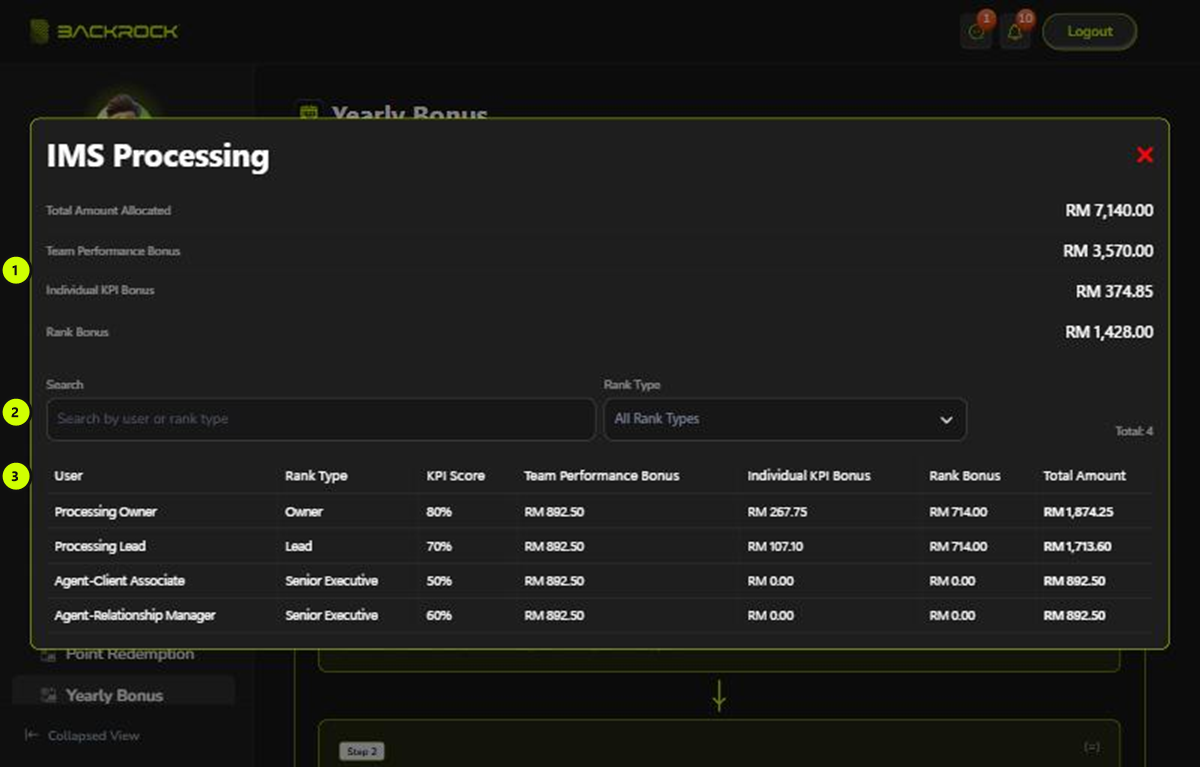
- Totals: the Total Amount Allocated to the department, and how much is paid as Team Performance Bonus, Individual KPI Bonus and Rank Bonus.
- Search and Rank Type: find a person by name or rank type, or show only one rank type.
- People: each person's Rank Type, average KPI Score, their three bonus parts and their Total Amount. The highest totals are shown first.
Approval
A submitted yearly bonus goes through two approvals, Layer 1 then Layer 2. The approvers get a notification. They approve or reject it on the Approval page, in the Yearly Bonus tab, where they can also click View to see the full calculation if their role can view yearly bonuses. A reason is required to reject.
When the yearly bonus is fully approved:
- Each person's Total Amount is paid into their Annual Bonus Wallet.
- Each person gets a notification that their yearly bonus has been credited.
- The status changes to Approved, and the figures can no longer be changed.
The bonus in the Annual Bonus Wallet is added to the person's next payslip as (+) Yearly Bonus. See Payroll.