Case List
The Case List shows all your cases (your financing applications). Your consultant creates and updates your cases. In the portal you can follow their progress.
To open it: click Case in the left menu. You can also click View all cases on the Dashboard.
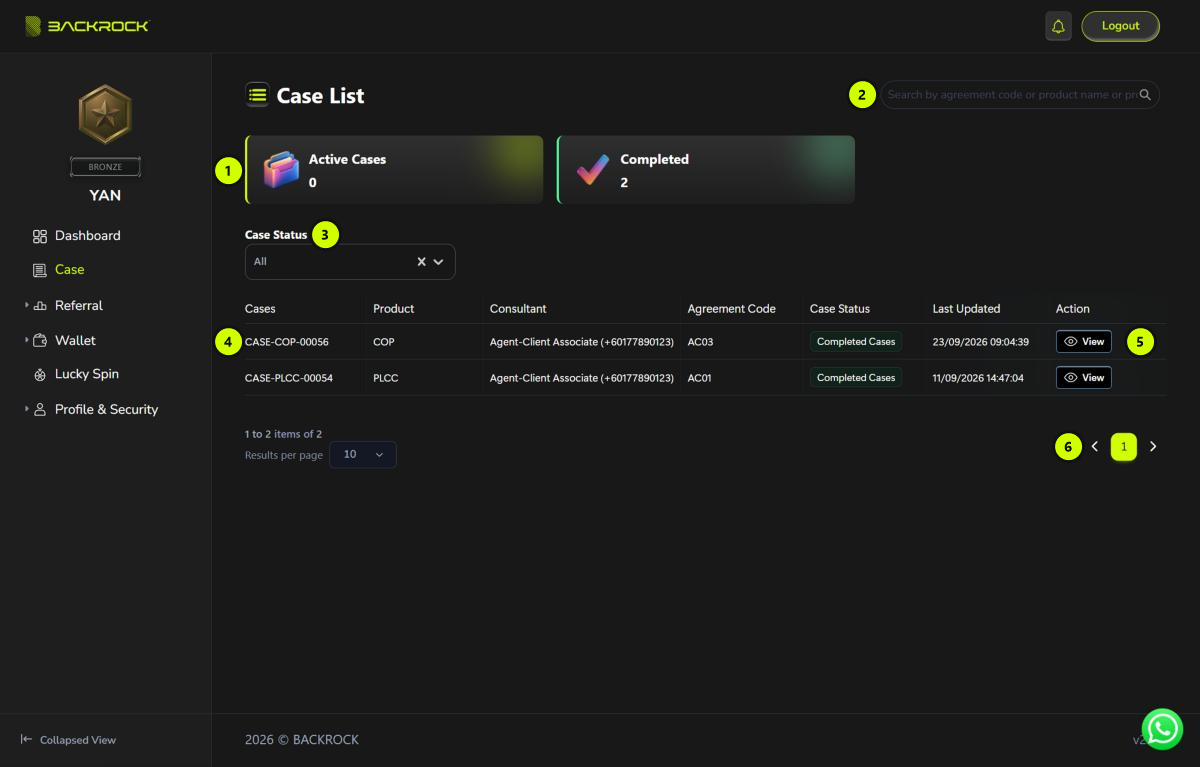
1. Summary
- Active Cases: cases that are still in progress. Completed, rejected and dropped cases are not counted.
- Completed: cases that are completed.
2. Search
Click the search icon (🔍), then type an agreement code, product name or product code. The list updates as you type.
3. Case Status filter
Choose a status to show only the cases in that status. Each option shows how many of your cases are in it. Click × to show all cases again.
4. Case table
Your newest cases are shown first.
| Column | What it shows |
|---|---|
| Cases | The case number, for example CASE-COP-00056 |
| Product | The financing product |
| Consultant | Your consultant's name and phone number |
| Agreement Code | The agreement code of the case |
| Case Status | The current status of the case |
| Last Updated | When the case was last updated |
5. View
Click View to open the case. See Case Details.
6. Pages
If you have many cases, use the arrows or page numbers to move between pages. Use Results per page on the left to show 10, 25, 50 or 100 cases per page.