Notifications
The Member Portal sends you a notification when something important happens. For example, when your case status changes or money is added to your wallet.
What you are notified about
| Notification | When you get it |
|---|---|
| Case Status Updated | Your case moves to a new status |
| Commission Distributed | A commission is credited to your wallet |
| Referral Bonus Credited | You earn a bonus from a referral event |
| Reward Delivered | A reward you redeemed has been delivered |
| Reward Redemption Cancelled | A redemption was cancelled and your points were returned |
| Withdrawal Approved | Your withdrawal is approved, with the payout day |
| Withdrawal Rejected | Your withdrawal is rejected and the amount is returned to your wallet |
| Withdrawal Paid | Your withdrawal has been paid, with the payment reference |
The bell
Click the bell at the top-right of any page to see your latest notifications.
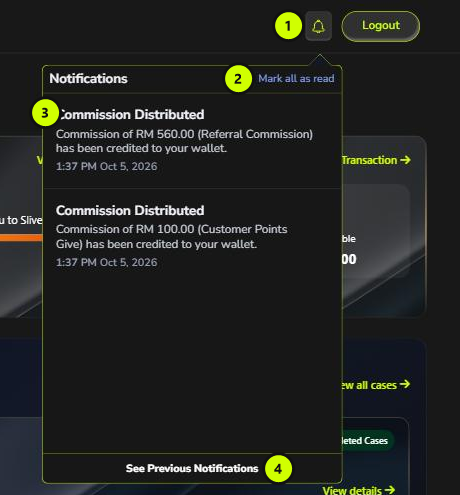
- Bell: a red number on the bell shows how many notifications you haven't read. It updates by itself when a new notification arrives.
- Mark all as read: marks every notification as read.
- Notification: the title, message and time. Click it to open the related page, for example your case or your Transaction History. Unread notifications have a dot. Opening one marks it as read.
- See Previous Notifications: opens the full list. The bell only shows your latest 6 notifications.
tip
To mark a single notification as read without opening it, move your mouse over it, click the … button and choose Mark as read.
The Notifications page
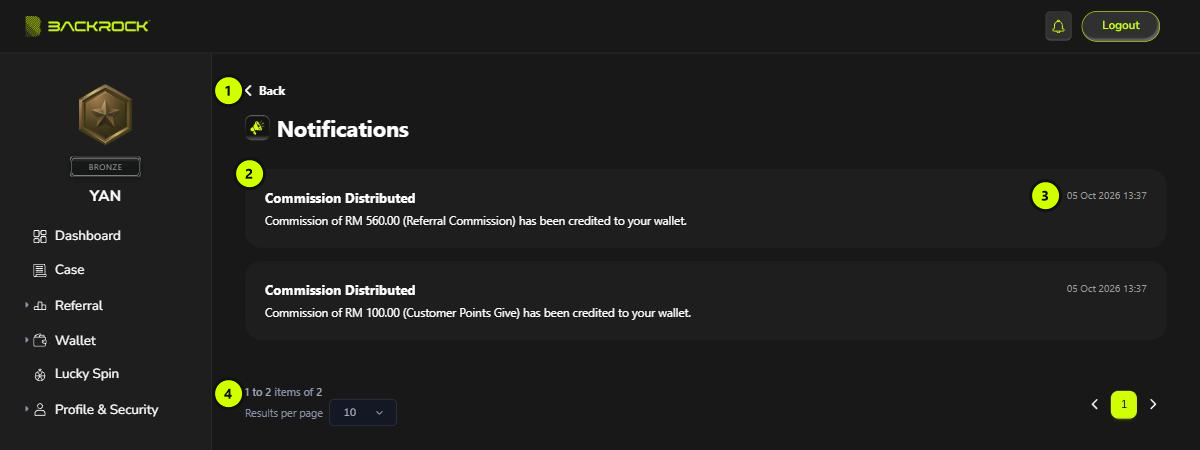
- Back: returns to the Dashboard.
- Notification: click it to open the related page. Unread notifications have a dot.
- Date and time the notification was sent.
- Pages: use Results per page and the page buttons to move through a long list.