My Passwords
On the My Passwords page you can change your login password and manage your trading password.
| Password | Used for |
|---|---|
| Login password | Signing in to the Member Portal |
| Trading password | Confirming a withdrawal |
To open it: in the left menu, click Profile & Security > My Passwords.
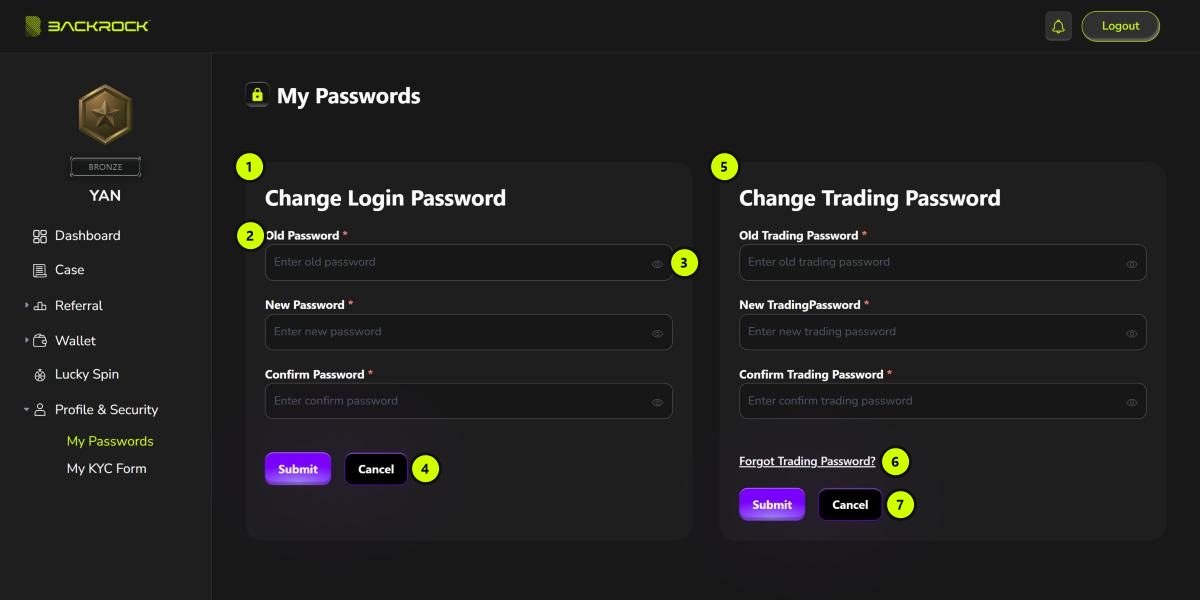
Change your login password
- Change Login Password section.
- Fill in Old Password, New Password and Confirm Password. The new password must have at least 6 characters, and both new password fields must match.
- Click the eye icon to show or hide what you typed.
- Click Submit to save, or Cancel to clear the form.
Change your trading password
- Change Trading Password section. Fill in Old Trading Password, New Trading Password and Confirm Trading Password. The same rules apply: at least 6 characters, and both new fields must match.
- Forgot Trading Password?: use this if you don't remember your trading password. See Reset a forgotten trading password.
- Click Submit to save, or Cancel to clear the form.
First time?
If you have never set a trading password, this section shows Setup Trading Password instead. Fill in New Trading Password and Confirm Trading Password, click Get Code to get a verification code, enter the code, then click Submit.
Reset a forgotten trading password
Click Forgot Trading Password? to open this form.
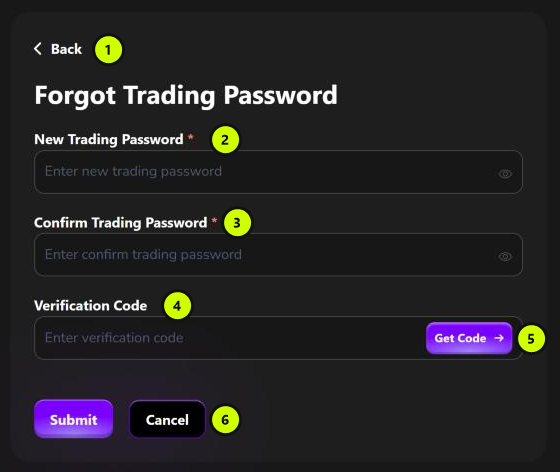
- Back: returns to Change Trading Password.
- New Trading Password: at least 6 characters.
- Confirm Trading Password: type the new trading password again.
- Verification Code: enter the code you receive.
- Get Code: sends a verification code to your registered phone number.
- Submit to save the new trading password, or Cancel to clear the form.
note
- The verification code is valid for 5 minutes.
- You can ask for a new code after 60 seconds.